When getting into working on videos and even later down the line when you’re a pro, you can always encounter some hardships while editing. You will inevitably, at some stage, have to deal with clips that either do not join up or distort the timing or general flow of the video in general.
Fortunately, ripple editing allows you to automatically move clips on the timeline when trimming, deleting, or adding media, helping to speed up the whole video editing process! Let’s see what exactly this mode does and where to apply it to the full extent. And by no means omit pitfalls – ripple editing has its share of them, and we will tell you all about it!
What is ripple editing?
"Ripple editing" is a term for an editing feature that makes it possible to automatically shift clips on the timeline when trimming, deleting, or inserting media. It’s like taking a book from the bookshelf and having the rest of them immediately move just like ripples to close the empty space.
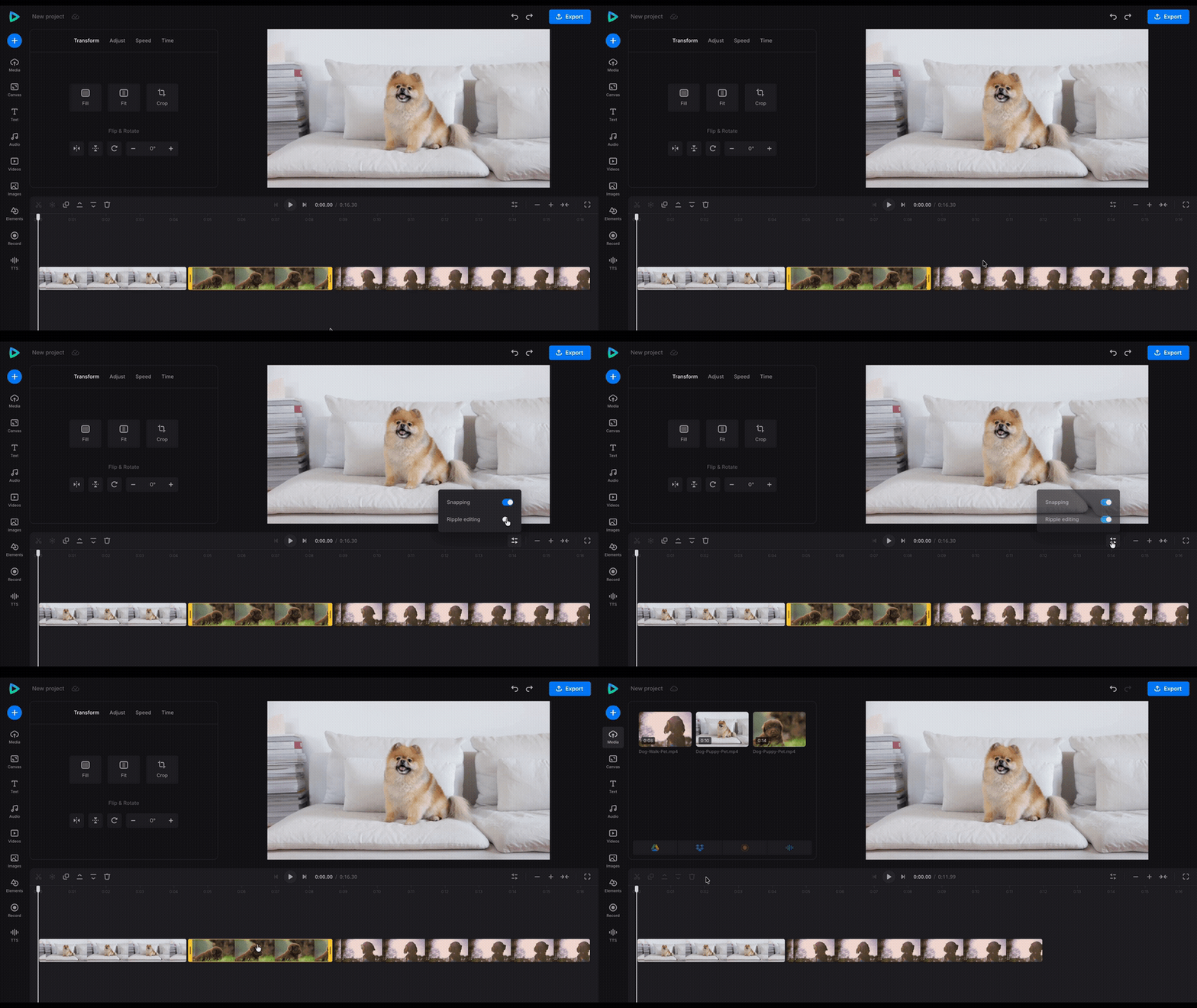
It is especially useful for removing silence and overall cutting, which saves time in both big and small projects. For example, if you want to create a video with multiple clips, ripple edit tools will come in handy!
Ripple editing in popular video editing software
Generally, this feature works the same in different software, but there may be some small divergences between them. Let’s check how it looks in some popular editors!
Ripple editing in Adobe Premiere Pro
To go into Ripple Edit mode, use B or its icon in the toolbar – it looks like two small arrows with a vertical line. After that, choose which clip you want to edit and drag its staring or ending point, and you will see the blank space between elements closing.
In case you forgot to switch the mode on during the cutting process, you may also use Ripple Delete to remove the gaps. It is not in the toolbar, but in the drop-down menu that is opened by right-clicking.
There are also a few related keyboard shortcuts:
V – turn off ripple
Q – ripple trim till the point of the clip where the playhead is
W – ripple trim from the playhead till the end
Shift+Delete – ripple delete selected parts
Ctrl+Shift+K – delete ALL gaps on selected tracks
That is quite useful for cleaning up an interview or podcast, removing a bad take from the editing sequence, tuning a clip to specific music or voice-over, and other similar scenarios.
Ripple editing in DaVinci Resolve
In DaVinci, my offline editor of choice, it works the same; press T to get Trim Mode and drag the corners of the element you wish to cut. Watch the cursor – its appearance varies based on its position and indicates the action that will be performed.
Also, Sync Lock is enabled by default, meaning that if you will, e.g., perform ripple edits on a video, its audio will be cut too. To disable it, check the trackbar on the left – each track has an <|> icon to do so.
Ripple editing in Final Cut Pro
Here, rippling is the default trimming method. So anytime you change the duration of some elements or delete them, the gap between them will be closed automatically.
Similarly to DaVinci, the cursor changes to reflect the action to be done.
Ripple editing in Clideo Video Editor
Clideo is an online cross-platform, easy-to-use tool that can be used efficiently on PCs, phones, and the likes. Rippling here works nearly the same way, and you can also simplify bulk trimming or deleting files when using it.
In Clideo Video Editor, you can toggle the mode in the Timeline Settings at the top-right of the timeline.
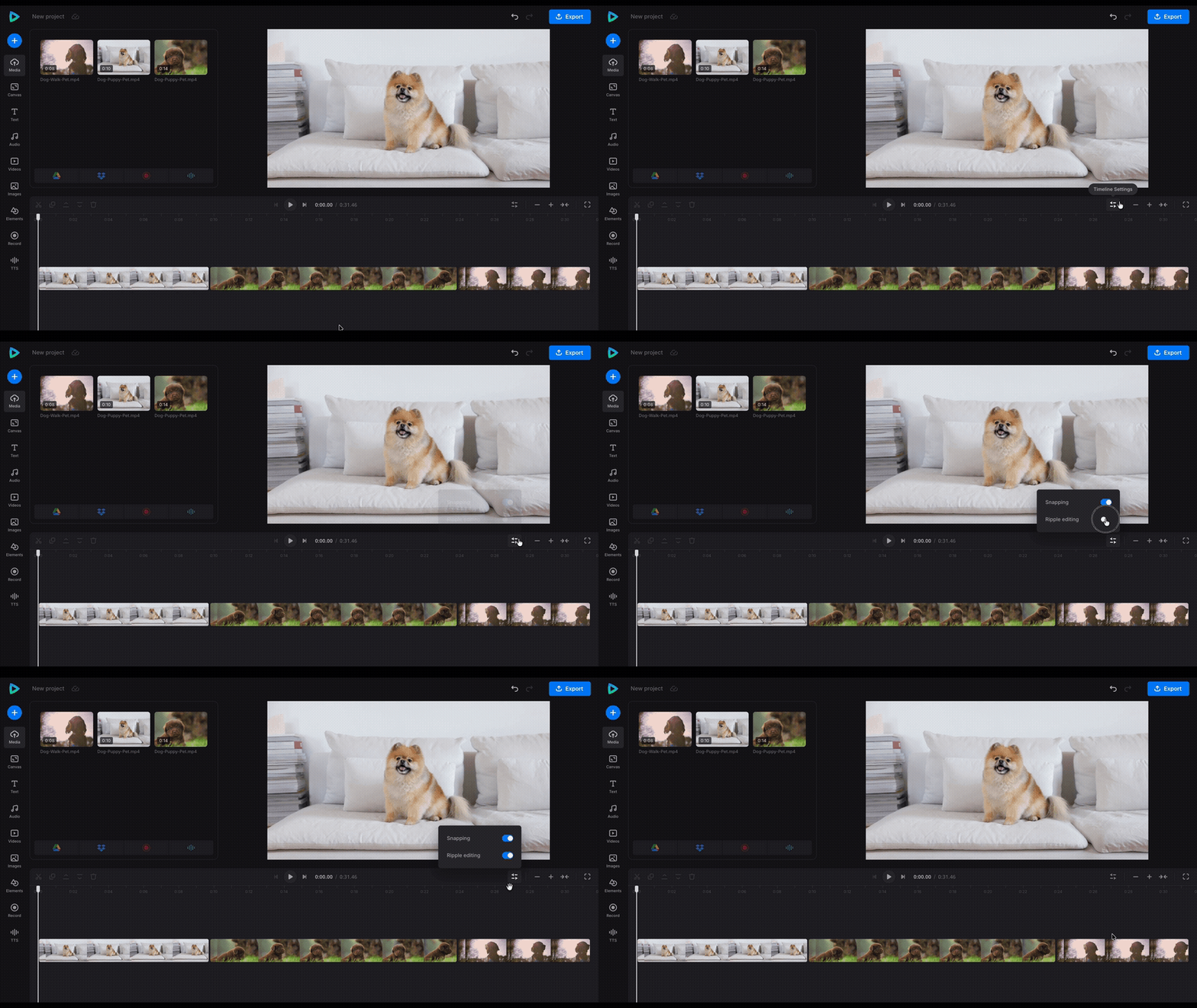
Refer to the Clideo Help Center for further instructions on ripple editing.
When to use ripple editing
Ripple editing should be used, as a rule of thumb, when your video projects consist of multiple clips you need to cut, trim, or delete. For example, when you clean up dialogues and chop out extraneous scenes and pauses. In all these cases, rippling lets you avoid moving all the other clips after every cut.
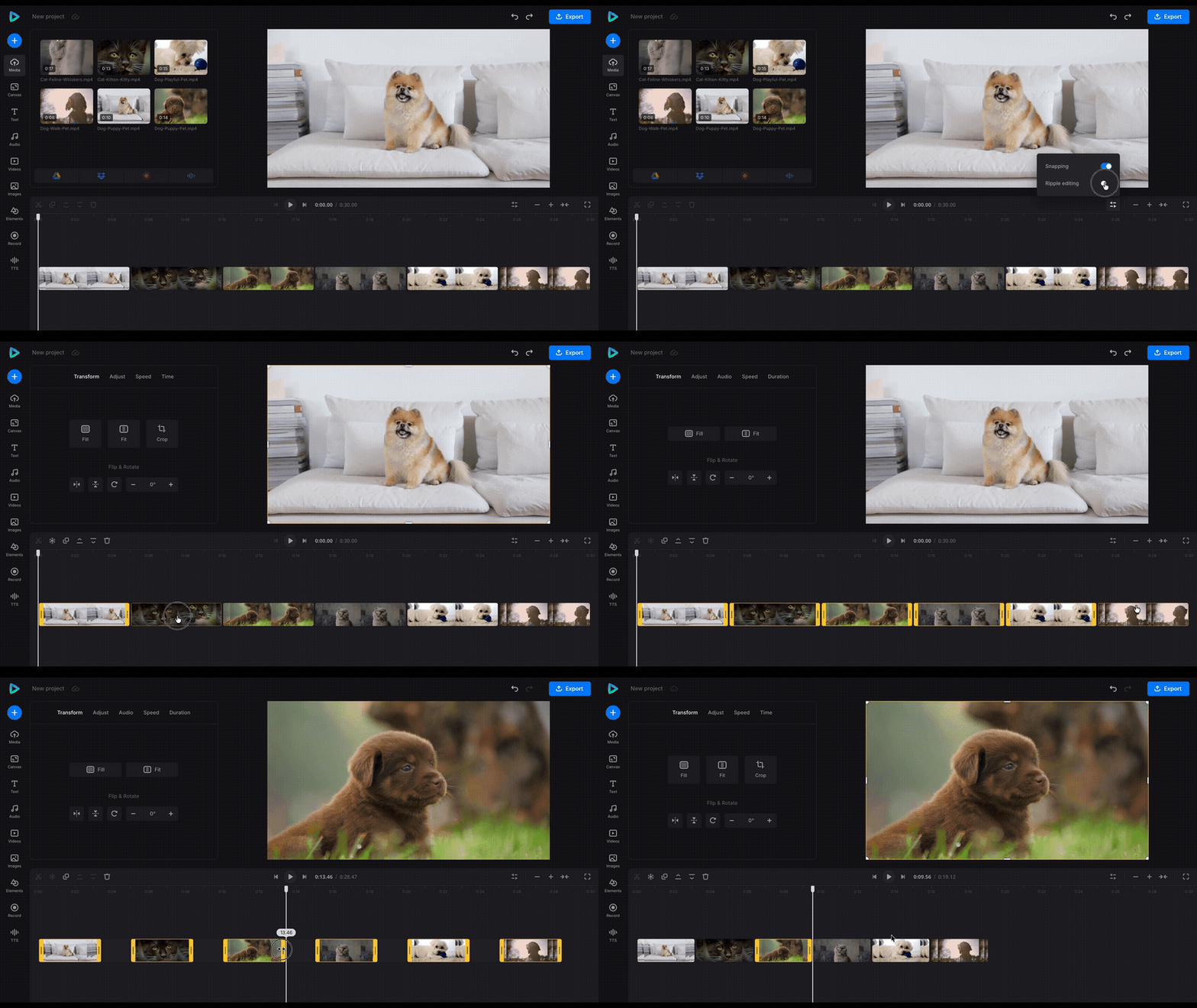
Ripple editing can also be used to make rhythmic or dialogue-driven videos and edits that are very popular social media content types. The faster the editing, the faster the turnaround, and this is what the viewers like to see!
When to avoid ripple editing
Rippling is not an option when you need to have things like all the clips and other tracks (music, titles, graphics) remain on their strictly defined timestamps. Say you’re working on a project where you have to match every frame to a particular sound, or you have to match the cuts with the music.
Plus, an unintentional desync or layout change may happen when ripple editing is left on. That is headache-inducing even with short videos, let alone complex projects with many tracks.
Common mistakes with ripple editing
Naturally, we cannot always avoid mishaps, and it makes it all the more important to be attentive.
For example, we may at times accidentally move multiple tracks simultaneously. To avoid it, remember to check what mode is on and don’t select any unnecessary tracks before cutting.
The other mistake is desynchronization. Before cutting, lock tracks that you don’t want to be moved (if your tool allows for that), like background music; alternatively, use the ripple on all linked tracks at once after selecting them.
Forgetting ripple mode is active, unfortunately, is also common, but it’s a matter of habit. Try to always check the mode indicator and set hotkeys to turn Ripple mode on/off if they are not already set.
In the end, the most common tip is the most obvious one – save before a complex ripple or use the tools with the autosave option, so that you can undo the edit if something goes wrong. And always check which tracks are selected when performing an action, to make sure you make changes where you intended them to be.
Enhancing your workflow with ripple editing
When done right, the ripple tool is truly efficient for any kind of edit.
To make it even better, try keyboard shortcuts! They also make the editing much faster, and hence are good not only when it comes to ripple editing, but also for any other option that you use frequently.
Combining ripple editing with other trimming tools will also be useful. Although ripple is your main mode for adjusting the structure, there are also tools such as Rolling Edit and regular trimming that provide more accuracy for final polishing.
It is an automatic adjustment of all the following footage each time the size of a fragment on the timeline is altered. It’s one of the simplest and most helpful tools for efficient video editing.
Yes, but it’s manageable. Lock tracks and check editing modes – you should always know which tracks are active before ripping.
Sure! Ripple editing is a mode, meaning it can be turned on/off whenever needed.
In the beginning stages, when you have to cut, trim, delete, and assemble the footage that you’ll need later and get rid of unnecessary parts.
When you have strictly placed timelines and don’t want to break their sequence.
This feature is almost a given in almost any modern editor, and this also applies to online tools! You may have a look at Clideo Video Editor to see how ripple editing works on PCs and phones.