This guide is for anyone who wants to add text to GIFs — whether for memes, marketing, or personal projects. We'll cover both online and desktop tools, and show you how to create static and animated captions to make your GIFs stand out. Whether you're a beginner or a casual user, you'll find step-by-step instructions and tips to help you add text to GIFs, including both static and animated text.
Adding text to GIFs is useful for a variety of reasons: it can clarify a GIF's message, make memes more engaging, enhance marketing materials, and improve communication on social media and in personal projects. In this article, you'll learn how to add text to a GIF image using an online tool.
Introduction to animated GIFs
GIF files were introduced in 1987 to share color images over slow dial-up Internet connections. The acronym GIF stands for Graphic Interchange Format. Animation was added in 1989, and short loops soon became a defining feature of the format.
Starting in the mid-1990s, GIFs gained popularity as reaction images, moving avatars for forums, and funny pictures shared among friends. Today, 30 years later, they remain popular. GIFs are used to attract new customers, make content more engaging and personalized, illustrate ideas, and much more.
Why do brands still bet on a 1980s file format? The answer lies in its enduring value in marketing and social media. This content is valuable because it:
- Evokes nostalgic feelings of the early Internet era.
- Makes content eye-catching, especially if you create your own GIFs and embellish them with custom text or visual effects.
- Shows your personality and sense of humor.
- Enhances online communication.
- Makes brands more memorable.
Types of GIFs
There are three main types of GIFs you might find online:
- Video-based, created from video clips.
- Animation-based, made from a sequence of images or drawings.
- Stickers, the latest type, usually with transparent backgrounds and overlaid on videos.
Understanding these types will help you choose the right approach and tools for editing your GIFs. Now, let's review the main methods and tools for adding text to GIFs.
Main methods and tools for adding text to GIFs
You can add text to GIFs using a variety of online editors (such as GIPHY, Clideo, Canva, etc.) or advanced desktop software like Photoshop and GIMP. Online tools are quick and require no installation, while desktop tools offer more control.
Online GIF editors are browser-based and user-friendly, ideal for quick edits and beginners. Examples include:- GIPHY is the Internet's largest GIF database, with a built-in tool for adding text and stickers.
- Clideo is a cross-platform video editor that supports GIFs and offers text customization options in both the browser and the app.
- Canva is a versatile online design tool that is excellent for creating polished GIFs.
- GIMP is a free, open-source alternative to Photoshop for manual control over GIF frames.
- Adobe Photoshop offers the most control for adding custom text to a GIF compared with online editors.
You can add a single or multiple text objects to your GIFs. Text can be static (appearing the same throughout) or animated (moving or changing across frames). You can also customize fill colors, fonts, sizes, and effects, such as bold, italic, underline, and opacity.
Before you start editing, also think about the concept you want to convey. Come up with incisive, witty captions, and become familiar with the other functions and options of the chosen tool. Adding text alone isn't enough: you might need to crop and resize your visual, combine it with other GIFs, pictures, or videos, adjust its color palette, flip or rotate an image, and so on.
Now that you know the main tools and methods, let's get started with creating GIFs with text.
How to make and edit GIFs online using Clideo
If you're an aspiring vlogger and content creator, a user-friendly yet multifunctional tool like Clideo's Video Editor can be your go-to.
This service doesn't require installation since it's browser-based and works online. It suits both experienced and novice users, offering expanded features while still allowing you to undo every action. The interface is also intuitive. Let's walk through the entire process together, step by step.
Upload or create GIFs
Open Clideo's GIF editor in your preferred browser. I suggest using Chrome with the latest version. Click the "Get started" button to open the tool.
There are three ways to start working with a GIF in Clideo:
- Upload an existing GIF file from your device or cloud storage.
- Upload a video clip and trim a segment from an imported recording (your project should not exceed 30 seconds).
- Upload the images that will create a GIF, arrange them on the timeline in the correct order, and specify the duration for each frame (enable ripple editing to speed up editing).
Edit your GIF file
Once a GIF image is created or uploaded, select it on the timeline to open its settings and adjust as needed. You can crop, resize, adjust speed, and make other modifications before adding text.
Once your GIF is ready, you can move on to adding text.
Add text to GIFs
To add text to GIFs, open the "Text" tab and select a preset, and ensure the text on the timeline track is above the visual.
Then enter your captions and set up their font, alignment, position, letter spacing, color, opacity, background, and other attributes. You can also customize fill colors, fonts, their size, opacity, etc.
If you need animated text, you may need to use Photoshop or similar tools. This requires meticulous work: adding a text layer to each frame where it should appear and adjusting timing by showing or hiding the layer on specific frames. But there is a quick workaround in Clideo: combine a GIF with animated text stickers. You can find them in the "Elements" tab and search for the text you need. Most likely, you will find something.
Export your animated GIF with text
After you finish adding and customizing text on your GIF, exporting your final creation is simple and fast. Just click the "Export" button and select the GIF option.
Once the export is complete, you’ll see a preview of your animated GIF image.
From there, you can download the GIF file to your computer or save it to cloud storage services such as Google Drive or Dropbox.
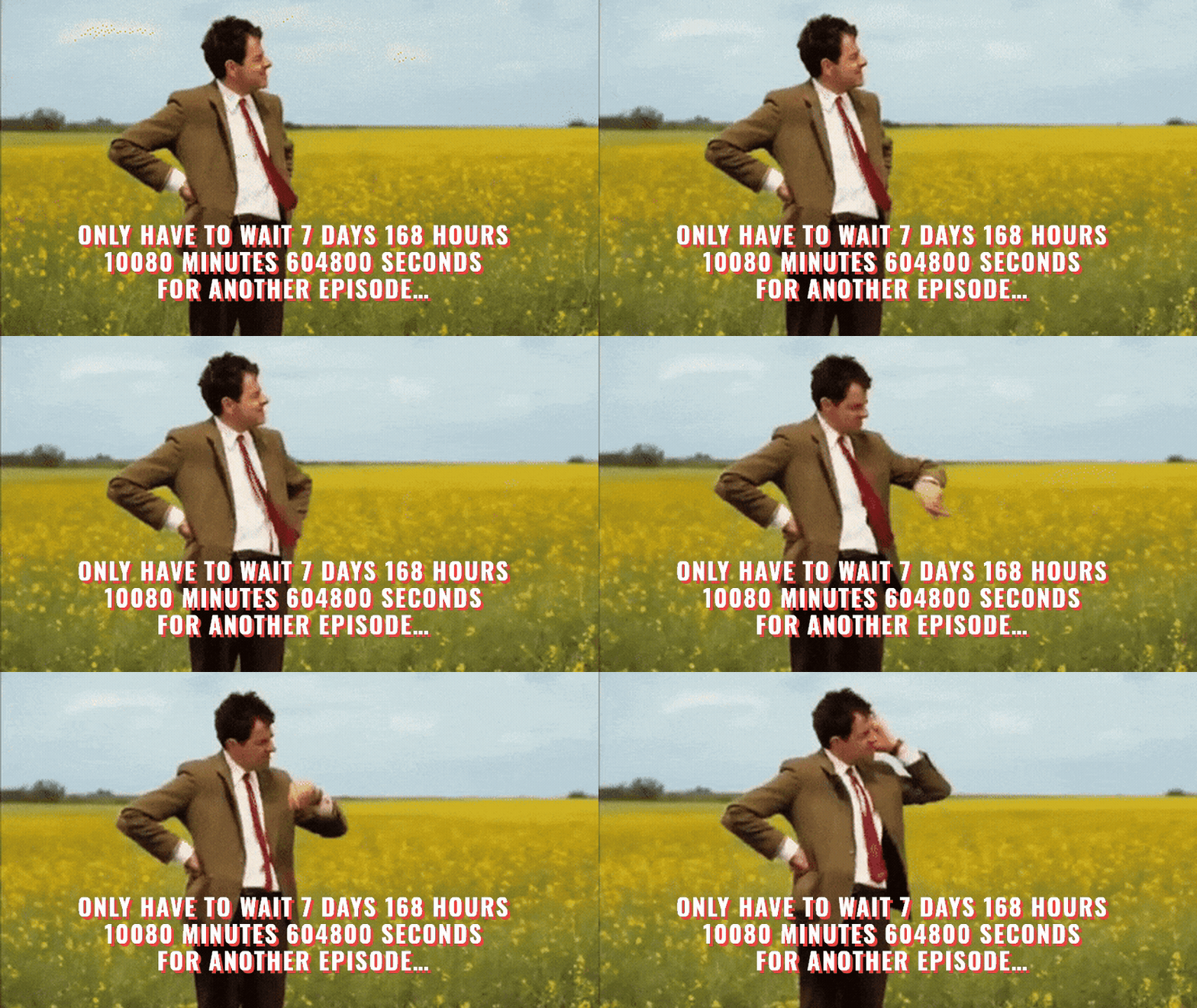
Advanced text customization
Advanced tools offer additional editing options, including shadows, outlines, strokes, and other decorative elements. With their help, you can create intricate animations by editing your project frame by frame and adding multiple text layers, each of which can be animated, blurred, or customized.
If you want your GIF to look more professional rather than amateurish, you might use desktop software such as Adobe Photoshop or GIMP. These tools have clear advantages: they can operate offline and offer features better suited to professional filmmakers. However, desktop applications tend to be costly and require regular renewal. Additionally, the abundance of options can be overwhelming and unnecessary for simple GIFs.
While Clideo's GIF Editor doesn't support three-dimensional fonts (yet), you can easily make your captions appear 3D in just a few clicks.
- Copy and paste the text box that needs a shadow, making sure they are one above the other in the timeline.
- Keep the top one as is, reduce the opacity of the bottom to about 50%, and shift the caption a few pixels down and to the left. This method can also be used to drop shadows or add other interesting effects.
Don't be overly cautious with fonts: feel free to use the most creative and unique ones. The dropdown menu contains around a dozen popular font families, but you can easily find others by entering their names in the search field.
With these customization options, your GIFs can truly stand out. Finally, let's review some best practices and tips for making your GIFs with text even better.
Best practices and tips for GIF text customization
To make your GIF text both effective and visually appealing, consider these best practices:
- Less is better. Avoid cluttering your visual with too much text.
- Make sure the GIF and caption match in style and color.
- Keep captions short and witty.
- Match timing. Since animated GIFs move, ensure captions appear or change in sync.
- Choose less whimsical but more readable font styles.
- Humor is a best seller, so make your GIFs funny and eye-catching.
With these tips, your GIFs will be more likely to stand out and be shared widely.
Click on the text to open its settings. You can select another font, adjust its size, alignment, color, and other parameters.
Absolutely! Clideo is a browser-based GIF editor that requires no software installation, letting you easily upload, edit, and add text to GIFs from any device.
Make sure the text layer is placed above the GIF layer on the timeline. If the text isn't showing, drag the caption box to the upper timeline track to make it visible.
Yes, Clideo lets you search for other Google Fonts by name. Even if a font isn't listed, you can find hundreds more by typing the font name in the search field to customize your GIF text.
Yes, you can add multiple text objects to your GIF. Each text box can be customized individually with different fonts, colors, and font sizes.
Adding text to a GIF used to be complicated and required advanced skills, but now it's quick and easy, with minimal editing time and effort. Customized GIFs with text can boost your brand recognition, show off your personality, and make your content more engaging.