GIF Optimization: How to Improve GIF Quality and Reduce GIF File Size
You converted a video to a GIF, and somehow it looks worse than a screenshot from 2003. Fuzzy edges, banded colors, a file that is somewhat 40 MB worth of six seconds of footage (Come on?!) What went wrong?

Firstly, the short answer: GIFs are a 35-year-old format with some pretty serious limitations when it comes to resolution, frame rate, duration, and number of colors. Issues often pop up with one or more of these aspects. To get your GIF looking decent, you'll need to tackle as many of these points as possible. The good news? Even small adjustments can make a tremendous difference when you understand what's going on behind the scenes.
What are animated GIF images?
Animated GIF files are everywhere these days — social media reactions, memes, marketing emails, ads, you name it. These files are basically multiple image frames stuck together, each with its own timing and transparency settings, making short looping visuals that work across all kinds of platforms.
That old spec is the cause of almost all of the quality headaches you will ever experience — because of three things:
- 256 colors. Each GIF frame can show only 256 colors, chosen from a palette. GIFs can only have 8-bit color, whereas a regular video can have millions of colors. It means that the converter will have to make use of all the richness in just 256 slots, choosing the best matches it can find. If it's unable to find an exact match for a color, it "dithers" — in other words, it alternates between two nearby colors on a per-pixel basis to simulate the color you'd like. That is the grainy "noise" you see in the sky, skin tones, and smooth gradients.
- No smart compression, and an algorithm that really doesn't like real-world footage. Video formats (such as MP4) are genius; they only save the difference between frames, not the entire frame each time. A talking head video without a background that moves around? It's primarily for storing small changes. GIF does not have this luxury; each frame is compressed individually, with a compression algorithm known as LZW compression. This is lossless compression (no discarding of information, thus retaining the original quality), which sounds great, but it doesn't compress files as much as other methods, particularly for images that are complex in nature. LZW is only effective on large flat solid color surfaces. Grain, detail, and shading? Those are the ones you never want to see. That is why a 10-second video that is 2 MB as an MP4 becomes 50 MB when converted to a GIF — and why natural video footage looks so lumpy when converted.
- Frame timing is pretty rough. GIF measures delays between frames in centiseconds (1 cs = 10 ms, if you're keeping track). Theoretically, you could hit 100 fps, but browsers rarely go beyond 50 fps. More importantly, if your source video is at 30 fps (or 33.3 ms per frame), then it doesn't fit into 10 ms chunks — your GIF will end up being something like this: 30ms, 30ms, 40ms, 30ms, 30ms, 40ms, etc.
- Oh, and GIFs have no sound (of course).
Why are my animated GIFs blurry and big?
So you can already see where that blur and "graininess" are coming from? It's always the 256-color thing. If the converter is unable to find a perfect match for a color, it dithers — uses alternating pixels of two colors that are close to the desired color to approximate the color between them. This results in "noise" that appears as grain or a blur on smooth surfaces such as sky, skin, or hair. The more complicated the source footage is, the worse it is. This is not a bug, but a format working as intended.
As for the size, GIFs store multiple frames individually using lossless LZW compression, which is less efficient for complex image files and results in larger file sizes. Another factor contributing to large GIF files is the presence of unnecessary or duplicate frames. Many GIFs contain frames that do not change significantly from the previous ones, but they are still stored separately, increasing the file size. Moreover, high frame rates and large dimensions also inflate the file size. If the GIF is created from a high-resolution video without resizing or reducing frames, it will be large and slow to load.
Can you do anything about it? Well, with the proper source material and a bit of preparation, you can still optimize GIF format for quality and size. And let's see how exactly.
Choose source material wisely
This is a major decision you can make (and it's the most important). The 256-color constraint of GIF can be quite a constraint in real-world video, but for some kinds of videos, it's really not noticeable. The format is designed to accommodate graphics, not film.
Practical tip 1 (source material)
Remember that some videos are more appropriate to make GIFs than others. Choose wisely!
OK for animated GIFs:
- Screen recordings (UI flows, button clicks, cursor movements)
- Simple animations with flat colors
- Simple images with hard edges and solid colors
- Cartoons and illustrated content
- Charts and diagrams
- Clips with little movement in the background
NOT OK for animated GIFs:
- Anything with gradients, sky, skin, or hair
- Footage with motion blur
- Videos filmed in varying lighting conditions
Trim and crop before doing anything else
If you're going to loop an entire video, just... don't. GIF looping is perfect for something that has a three-second reaction — not a two-minute tutorial. Each and every single frame is expensive. Trim ruthlessly to reduce GIF size, and aim for roughly 15 KB to 1 MB for web use. For email marketing, keep it under 200 KB so it loads faster on mobile devices. The smaller the GIF, the better, since there are fewer frames to compress. You may be able to find and remove duplicate frames, which can further reduce your GIF's file size without compromising its appearance.
Target for 2–6 seconds. If it's longer than that, it's likely not supposed to be a GIF; it's a video. The sweet spot is one clear action, then a reaction, then a UI interaction, then a quick reveal.

Practical tip 2 (trimming and cropping)
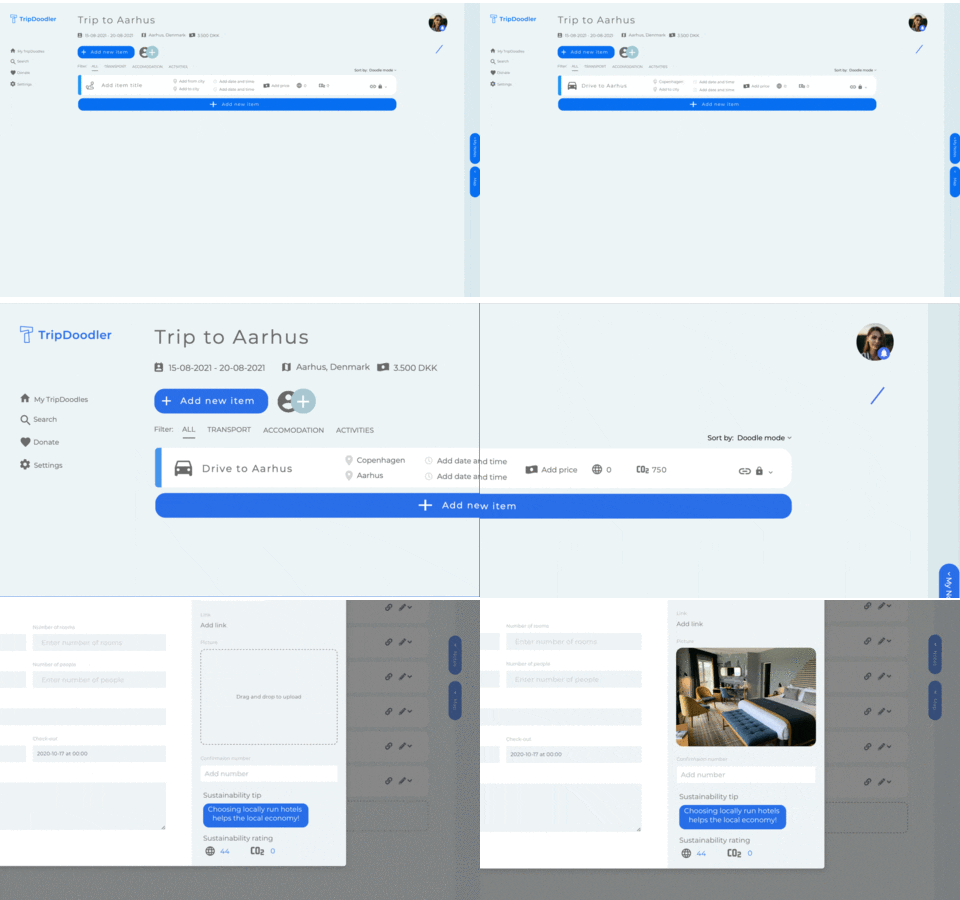
Use the default apps you likely already have on your device to easily trim and crop images:
- Mac: QuickTime Player → Edit → Trim (Command+T) for trimming; iMovie (free and already there) for cropping.
- Windows: Photos app → Edit & Create → Trim or Crop.
- iPhone/Android: Your built-in Photos app does both.
- Online: Clideo's GIF Maker to trim, crop, and export as GIF all in one go, no downloads needed.
Consider color reduction
Most GIF converters just auto-pick a 256-color palette from whatever's in your video. The problem? They're optimizing a GIF for covering all the colors, not for the colors that actually matter in your specific clip.
If you're working in a video or image editor, try color reduction methods manually or use an indexed-color mode before you export. Color reduction is one of the tricks for shrinking GIF file size, since fewer colors in each frame means less data, and all this directly affects the final size. The goal is to give the converter less work to do — and more control over which colors it keeps.
Dropping from 256 colors to 128 or 64 often reduces file size by 30–50% — and most converters or GIF optimizers let you set this directly. Pre-simplifying colors (like desaturating slightly) helps if your converter can adapt its palette accordingly — tools with advanced settings like Photoshop or FFmpeg do this, though many simple online GIF converters don't.

Practical tip 3 (adjusting color)
In a video editor of your choice, reduce the number of colors, as color count adjustment is a major aspect of the GIF optimization.
- Slightly desaturate your video before converting. Fewer vivid colors = better palette fit.
- Apply a posterize filter, which manually reduces the number of colors in the image and thus makes it easier to convert to GIF colors.
- Avoid neon-heavy or too colorful images — they're basically the worst-case scenario for a 256-color table.
- When adding text or overlays, use basic colors. Too much red on top of a natural video can get rather unattractive, and red is not always a color that goes well with a skin tone/green color palette.
Set proper GIF frame rate
Remember that 10 ms timing thing from earlier? Here's what it means in practice.
Use a frame rate that can evenly divide 100 by itself. Your clean options are: 50, 25, 20, 10, 5, 4, 2, or 1 fps.
- 10–12 fps — totally fine for mostly static content like UI walkthroughs or text animations.
- 20 fps — this frame rate is still smooth, but you get a 20% smaller file size.
- 25 fps — the smoothest option for normal motion content.
- 30 fps — stay away from this one as it doesn't divide evenly, thus giving you that subtle timing stutter.
Smoother motion (which means more frames) will increase file size. For the majority of cases, a range between 10 and 25 fps is optimal for smoothness and performance.
If the original video is 30 fps (and most phone videos are), re-export it at a lower fps prior to conversion. It's simply a drop-down in the export settings on most editing tools.
Practical tip 4 (changing FPS)
To change the frame rate (fps), you can use the following built-in apps or online solutions:
- Mac/Windows: Use HandBrake (free) → open your video → go to Video tab → set Framerate to 20 or 25 → click Start Encode.
- iPhone/Android: Use CapCut (free) → export settings → set frame rate before saving.
- Online: Use Clideo's Video Converter (free) to convert the format and change the video frame rate at the same time.
Adjust scale resolution
Higher source resolution doesn't automatically mean a better GIF. It means a much bigger file that gets downscaled anyway, because more data (like higher resolution or more pixels) means larger file sizes due to all that extra pixel information that needs to be stored and sent.
The sweet spot:
- Web: 320–640 px on the long edge. The average GIF image across the web is about 480p, or 640×480 pixels.
- Messaging: 200–480 px on the long edge.
While a GIF can go up to about 1200×900 pixels, most platforms tend to perform better when you stay under 640×480. With smaller dimensions, GIFs also become easier to share or send by email without sacrificing too much quality.
Also, here's another weird thing: Smaller GIFs can actually look better than larger GIFs. You don't notice the dithering or the color banding as much when the pixels are very small.
Practical tip 5 (changing resolution)
Resize your video before converting using one of the default apps or online options:
- Mac: Use QuickTime Player (free) → File → Export As → 480p.
- Windows: Use HandBrake (free) → open video → Picture tab → set width to 640px → Start Encode.
- Online: Use Clideo's Resize Video tool
Use text and overlays with caution
Adding text or stickers to your clip before converting to GIF animations is... well, it's complicated.
The good news: Large flat-color areas, such as emoji or solid-colored backgrounds, compress pretty well in GIF format due to their uniformity. If a frame has 50% solid color, then it's a happy GIF frame.
The bad news: Text has sharp edges. When they meet the background, there are abrupt color transitions that do not dither nicely. If your text color doesn't fit neatly within the primary palette of the video, then those edges will appear jagged.

Practical tip 6 ( text colors)
- Use colours that are present in your video for texts.
- Avoid using overly saturated, bright colors of the text, particularly red color on natural footage.
- Use the largest and boldest font possible as thin letters are most affected.
Or skip GIF entirely?
GIF was state-of-the-art in 1989. But you can use a much superior alternative these days that is actually supported by more and more platforms and browsers.
- Animated WebP is usually 50–80% smaller than GIF and offers much better quality, with support across all modern browsers.
- Animated PNG (APNG) is similar in size to GIF or sometimes smaller, while preserving lossless quality, and it also works in all modern browsers.
- Animated AVIF is even smaller than GIF and delivers the best quality, though support is currently limited to most modern browsers rather than all of them.
- If file size and quality matter most, a looping MP4 is often the strongest option: it can be more than 90% smaller than a GIF, provides the best quality, and works virtually everywhere.
Practical tips 7: Create animated WebP or animated PNG
If you can control where the content is placed, such as your own website, blog, product page, etc., then WebP or APNG can be used.
- FFmpeg (free, Mac/Windows/Linux): simple command line: ffmpeg -i input.mp4 output.webp or ffmpeg -i input.mp4 output.apng
- GIMP (free, Mac/Windows): File → Export As → pick .webp or .png, check the animation option in the export dialog
- Photoshop: File → Export → Save for Web, select WebP or PNG image with animation frames
Practical tips 8: Loop an MP4 instead
The good thing about looping an MP4 file is that you're simply asking the player or browser to restart it! Quality and file size remain unchanged regardless of the number of times it loops.
To loop on a webpage (HTML) add three attributes to your <video> tag and you're done:
- autoplay + muted — required by browsers to autoplay without user interaction
- loop — restarts the video when it ends
- playsinline — prevents iOS from taking over fullscreen on mobile
To loop in a media player, just find the Loop option in the settings:
- VLC: Playback → Loop (or press L)
- QuickTime: View → Loop
- Windows Media Player: Right-click the video → Repeat
To loop on social/publishing platforms, like Slack, Notion, Twitter/X, Discord, no special action is required, they can loop short videos on their own once you upload them.
To loop on WordPress or any other CMS that uses a block editor, embed the MP4 as a Video block and enable the "Loop" toggle in the block settings sidebar.
So as you can see, no special export is required as any MP4 file works as-is because the looping is done at the playback/embed level and not within the file.
The quick GIF compression checklist
Before you hit "Export GIF", run through this:
- Clip is 2–6 seconds, focused on one action
- Source is a screen recording, cartoon, or flat-color animation — not real-world footage
- Video is trimmed and cropped
- Colors are simple: desaturated slightly, no neon-heavy palette
- Frame rate is 25, 20, or 10 fps — not 30
- Resolution is 320–640px, not 4K
- Text overlays use simple colors that match the underlying palette
Hit yes on most of these, and you'll get a GIF that's noticeably cleaner, lighter, and way less embarrassing than whatever the raw export looks like by default.
GIF frames are limited to 256 colors. When a color isn't in the palette, the converter approximates it by mixing nearby pixels — that's the grain you see.
In order of impact: trim the clip shorter, lower the frame rate, reduce resolution, decrease color count.
10–25 fps. Use 25 for smooth motion, 10–12 for mostly static content like UI walkthroughs.
Yes, but transparency is binary — pixels are either fully transparent or fully opaque, which can cause jagged edges.
Often, yes. If you control where the content is displayed, an animated WebP or looping MP4 will look better and load faster.