How to Edit a YouTube Video
Video editing can seem like quite a formidable process that scares many away. Learn about how to make it simple and enjoyable for you!

Video essays, reviews, gaming sessions, music videos… Those are only a small part of what you can find on YouTube, and they are completely different in the ways they are presented. That is, of course, because they are edited in certain ways. However, many of them also share similarities stemming from their intended platform, which is YouTube.
In this article, we will talk about how to edit YouTube videos easily before posting, as well as using the platform’s tools and features to help with promoting your channel and avoiding any issues. So let’s jump right into it!
Introduction to YouTube video editing
First things first, YouTube video editing is indispensable for creating engaging content and growing your channel. Even the lack of editing is a creative choice, in which case you have to understand why you make it.
Otherwise, every YouTube video needs lots of editing operations beyond just basic cuts, including adding captions, transitions, music tracks, etc. It may seem like a lot at first, but treat each type as its own step to avoid overwhelming yourself before you start.
Also, it’ll be beneficial to explore the variety of video editing tools available to you. YouTube has its own built-in video editor, but you can also try some desktop editing software or powerful third-party online editors, like Clideo Video Editor. To figure out which option suits you better, let’s review the types of edits expected.
What edits does your YouTube video need
The must-have edits that can make your YouTube videos stand out include:
- trimming and cutting footage;
- adding captions and subtitles to improve accessibility;
- including text or image overlays to emphasize key points.
Other types of video editing are generally extraneous, but they can also help to enhance viewer engagement, for example by speeding up parts of your YouTube video to keep the pacing dynamic. For example, try using smooth transitions between scenes and visually appealing video effects to capture viewers’ attention for longer.
The other part of the video, which is audio, is equally important, so you should optimize it as well. It helps create a professional audio quality by adjusting volume levels and adding voice-overs or sound effects. Some unobtrusive music also works well if you plan to have voiceless parts and want to make sure viewers won’t click away.
And then come YouTube-specific parts that help promote your channel and keep viewers watching more content.
- End screens are interactive buttons that appear during the last seconds of your video (you can adjust their timing). They contain links to your channel, the last video, or the one that you pick, the chosen playlist, or all of them if you feel like it!
- Cards are also links, but you can place them at any point in the video, and you can link to others’ videos or channels. You can also add non-YouTube links this way if you’ve joined the YouTube Partner Program.
- Playlists are useful for grouping multi-part series or specific topics if you publish a lot of videos. This way, you can guide viewers to an uninterrupted viewing experience of content they find interesting.
How to edit your video in YouTube Studio
Once you add your video, you can access the YouTube Video Editor to make changes via the video details. Here’s what you can do:
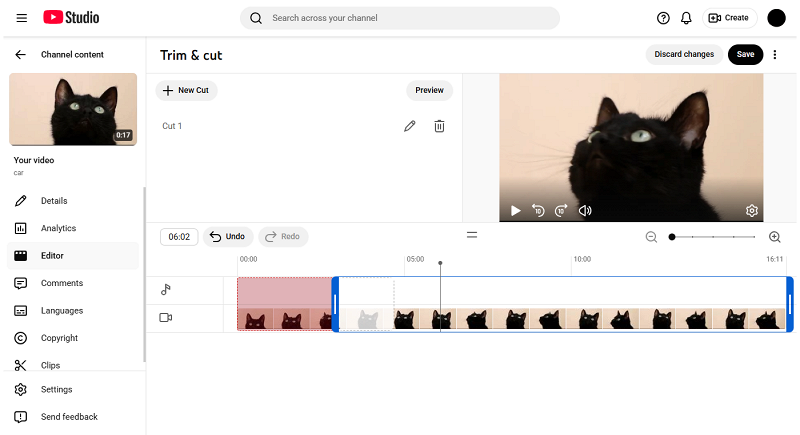
Trim and cut
Place the playhead on the video timeline where you want to cut the part of it and click "New cut", then adjust handles for more precise timing and use "✓". Repeat wherever you want to cut. When you’re done, click "Save" to apply all the cuts.
Add music
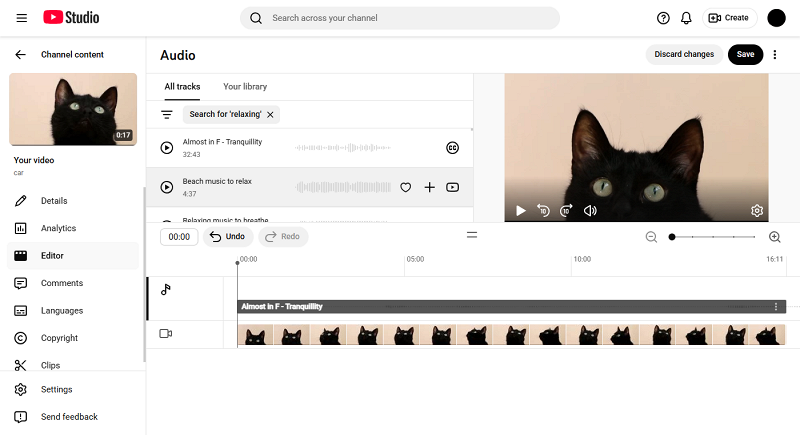
When you open the "Audio" tab, you can search for various copyright-free music. You can filter tracks by Genre and Mood — perfect for setting specific vibes. When you find the right audio, hover over it and use "+" to add it to your video.
After adding, the audio file appears on the timeline. Click three dots on it to set the volume level. To place audio at a specific point, simply hold and drag it there. And if you want only some part of the track to play, drag the corners of the dark-gray area to only have the necessary part within it. Once again, click "Save" to apply changes.
Blur
If you film outside or in lively areas, you may catch some people in your footage. If that happens and you can’t cut out the part with them, it’s better to blur their faces. Luckily, it’s possible here.
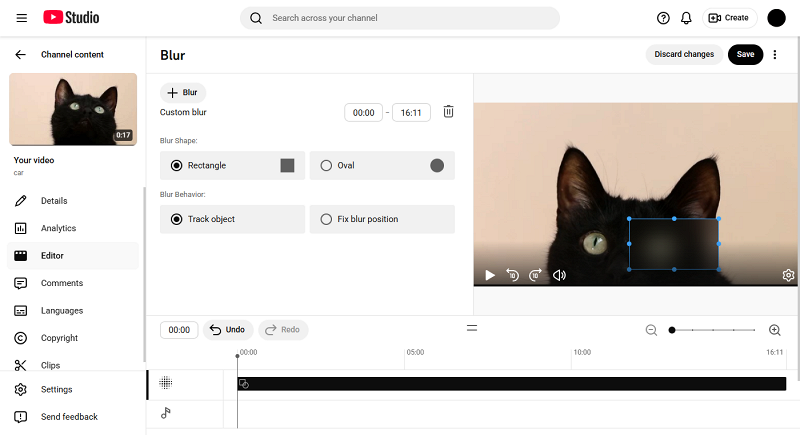
Click "Blur", then select whether you want to apply a face blur or a custom one. If you choose the former, it’ll automatically detect faces and blur them. But to avoid any possible mistakes, it’s better to go for the latter straight away.
In custom mode, you can select a rectangular or oval shape for the blurred area and adjust its size and position within the player. Plus, you can put the timing of it and specify whether it should stay in its place or track the object that is blurred.
Add info cards and other elements
This is pretty simple. To add an info card, click "+" and choose what you want to link — a video, a playlist, or a channel. For the first two, you can link your content, but every option also allows you to search for anything on YouTube.
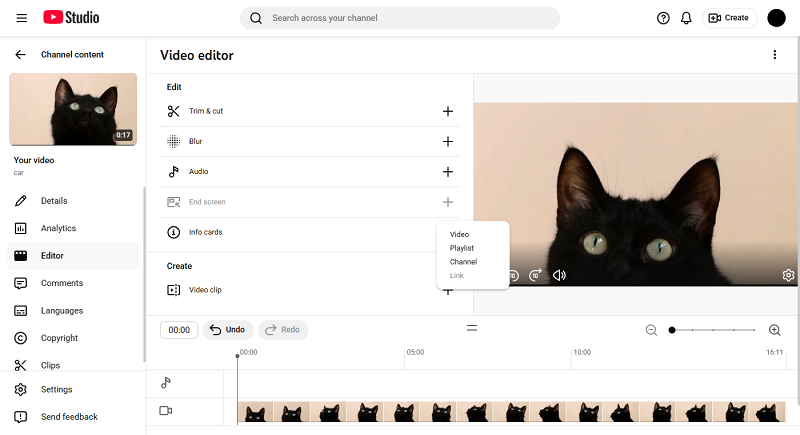
Once you choose what you want to link, the card appears on the timeline, and you can freely move it to specify where it should play. You can also add a teaser text (the caption that’ll appear on the card) and a custom message (the caption that shows up when you click the card).
As for end screens, when you click "+", there are some layout templates that you can use. Of course, you can move the elements in the player to adjust their position and add additional elements. To specify the time when they appear, put the precise timing in the menu left to the player or just move their gauges in the timeline.
When you select video elements, you can choose a specific video or let YouTube automatically select the latest video on the channel or the one that best suits the viewer.
Finalize and publish
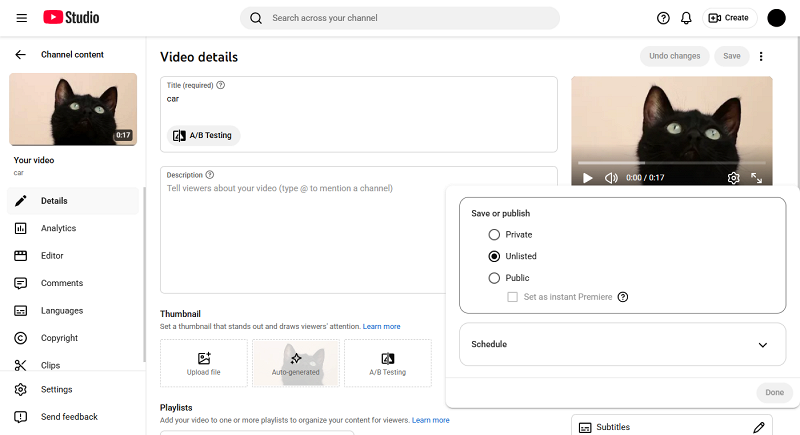
When you upload the video, it may be published even before you edit it in YouTube Video Editor, unless you set it to Private or Unlisted. As such, it’s a good practice to do so if you want to edit YouTube videos before publishing.
You can see how it looks at any point of editing, as the link is generated upon uploading. Once you’re satisfied with the result and ready to publish it, simply go to the "Details" tab and set the Visibility to Public or schedule the video to go public at a specific time.
How to edit YouTube videos with Clideo Video Editor
While YouTube Studio is helpful, sometimes you need to apply edits that aren't available there. If that’s the case, our handy all-in-one Video Editor comes to the rescue! It’s a browser-based video editing tool with a user-friendly interface, which allows for quick and simple editing on the go, giving you all the key tools in your browser.
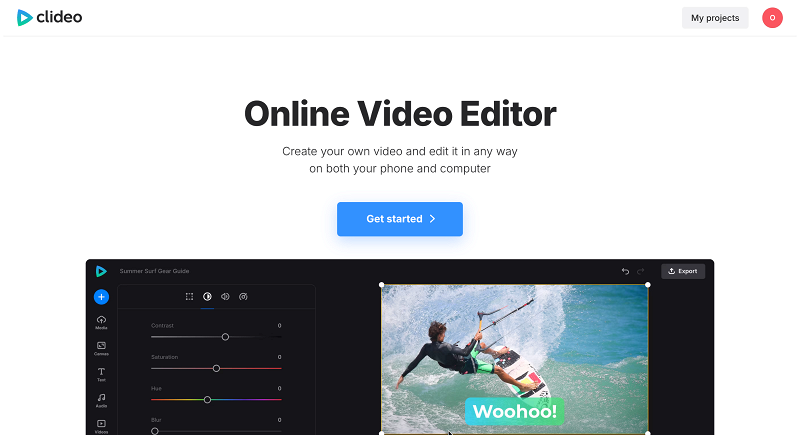
The editor is very easy to use:
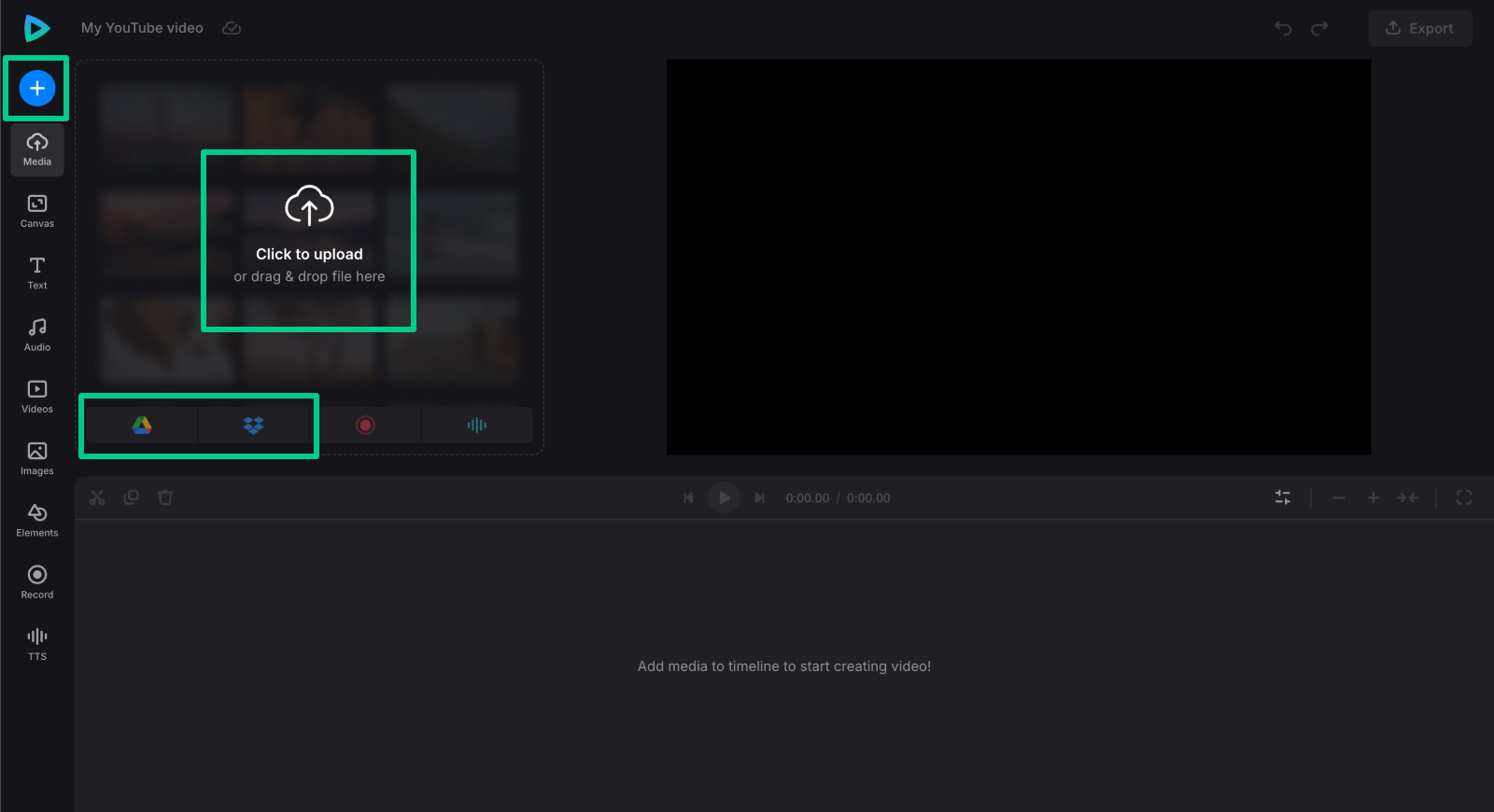
Click "Get started", then add your video clip by using "+" or just drag and drop your file to the page. There, you can also import videos via Google Drive or other cloud storage.
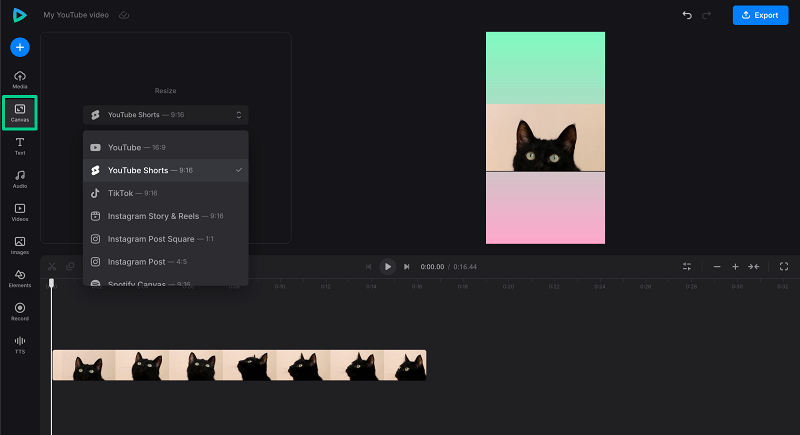
If you need to resize the video for YouTube Shorts, for example, go to "Canvas" and select a suitable template from the list. If it results in black bars appearing, you can change the background color here as well.
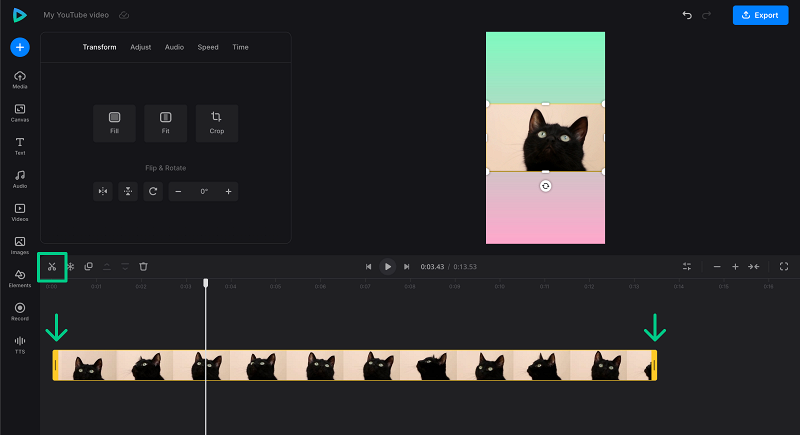
To cut out unnecessary parts inside your video, move the playhead and click the scissors icon at its start and end points, then delete the piece you do not need using the bin icon. You can also trim the clip by dragging its sidebars in the timeline.
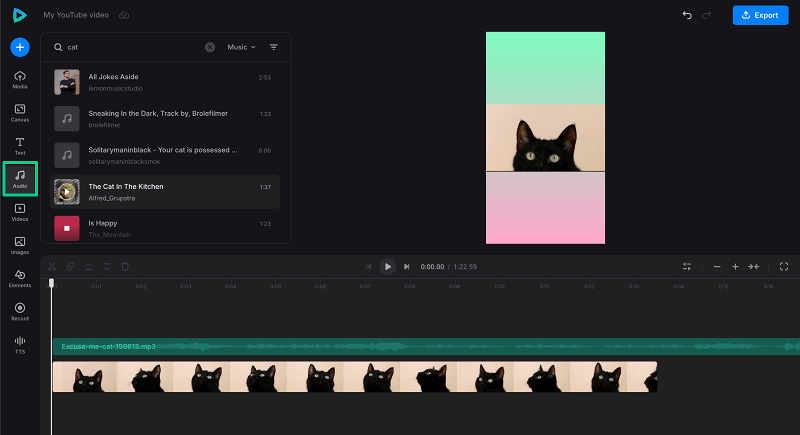
To add royalty-free background music, go to "Audio" in the menu on the left. After that, click the track in the timeline to adjust its volume. There’s also an option to remove unwanted noise.
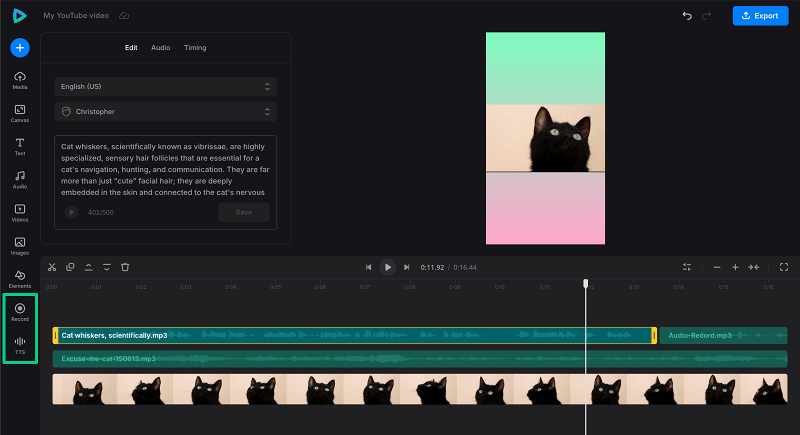
Use "TTS" to generate an AI voiceover or record your own narration using the "Record" option.
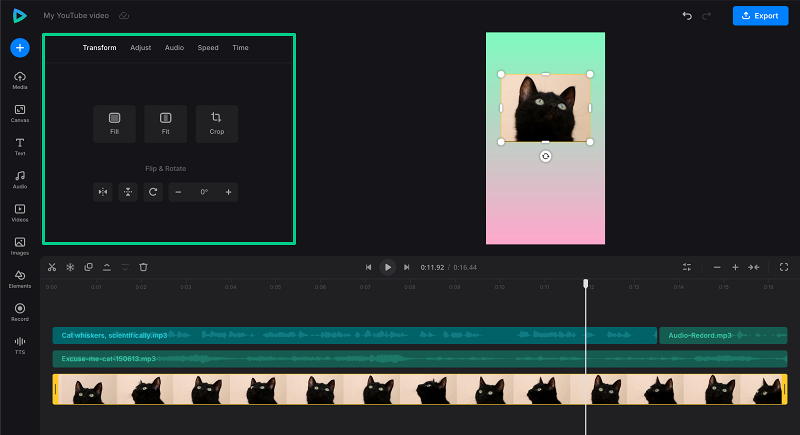
When you select any of the clips in the timeline, you’ll find various options to edit them, like applying video color adjustments and adjusting playback speed.
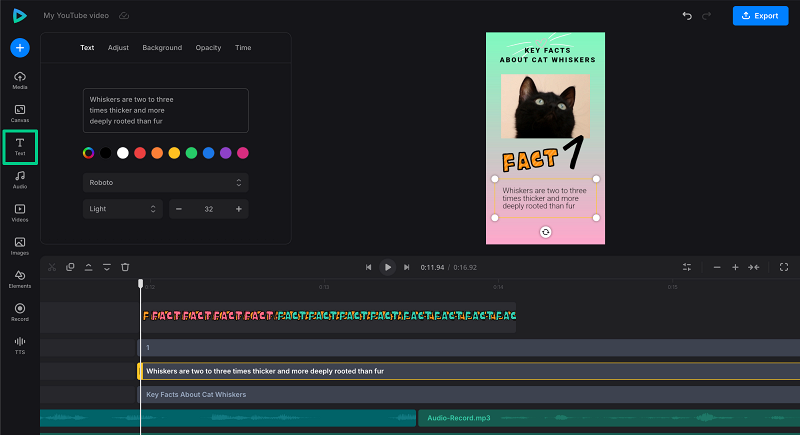
To add captions, in "Text", click any template you like to add it to the video, then customize the text and its settings (color, size, font, alignment).
When you finish editing, click "Export" in the top right corner and select the quality and resolution optimized for YouTube upload.
How to edit YouTube videos on mobile devices
Want to edit YouTube videos on iPhone or Android devices? It’s also possible! There’s a YouTube Studio App available both in the Play Store and the App Store. However, it only allows for editing the video title, description, tags, etc., so it’s better to use built-in editors or third-party apps like Clideo’s mobile app for fleshed-out video editing, or just use the online tools for editing videos on Android and editing videos on iPhone.
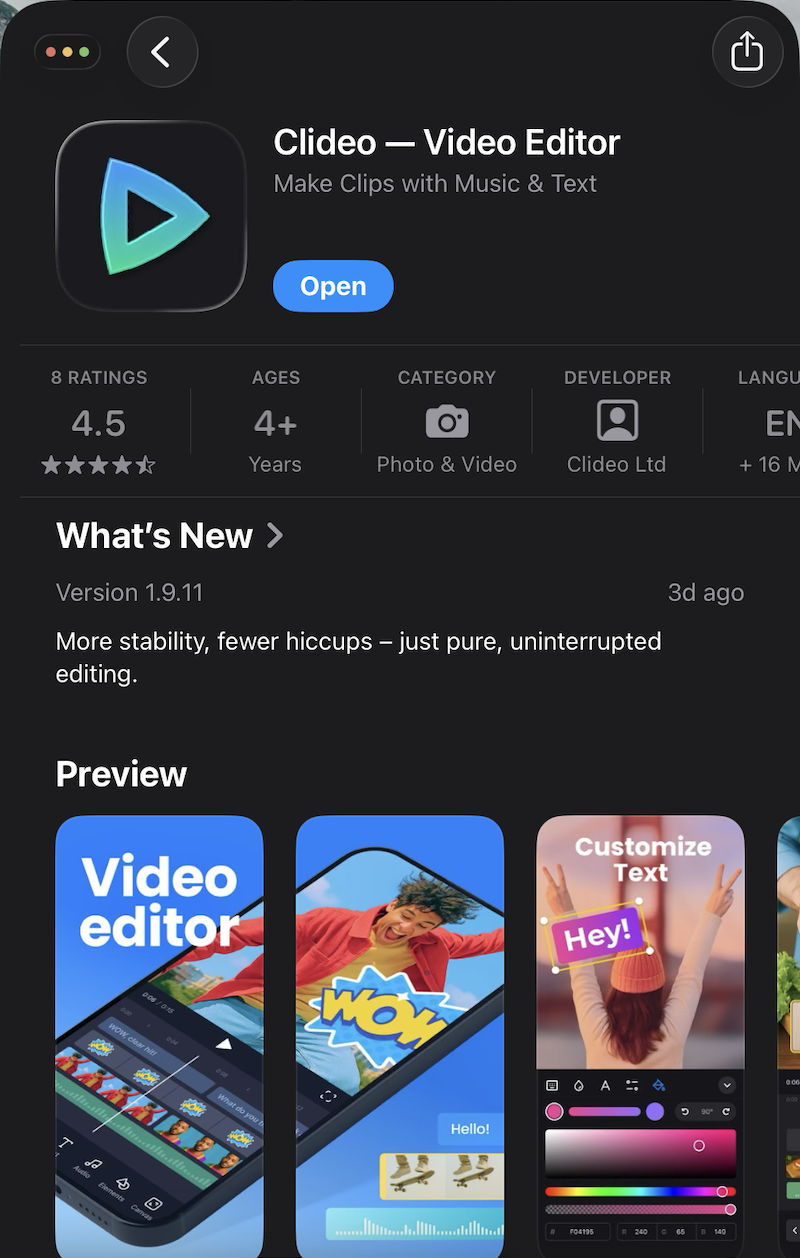
The latter is pretty similar to its browser version, so it’s a good choice to trim, add music, text, or stickers on the go. What’s more, you can then upload your video directly to your YouTube channel after exporting!
Finalizing and uploading your YouTube video
Make a final review of your edited video to make sure everything looks good. Then, it’s time to give it a proper title, description, and tags. And don’t forget about the thumbnail — it’s the first thing a potential viewer sees. After uploading, share your video link on social media platforms you frequent to broaden the reach.
However, it doesn’t end there; engaging with your audience through comments is also important to be remembered by them and see what works better. So is using YouTube analytics to monitor your video’s performance and refine your editing strategy for future videos.
If you edit the video outside of YouTube, you can add text in a video editor of your choice. Otherwise, you can do it during one of the uploading steps or in YouTube Studio.
Sure! Though the YouTube Studio App lacks a lot of editing features, you can always use online tools or other video editing apps before uploading.
Choosing tracks in YouTube Studio will suffice, but there are also specialized websites if you want a wider variety.
Though it allows for a lot of various formats, MP4 is the best one, as it’s the most common and can be played on nearly any device without issues.
When you upload a video, you can do so during one of the steps before publishing. If you don’t do it right away, you can always add those elements through the YouTube Studio editor later.