How to Put Two Videos Side by Side
We love to combine various things, as it’s often nicer to see them side by side, together... Learn how to achieve it with two videos in one!


Be it comparisons, pretty combinations, duets, or seeing different POVs at once, we love to see two clips stitched together. Not only do they convey more information immediately than when shown in succession, but this type of editing also fosters creativity, as there are countless ways to visually divide videos.
Moreover, you don’t have to be a master editor to create them. Of course, some memorable, flashy divides require some work, but it’s not necessary if you want a simple split-screen video or just don’t have enough experience. In that case, let us help you get started!
Introduction to split-screen videos
Split-screen, or side-by-side videos, use a technique that breaks the classic "one frame, one action" rule and allows you to pack multiple stories, angles, or ideas into a single screen. In short, it’s done by putting two videos side by side and playing them at the same time.
What is their appeal, though? Split-screen videos are created to be more visual, informative, dynamic, and engaging than the usual succession of clips. They’re a tool that helps convey ideas more quickly, clearly, and effectively. It is particularly effective for before-and-after comparisons, such as fitness transformations; however, that’s not the only use.
As such, you’ve definitely seen split-screens in reaction videos where you see a reactor’s face in the corner, or in musical videos, especially where multiple members sing their parts. TikTok’s "Duet" feature is a classic vertical split-screen too!
With that out of the way, let’s find out how to easily create such an effect!
-
Choose a video editor
This is an important step, as you have to select a reliable video editor that offers split-screen video editing capabilities — not all of them do.
For a simple task, consider using a split-screen video maker that provides a user-friendly interface and advanced features. In some cases, you can just use a built-in editor on your preferred platform, e.g., TikTok for "Duets".
Otherwise, you should look for a video editing software that:
- Supports multiple media formats (to let you combine GIFs, videos, images, and music);
- Allows you to add music and transitions;
- Offers color grading and other video editing tools to enhance your video.
You can also check if the video editor has a library of stock videos, images, and other elements — even a simple addition can make your visuals pop.
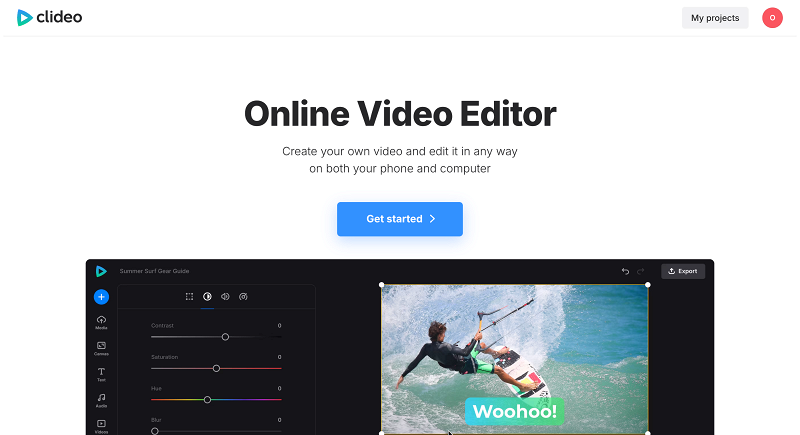
It’s also helpful to use browser-based tools to edit videos on any device. For example, Clipchamp, the official video editor for Windows, offers such a version. Some tools, like Clideo’s Video Editor, are also cross-platform, allowing you to switch devices mid-work on the same project.
-
Prepare your content
Preparing a video for split-screen editing requires, first and foremost, attention to detail and discipline during the shooting stage. Taking the time to plan and use a tripod will ensure you’ll get perfect footage that’s easy to edit in any program.
Then, once you’ve chosen the perfect editor for you, it’s time to prepare the video clips you’ve filmed. It’s usually done with these steps:
- Organize files before adding them to the tool. If you shot a few takes, select the best variants of the two videos that you want to put side by side.
- Import your footage into the media library of your video editing software by uploading it from your device. Some tools also allow selecting files from cloud storage accounts.
- Trim and edit your video clips to ensure they are the same length and format. It is recommended to trim the longer video clip to match the shorter clip's length for simultaneous playback.
- Crop, resize, and position your video clips so they don't overlap.
- Apply basic color correction when video colors vary significantly. Doing this before creating the split-screen is much easier.
After that, both videos will be fully ready to merge into one! So let’s get to the most important part.
-
Create a split-screen effect
It is usually quite simple, as the process is similar across most editing programs, from simple smartphone apps to professional ones. We will show how this can be achieved in Clideo.
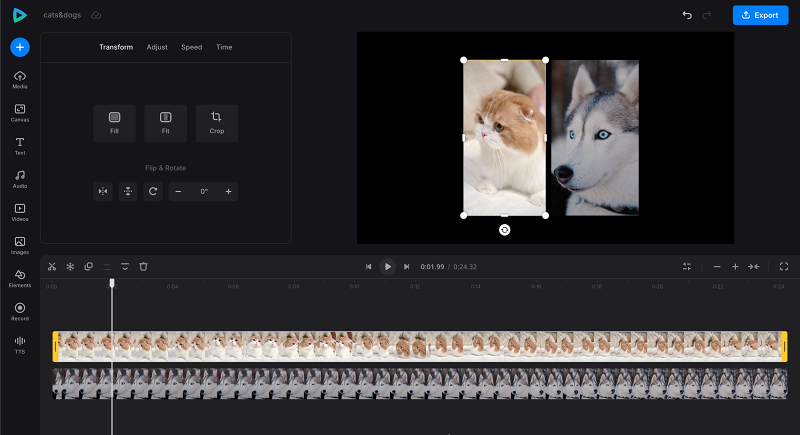
- To start, drag and drop your prepared video clips onto the timeline and overlay them by placing one file above the other — this will ensure they play simultaneously. Don't worry if you might need to additionally edit your videos, as in Clideo, you can cut, trim, resize, and adjust the colors as needed as well.
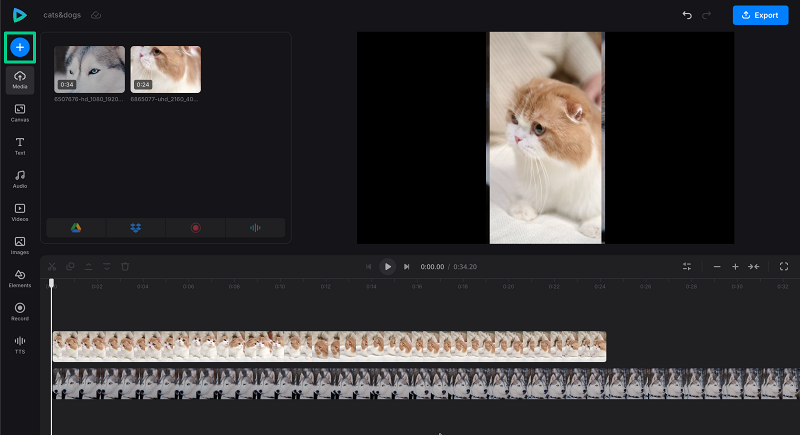
- If there are still disproportions, adjust the position and size of your video clips to create a proper layout. Resize and position one video clip to fill half the screen, and place the second video on the other side.
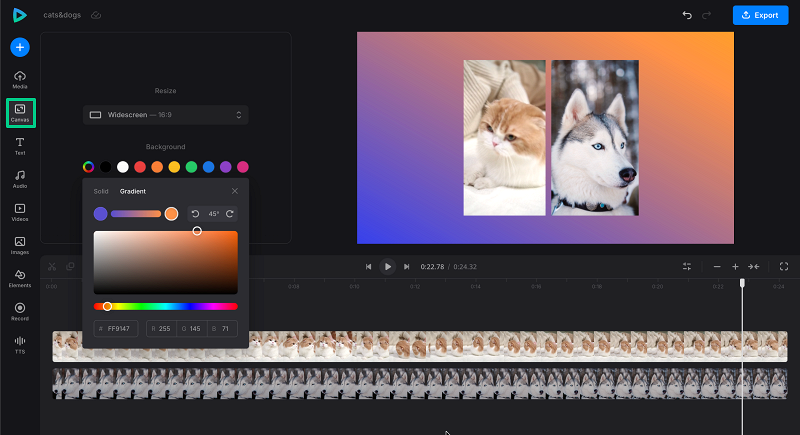
- Add a background image or color to your video to enhance the visual effect and fill the blank space.
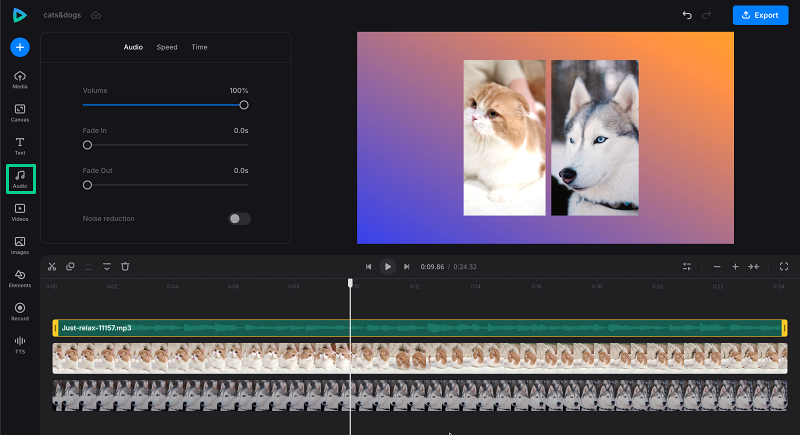
- Use the video editor’s tools to add background music and adjust the audio track.
If you’re not sure if you like the result right away, try experimenting with different split-screen layouts, such as side by side or top and bottom.
- To start, drag and drop your prepared video clips onto the timeline and overlay them by placing one file above the other — this will ensure they play simultaneously. Don't worry if you might need to additionally edit your videos, as in Clideo, you can cut, trim, resize, and adjust the colors as needed as well.
-
Work with multiple videos
Once you get a grasp of the process, you may want to go further and work with three or more videos in one project. The principles are the same, but there are some nuances.
Creating a split-screen from multiple videos isn’t much more technically challenging, but it does require more preparation and attention to composition and synchronization. Start with ready-made templates, if they are available in your tool of choice. And for full control, master manual trimming and layering.
Otherwise, it’s pretty much the same:
- Use the video editor’s overlay feature to add all the videos to your project.
- Mute all but one of the clips to avoid confusing the audience, or all of them, if you want to have only music as audio.
- Adjust the opacity and position of each video layer to create a unique effect.
Depending on the topic, you may experiment with different formats and resolutions to create a cohesive look. You can create comparisons of multiple products, educational and how-to content, and group reactions, each with a different layout to convey information to the viewer.
-
Customize your split-screen video
While having two clips playing simultaneously already counts as a split-screen, you can improve it by customizing it! Adding text, logos, and other graphics is useful not only for spicing up visuals but also for conveying more information that clips already do.
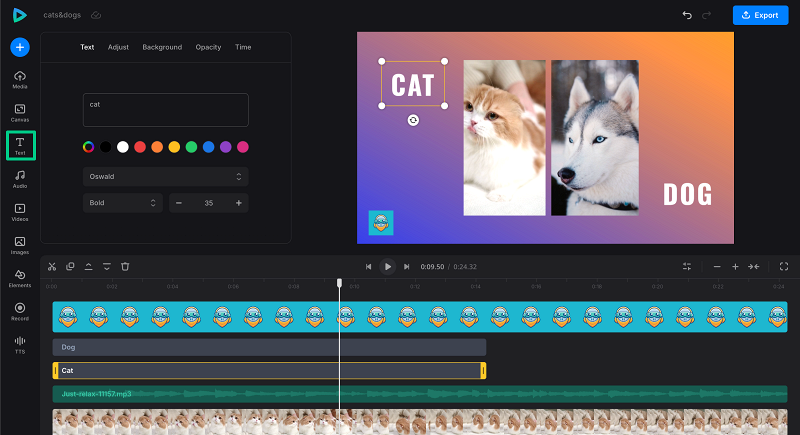
Otherwise, if you use music, sound effects, and voice-overs at the same time, adjust their settings so the speech is clear, and nothing is too loud or obstructs it.
Experiment with different transitions and effects, provided by the editor, to create a unique look and find some interesting-looking combinations.
And don’t forget to add captions – it doesn’t require much, but allows your videos to be watched with no sound, reaching a wider audience.
Make captionsEasily generate subtitles for your videos, either manually or automatically.Of course, before you settle, use the preview feature to watch your progress and make adjustments as needed.
-
Finalize and share your video
Export your video in the desired format after final adjustments and previews are made. Once it’s done, just download it and share it on social media, YouTube, and other video-sharing platforms! Some video editors have built-in sharing features to upload your video directly to your favorite platforms.
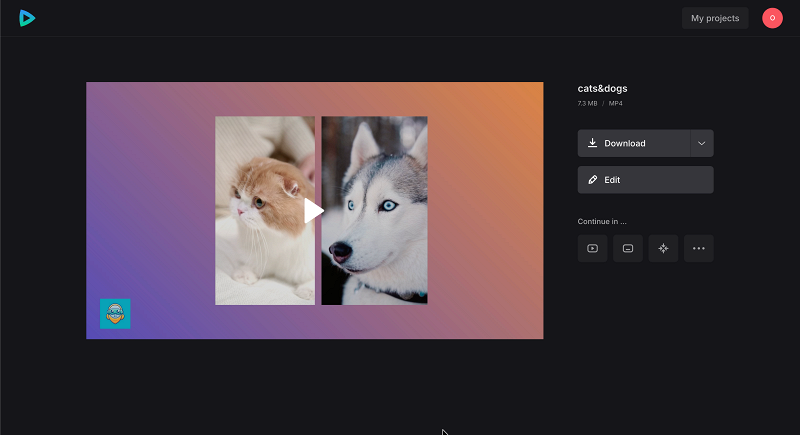
Then, monitor your video’s performance and analytics to see how your audience is engaging with your content. That way, you will know what kind of content you should film and how to edit it.
This is a video editing technique in which the screen is divided into two or more parts, each of which plays its own video at the same time.
It’s applicable for just about anything, as it’s mainly used for comparisons, before-and-afters, reaction videos, etc.
Apps that have built-in templates, like TikTok, allow you to do it in just a few clicks. However, if the result looks too simple or you want to fine-tune it, you’d need to use other editing tools.
Changing the aspect ratio helps in the former case; for the latter, you can crop unnecessary parts of the video to bring it closer in size to the other clip.