
How to Turn Video Into GIF on iPhone
Have GIFs gone out with the Ark? Not at all. They are very much alive and seeing a revival. Learn how to create your very own GIF in a few clicks.

GIFs, being a "silent" format without a soundtrack, are the universal language of social media. They go viral faster than you can blink, and for a good reason. In our era of short attention spans, catchy 3-second-long "videos" (they are not videos, but let's leave it at that for now) are the safest bet.
What's even better, GIFs are highly customizable. You decide exactly what to show and emphasize, and how to do it.
Luckily, there is more than one way to convert a video to a GIF on iPhone. You can use the built-in Shortcuts app, third-party apps such as GIPHY, or online GIF tools that don't require installation or setup. We'll give you step-by-step guides for each of them.
What is an animated GIF?
However unbelievable it may sound, an animated GIF is an image file format, not a video one. They are a looped sequence of several static pictures.
GIFs are the precursors of full-scale videos: when recording a video on a mobile phone was quite a challenge (and the output quality left much to be desired), people shared GIFs to illustrate their emotions and reactions.
Being technically pictures, not recordings, GIFs have a few important characteristics to consider:
- They don't have sound
- They take less memory and space than the same snippet saved as a video file.
- They are compatible with all Internet platforms, websites, devices (be it a computer or a mobile gadget), operating systems, tools, and browsers.
Animated GIFs are still used in place of text messages and emoticons for fast, expressive communication; they are "old but gold". Other use cases include:
- Highlighting key moments from full-scale recordings
- Adding animated GIF elements to video projects or presentations
- Creating highly customized, unique memes
FPS (frames per second), or "frame rate," is one of the key parameters of a GIF file. The higher it is, the smoother and more "video-like" the visual looks, but also the more space it takes.
Why convert video to GIF on iPhone
If you're reading this article, you probably already have a very good reason to convert video to GIF. Still, let us provide you with a few more:
- A smaller file size makes sharing and uploading faster and easier
- A specific moment with the right emotion is captured
- Any shot from your camera roll can become a unique reaction
- GIFs are highly compatible with literally everything you can imagine (ok, maybe, apart from extremely outdated and legacy software, like Internet Explorer 5).
- GIFs play automatically on Facebook and other platforms; no need to run them
Enough of theory; let's get to practice.
How to make a GIF using Clideo
Clideo's video editor is not only a niche online video-to-GIF converter but also a versatile browser-based service for working with video projects. You can open it directly in your phone's browser, upload a recording from your camera roll, and create a new GIF with just a few taps. The tool doesn't require any download, installation, or setup. It also supports all common video formats, like MOV, MP4, AVI, and others.
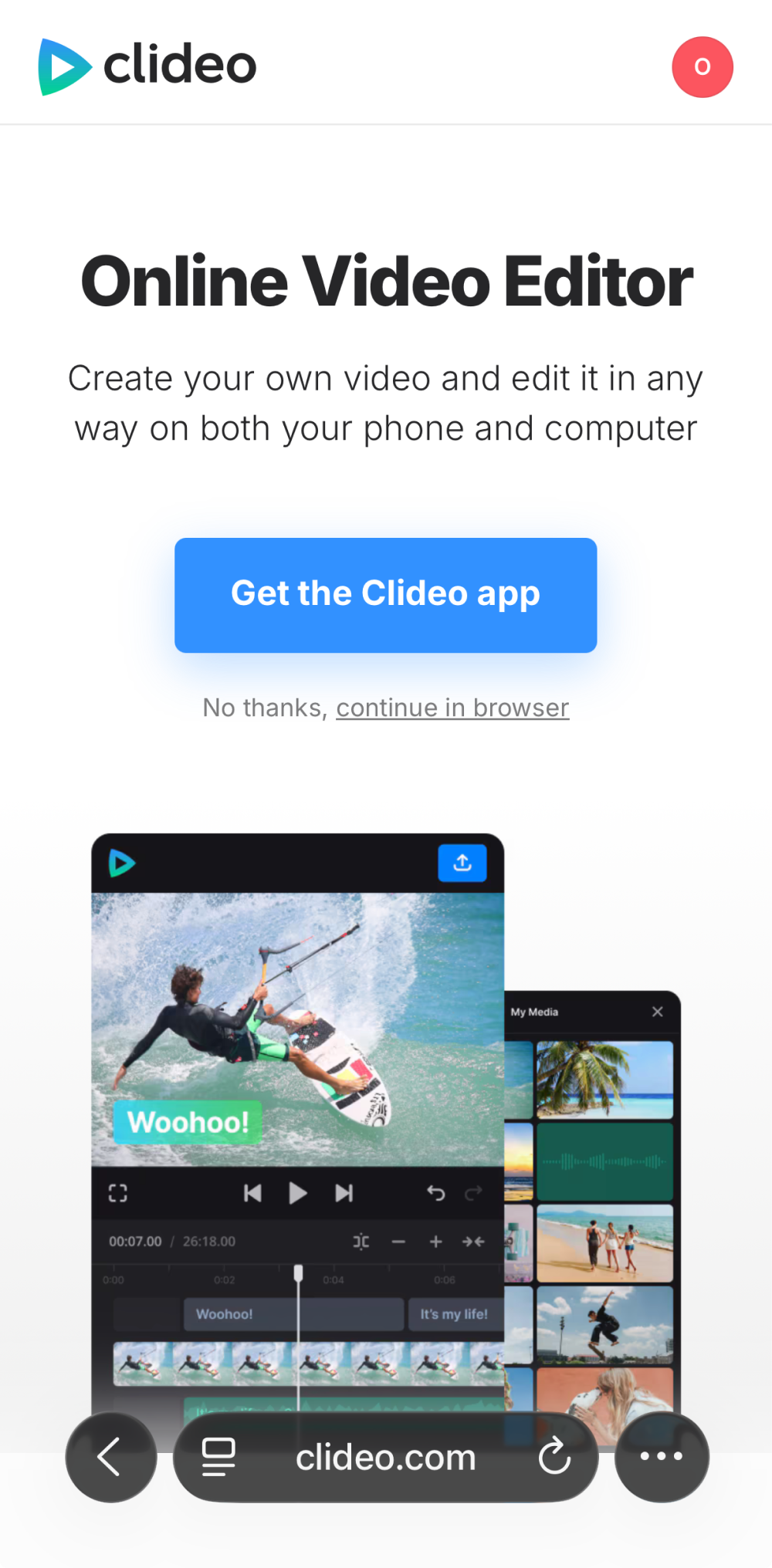
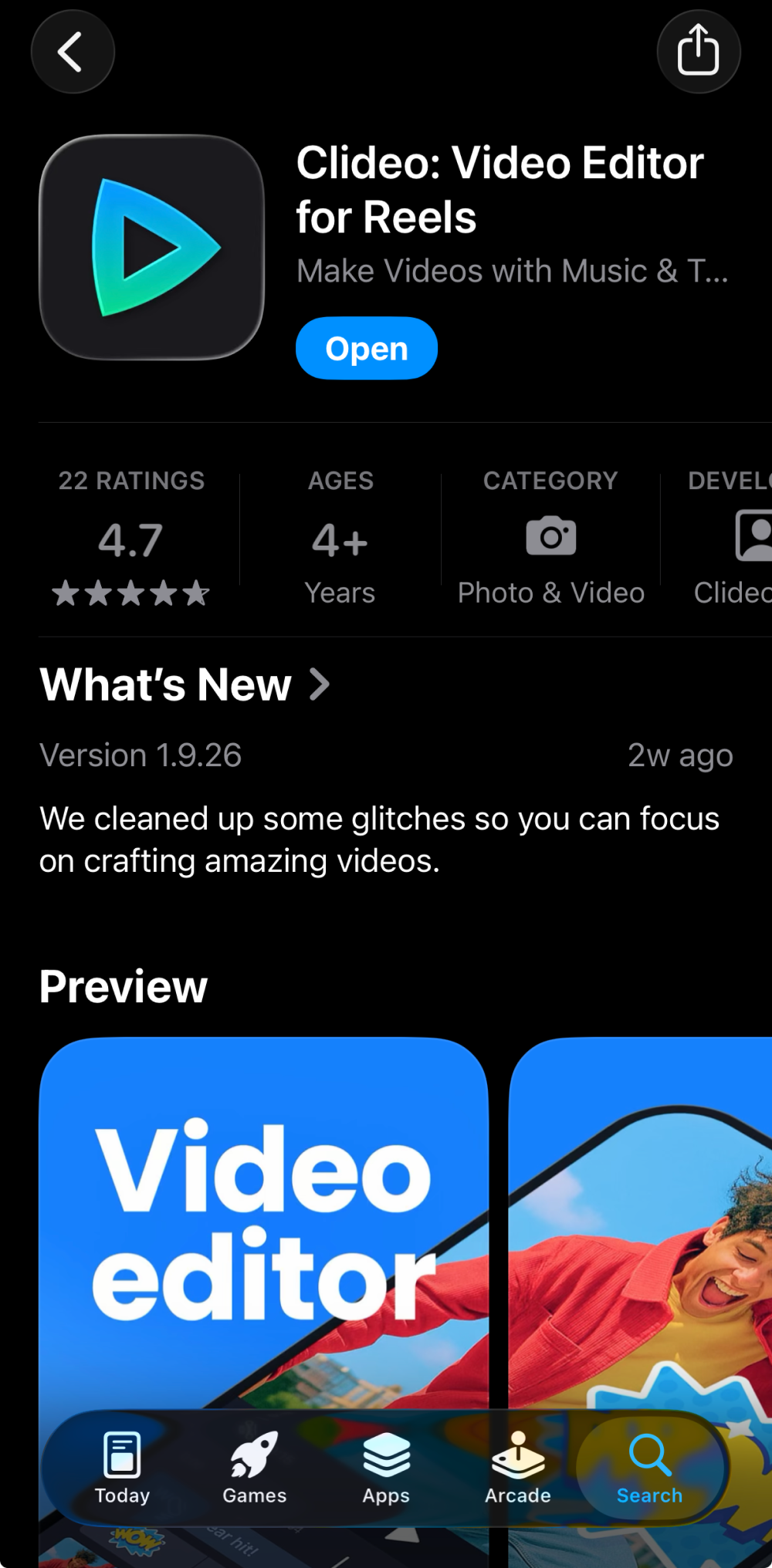
If you prefer having an installed app, Clideo also offers a dedicated video editing app for iPhone, which you can download and use when you are offline.
Upload your video
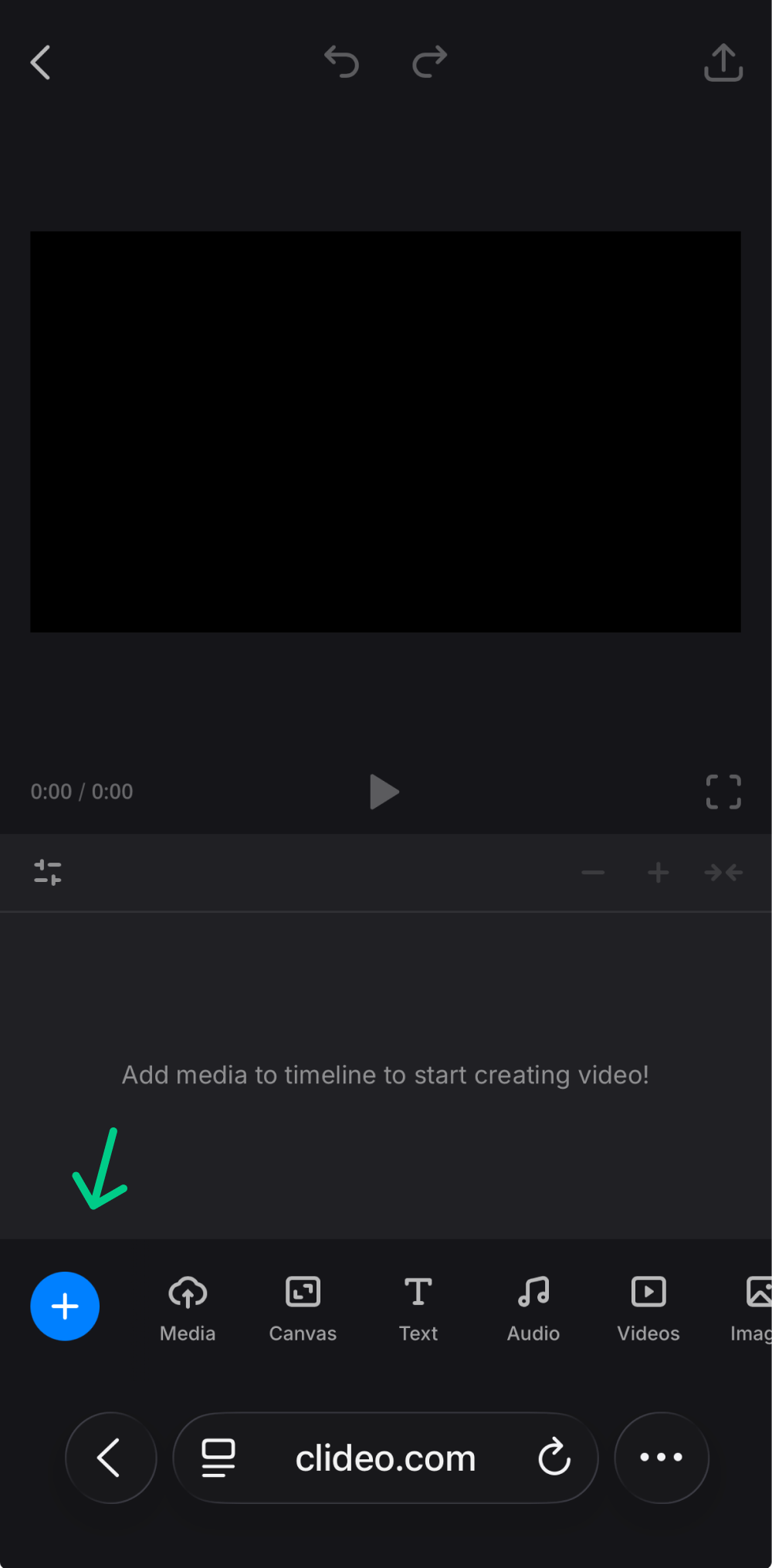
Hit the blue button, then, once you're transferred to the editing canvas, upload your video by tapping the "+" icon. Alternatively, head to the "Media" tab to import a clip from cloud storage or record one right away – this is all you need to start creating a GIF from video.
Edit your video clip
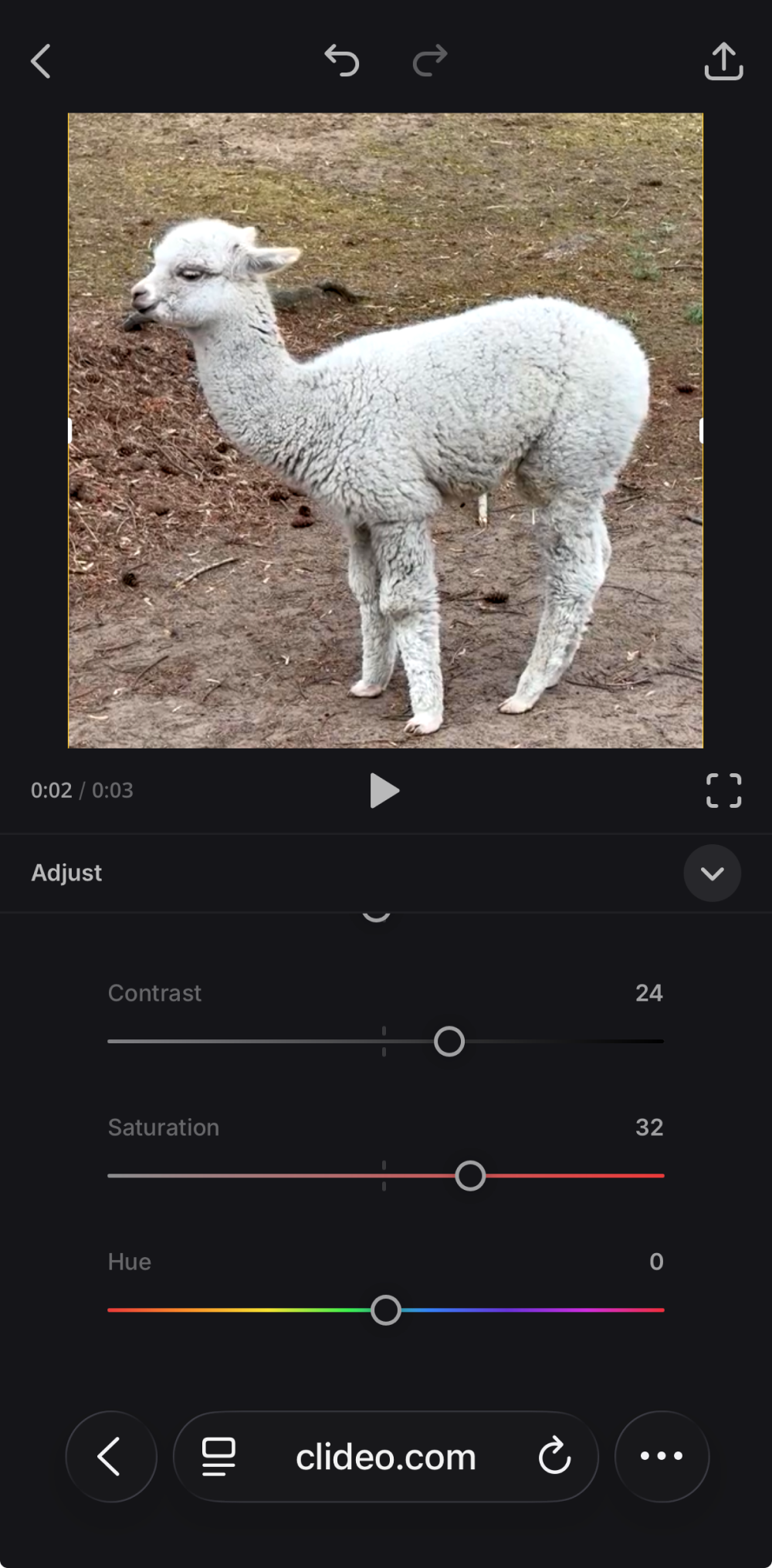
To crop the video, trim it, or adjust your video's brightness, speed, and other settings, use the bottom tab bar to find the needed operation.
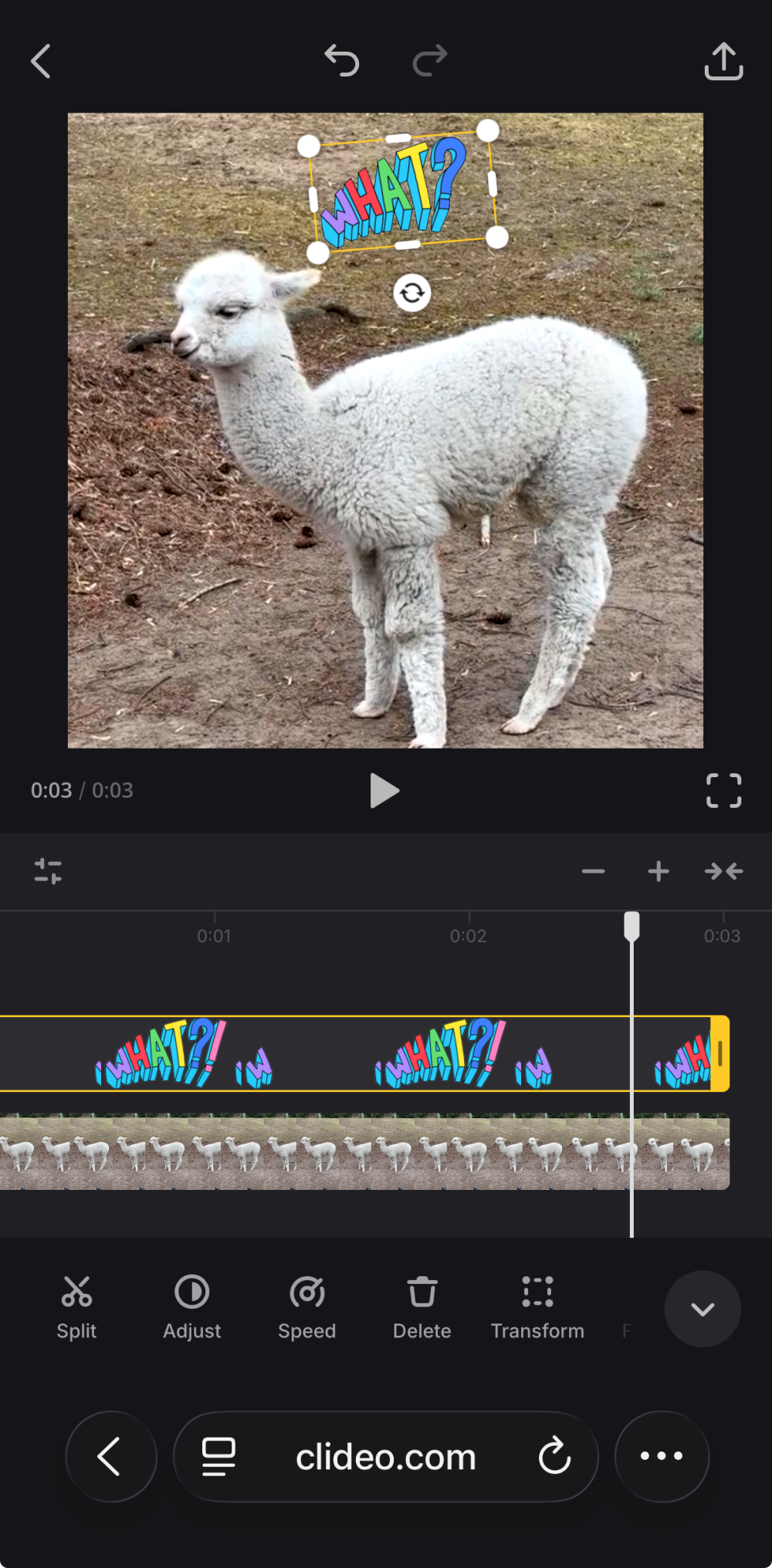
It is possible to add text, animated stickers, shapes, or emojis to your GIF as well.
Export and download
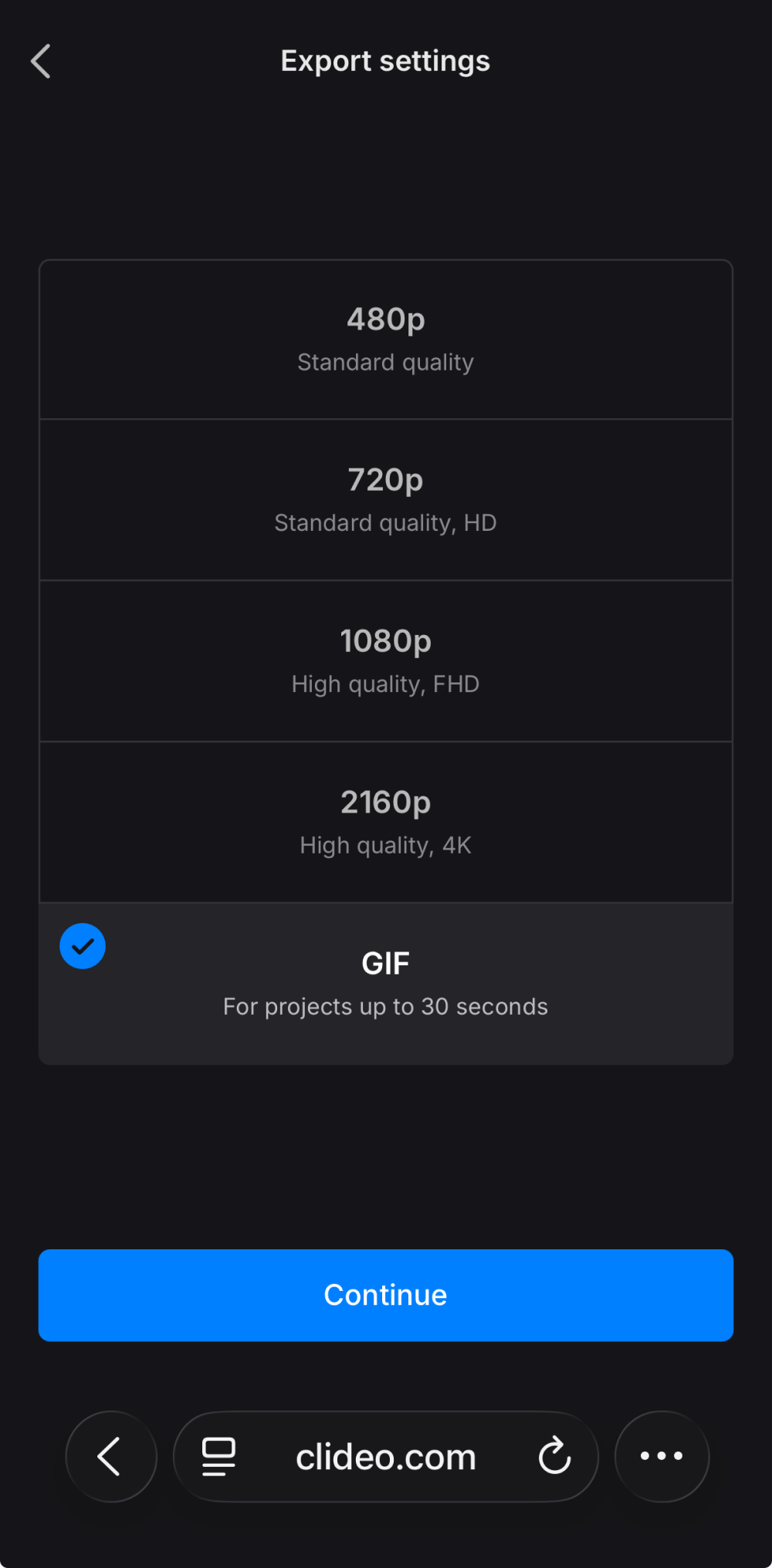
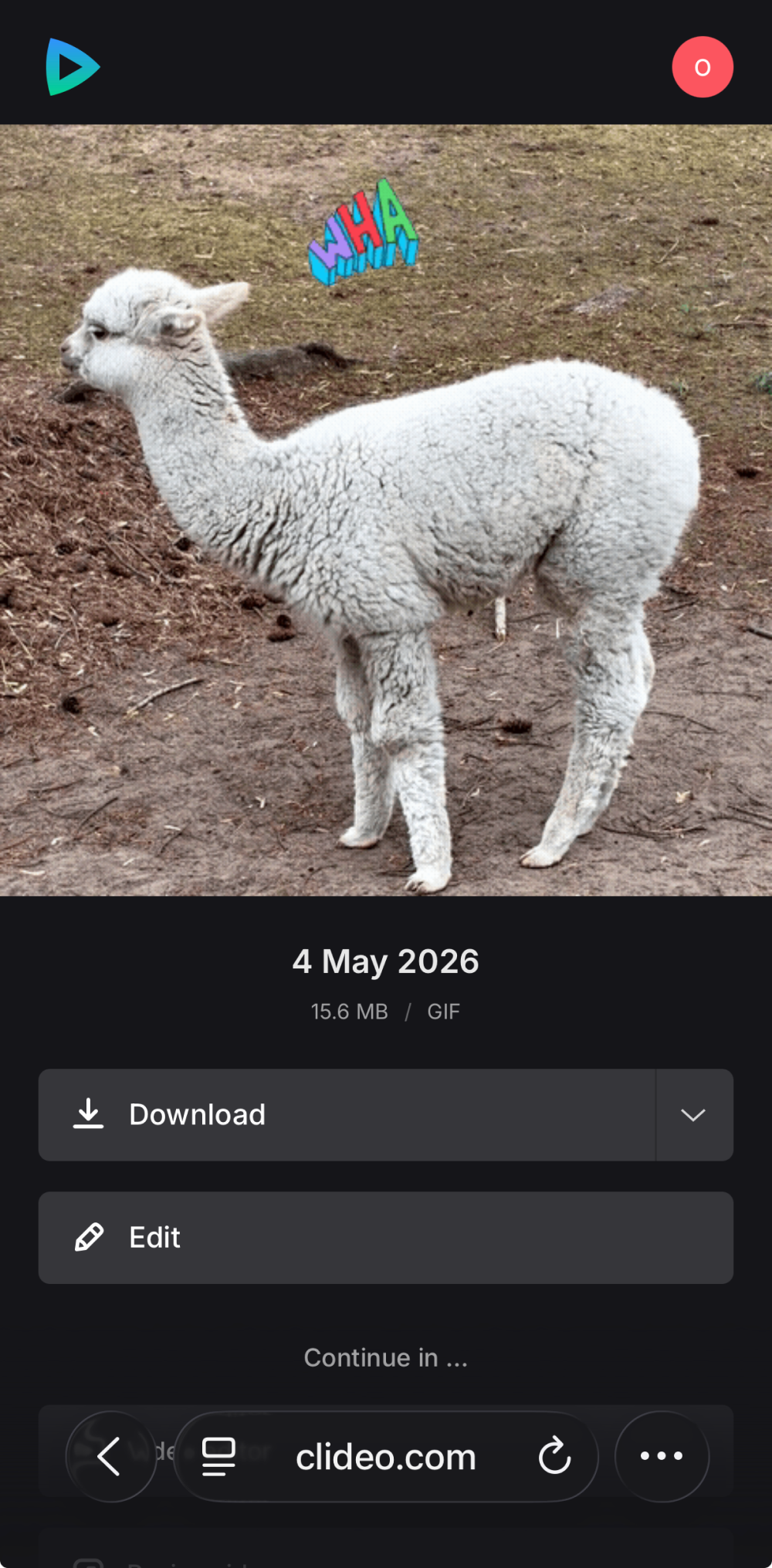
When you're done, tap the "Export" icon at the top right and select the "GIF" option (make sure your project is no more than 30 seconds).
After processing, download your newly created GIF to your preferred location.
Why use Clideo?
Clideo is an impressive set of tools that sits right in your browser, and here are a few reasons why you should use it:
- Browser-based video editor + iPhone app for video editing that sync across devices
- Easy-to-use interface
- Multiple editing features
- Additional single-function video editing tools for translating, adding subtitles, cropping videos, and more.
Other ways to create GIFs on iPhone
While the online option is always the best (in my humble opinion), iPhone users can also avail of other alternatives.
iPhone Shortcuts app
Shortcuts is a native iPhone app that works offline and doesn't require any third-party downloads. The best part is, it's completely free (aside from the cost of the iPhone itself, of course :))
The Shortcuts app is like a DIY or Lego kit. Each user can create their own set of "shortcuts" by combining functions (or "actions") into one program, or use the presets that are already there.
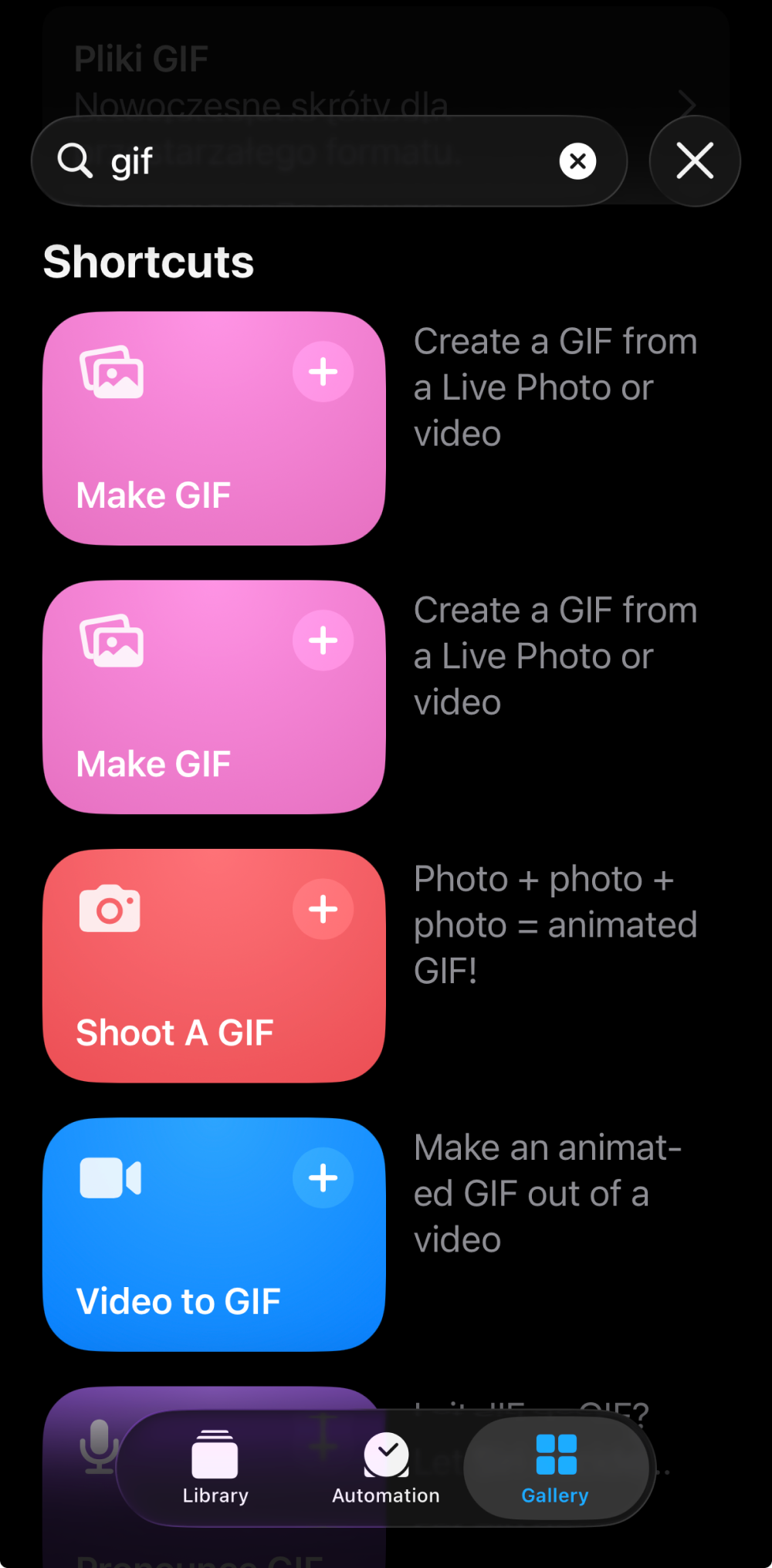
You can find the detailed manual on how to create your own GIF Converter in Shortcuts and how to set it up here.
- Built-in free app
- Works offline and keeps your data private
- Highly customizable
- Limited editing options
If you have an iPhone 13 or later and are looking for a free, convenient tool, this could be your most suitable choice.
GIPHY
GIPHY provides more editing features than Shortcuts and is better suited for creating GIFs. Simply use their free app or website — after creating an account, upload your recording, trim it, select whether the GIF will be public or private, and then download the finished file.
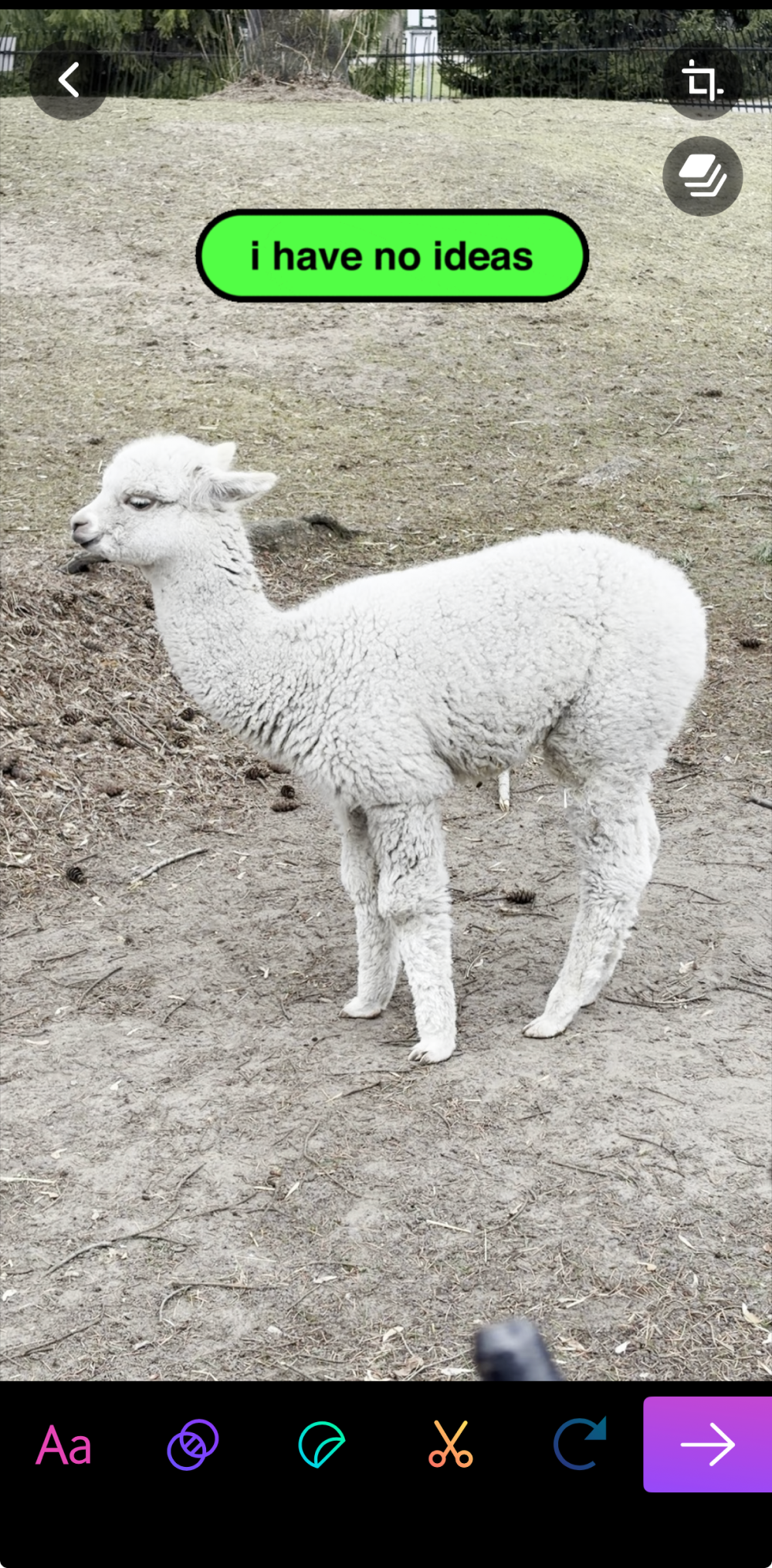
If you need a more detailed guide, there's a YouTube tutorial.
- Can add stickers, captions, and other elements
- Shares GIFs directly on social media without downloading
- Built-in library of public GIFs for inspiration
- Your video is uploaded to an external server
- Just a GIF maker
- Apps can consume phone memory and storage
If you want to create GIFs "on the go" without fuss but with more advanced editing options, professional apps and online services might be the best bet.
Tips for creating high-quality GIFs
Creating GIFs is not rocket science. Still, the following tips might help you make your project even more engaging.
- Less is more: Even though some video-to-GIF converters allow looping up to 30 seconds, the sweet spot is about 3-5 seconds max.
- Optimize your frame rate: Frame rate is a direct influence on the GIF's "smoothness" as well as the file size. If the tool allows changing the frame rate, find a happy medium: opt for 15-20 FPS for low-motion projects, and increase only when necessary.
- Size does matter: GIFs are meant to be shared. It completely loses its purpose if a file is 50 MB and can't be easily sent via messengers, so consider turning heavy MP4 clips into GIFs instead.
- Capture the moment: Long-format videos are fine, but they are for different purposes. GIFs are all about capturing the exact emotion or action, especially when you overlay GIFs on top of existing videos.
- Proper editing can make a big difference: Cutting out the right snippet might not be enough. Change the color palette, add stickers, text, and other elements if needed, and edit your project in other ways, or even convert your GIF into a video to add sound and more effects.
Mind, though, that choosing the perfect 3 seconds for your GIF can take you the whole 12 hours of browsing through all your cat's footage.
You can convert any common video format to a GIF on iPhone using built-in apps like Shortcuts, third-party apps such as GIPHY, or online tools like Clideo.
Go for 15-20 FPS, 480-720p resolution, and 2-5 seconds. You can use higher FPS for fast-moving GIFs.
Yes, you can add text while editing your GIF using Clideo Video Editor. Just remember to keep your caption short and clear.
Most likely, you set the resolution or FPS too high. Another reason could be that your animated GIF is too long.