How to Convert MP4 to QuickTime for Free
Looking to convert your MP4 videos to QuickTime format without hassle and for free? Whether you're a casual user or a professional editor, this article will guide you through the best tools and methods to quickly convert MP4 to QuickTime (MOV).


In this article, we will explore why converting MP4 files to QuickTime MOV format can be beneficial, especially for users in the Apple ecosystem. We'll cover various desktop and online video converters, including step-by-step instructions for popular tools like VLC and Clideo. Additionally, you'll learn about important features to consider when choosing a converter, such as video quality, compatibility, and editing options, ensuring you pick the right solution for your needs.
Introduction to video conversion
Video conversion is the process of changing a video file format, such as converting MP4 to QuickTime (MOV).
There can be various goals of this process, for example:
- Compatibility. To ensure videos can be viewed on different devices (phone, TV, PlayStation) or in different programs.
- Size reduction. Modern high-resolution videos take up a lot of space. Conversion can compress the file so it fits on a flash drive or loads faster online.
- Preparation for social media. Each platform (YouTube, Instagram, TikTok) has its own recommended formats and settings.
Fortunately, it’s not that hard as there are many video converters available. Those include online and software-based converters alike.
What are MOV files
MOV is a format mainly connected to the Apple ecosystem and designed primarily for the QuickTime player, which is the default media player on Macs.
The MOV container is technically a very flexible container. It can store multiple alternate tracks, images, audio, and subtitles in a single file, as well as more complex metadata. This is useful in professional workflows, and also for video editing and sharing.
MOV files can also be converted to other formats, such as MP4, using a video converter, which makes them a versatile choice for video creators.
Why convert files from MP4 to MOV
The benefits of converting MP4 to QuickTime (MOV) exist in rather specific situations. Typically, it is done for improving video quality and compatibility with Apple devices, such as iPhones and Macs.
Besides that, MOV files have better support for some high-end codecs, such as Apple ProRes or Avid DNxHD, which allow for editing high-quality video with minimal loss. It is an important feature for professional editors and passionate videographers.
How to choose the right video converter
When looking for the right conversion option, there’s no single correct answer to what tool to use, as it largely depends on your goals and needs. Overall, you should consider factors such as video quality, conversion speed, and supported formats, including MP4 and MOV.
If you need a simple and fast solution, online tools for such one-time tasks are suitable. However, if you need to do something more than just changing the format, you should look for a converter that can handle large files and has advanced features.
For example, if you’re a vlogger or frequently work with videos, you may consider more advanced tools or even paid options like Movavi or Wondershare UniConverter for convenience and speed. HandBrake will also do the job perfectly if you understand its settings.
And if you’re a professional editor, your main tool is Adobe Media Encoder or DaVinci Resolve (it also has an excellent built-in converter). For maximum control and automation, explore Ffmpeg – it’s kinda complicated, but once you get it, it may just be the best tool of all.
If you need to quickly convert 1-2 or more files, some converters, like aforementioned HandBrake, also offer batch conversion, which can save time and effort when converting multiple files.
We will describe in more detail one of the online and desktop tools that you can use for free to convert your video.
Online conversion options
If you want a simpler solution, use the online conversion tool by visiting the website, uploading your MP4 file, selecting MOV as the output format, and downloading the converted file.
Their main advantage is an easy and, often, completely free way to change video files’ format, with advanced settings and high-quality output, as well as support for multiple formats, including MP4 and MOV. Some converters also offer additional features after converting, such as editing tools and text support, making them a great option for users who need more control over the conversion process.
Some popular online video converters include:
Clideo’s Video Converter
One of your simplest options for changing formats. It not only converts MP4 to MOV, but also other formats, including audio and GIF. It also has a modern and intuitive interface and flexible upload sources — be it your device or cloud storage, it’s got you covered.
Convertio.co
It’s best suited for users who value ease of use, as it’s a pretty simple, and yet powerful converter. It supports conversion between over 500 different video and audio formats, offering extensive flexibility. Additionally, it provides lots of customization settings, including options for adjusting video frame rate, aspect ratio, resolution, and audio quality. With the subscription, it also allows for simultaneous batch converting.
Zamzar
Very simple and time-tested, as it’s in business since 2006. After converting, it can send the results to email.
How to convert MP4 to MOV online in Clideo
Using Clideo's converter, you can turn your clip from one format to another absolutely for free with no watermarks if your file is up to 500 MB. Let's go through the whole process step-by-step
Go to the Clideo Video Converter page on your web browser.
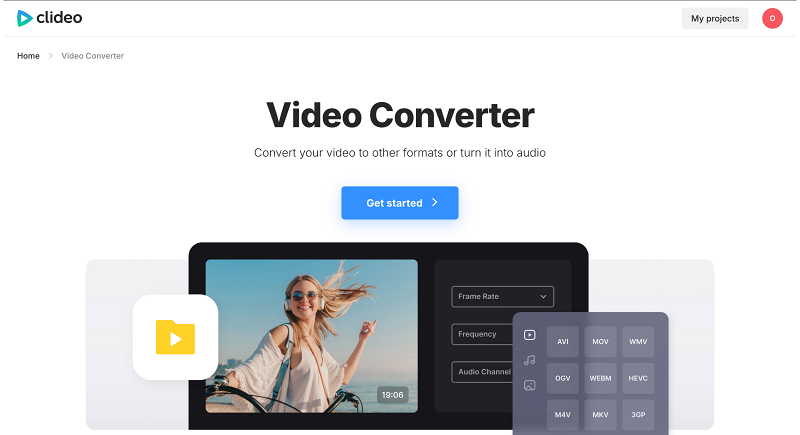
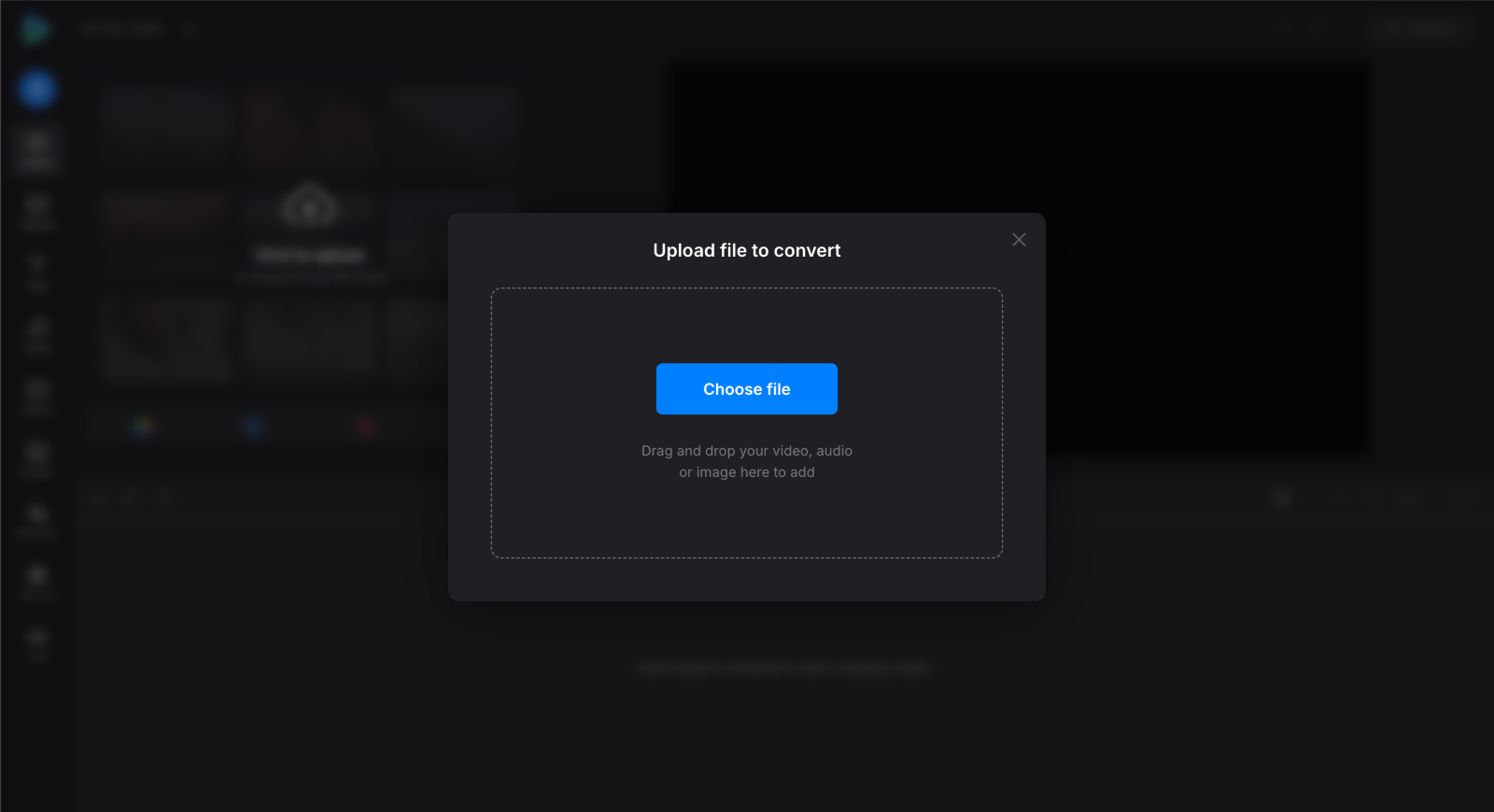
Click "Get started" and then choose the MP4 video file from your device, or drag and drop it to the page.
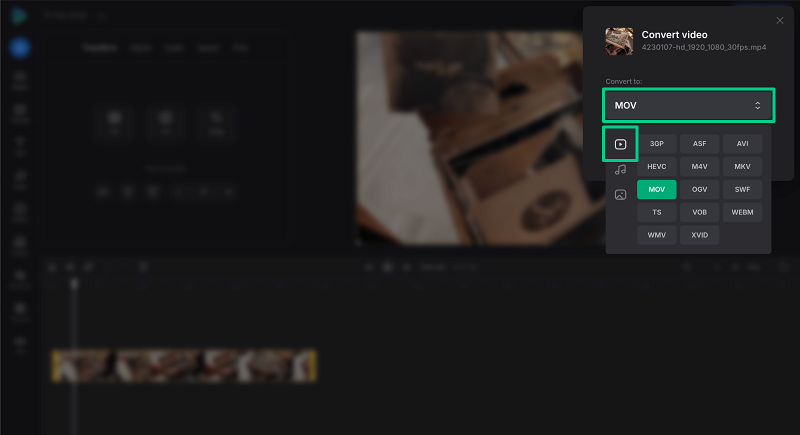
Choose MOV as the desired output video format.
Fine-tune settings such as video frame rate, audio frequency, and audio channels if needed.
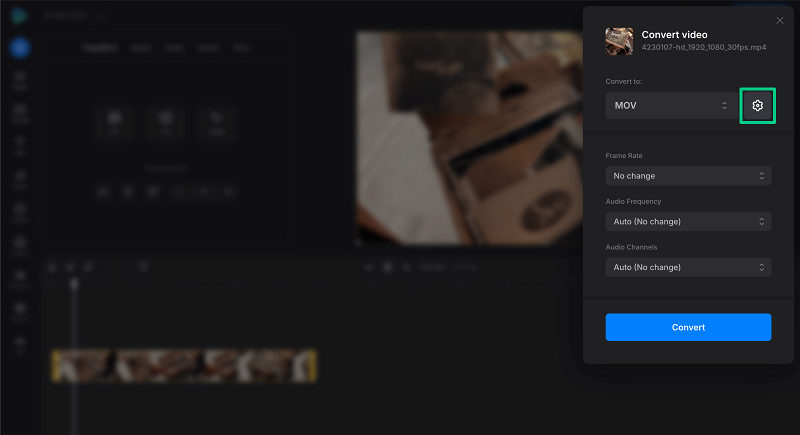
Start the conversion process by clicking the "Convert" button.
Depending on your file size and settings, wait a few moments while Clideo processes your video.
Once the conversion is finished, download the output video file to your device.
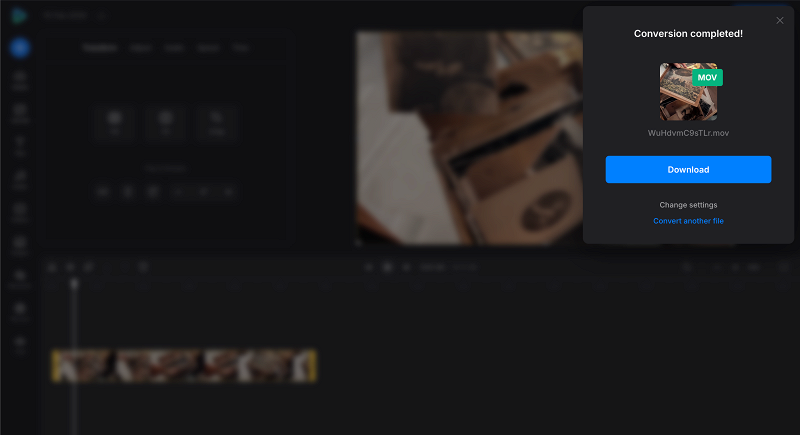
When you close the conversion window, you will see your file in Clideo's video editor window. This is for those who want to edit their video by adding text or music, or by trimming or cropping it. Note that if you make any changes here, the final output will be an MP4 file. If you need another format, you may need to run the conversion again.
Desktop video conversion tools
Some popular video converters include Movavi Video Converter that provides a fast conversion and supports various output formats including MOV. In QuickTime Player, you can export an MP4 file to MOV by opening the file and using the Export As function, selecting a desired resolution. However, even free media players like VLC can do this.
How to use VLC as an MP4 to MOV converter
VLC is a free media player that can also convert video files on Windows, including MP4 to MOV. To do so:
- Launch VLC, then, from the top menu, select "Media → Convert/Save" or simply press "Ctrl + R".
- In the next window, click "+Add" and select your source MP4 file. Click "Convert/Save" in the lower right corner.
- A settings window will open. Pick the correct profile here — this is a key step! Select any profile, then use the wrench icon to the right of the drop-down list to open the profile editor.
- Click "Browse" and specify the path you want to save the file to. Be sure to manually change the file extension in the name to .mov (e.g., my_file.mov).
- In the profile editor, open "Video Codec". Make sure the "Video" box is checked and select H-264 (the most universal codec).
- Go to the "Audio Codec" tab, make sure the "Audio" box is checked, and select MP3 or AAC.
- In the "Container" tab, specify MP4/MOV.
-
Give your profile a descriptive name, such as "MP4 to MOV," and click "Save."
- Return to the main window to ensure the profile you just created is specified in the "Profile" field. If it is, click "Start".
Then, VLC will begin the process. You’ll see the progress at the bottom of the main player window. It may take some time depending on the file size and selected settings.
For Mac users, the process is very similar, but some menus are named differently. You will need to start with "File → Convert/Stream" (or press "Cmd + Shift + S"). Also, when saving your file, macOS will likely default the extension to .m4v (which is Apple’s standard as well). If you specifically need the .mov extension, you may need to manually rename the file in Finder after it's finished. Right-click the file, select "Get Info," and change the extension in the "Name & Extension" section, confirming "Use .mov" when prompted.
Technically, these are simply two different "packages" for the same content. But for practical use, MP4 is the usual choice unless you work in a professional Apple environment where MOV is preferable.
QuickTime Player opens MP4 files perfectly, especially those with standard codecs. In this regard, MP4 and MOV are "relatives" as they are based on the same standard.
Yes, it’s done by remuxing (repackaging your video into a new container without affecting quality). The usual conversion always results in some loss of quality, but it is most often not noticeable to the eye.
The simplest option is QuickTime Player itself, which has built-in conversion capabilities. However, this method can overcompress the video.
Sure! You can check out Clideo and other converters we mentioned before. Most of these tools work for free as a base and provide more features with a subscription.