



What is HEVC and How to Open It
When we talk about video files, we often mention formats like MP4 and MOV. Just as important, though, is the codec used to compress the video, since video and audio codecs determine how media is encoded and decoded. One of the most popular video coding options available today is an HEVC codec, also known as H.265 and High-Efficiency Video Coding, a video compression standard designed to compress video file size while retainong high visual quality.


HEVC is widely adopted for streaming and digital storage of high-resolution video (including 4K and 8K) and is compatible with other popular video file formats, like MP4, MOV, and AVI, across various platforms.
Knowing about HEVC is important because it allows us to understand why some videos perform better at low bit rates, why certain videos consume less storage space, or why certain software or hardware is needed to play back certain videos smoothly. Understanding how HEVC works can help you make better decisions about video quality, compatibility, and storage. This guide will introduce you to the world of HEVC (High Efficiency Video Coding) videos, their importance for video quality and storage, and how to open, manipulate, and create HEVC video files. It's for all those who want to learn about video formats, streaming, and digital media compatibility.
What is HEVC (High Efficiency Video Coding)?
High Efficiency Video Coding (HEVC), also known as H.265, is a video compression standard designed to provide significantly better video quality and compression efficiency than H.264. HEVC offers several innovations over previous standards, such as greater coding efficiency, support for higher resolutions, and advanced compression technologies.
HEVC provides comparable video quality at a significantly lower bitrate than H.264, often even at a lower file size. Indeed, HEVC can compress up to 50% more efficiently than H.264, allowing the same quality at half the bandwidth. This is helpful when streaming, storing, and playing back videos on bandwidth-constrained connections. HEVC also natively supports high dynamic range (HDR), such as HDR10, Dolby Vision, and HLG, for more realistic colors and improved contrast.
How HEVC codec works
The key difference is that HEVC offers enhanced compression capabilities through the use of more sophisticated prediction, motion handling, and filtering techniques than previous codecs like H.264. These tools compress files without compromising the quality of the images, particularly in high-resolution video.
The most important key technical features include:
- Coding Tree Units (CTUs): HEVC divides the frames into flexible units, somewhat like packing a suitcase with differently sized boxes.
- Intra-picture and inter-picture prediction: HEVC tries to find patterns in a given frame, and in adjacent frames, just as it does in guessing the next piece of a puzzle from the pieces it has already found.
- Motion vector prediction: Rather than scanning each frame from start to finish, it considers what's changed in terms of motion, like following a car from one moment to the next instead of redrawing the whole road each time.
- Deblocking filters and sample adaptive offset (SAO): These are used to make the image look smoother and less grainy than after compression, like polishing up a photo after it's compressed.
- Context-adaptive binary arithmetic coding (CABAC): It's a more efficient way to encode video data, similar to packing clothes tightly so that they use up less space in the suitcase.
- Parallel processing tools: Tiles and wavefront parallel processing enable multiple portions of the video to be processed simultaneously, much like multiple workers building various sections of a project.
All these work together to keep the video quality high at low bit rates, which is why HEVC is particularly suitable for streaming, storage, and high-resolution video such as 4K and 8K.
Advantages and disadvantages of HEVC/H.265
Although HEVC is certainly efficient, it also has a number of drawbacks in terms of compatibility, performance, and licensing that should be taken into account.
- Smaller file sizes while maintaining good video quality.
- Lower bandwidth consumption when streaming: HEVC offers the same quality as H.264 at half the bandwidth or same bitrate.
- 4K and 8K video support.
- Faster processing speeds when streaming on mobile and with limited data plans.
- HDR and wide color gamut content support.
- Some older devices and apps will not support HEVC out of the box.
- HEVC often requires 3-10 times more computing power for video encoding than H.264, especially for high-resolution content.
- Licensing is more complicated, which has slowed adoption in certain products.
HEVC's benefits make it a popular choice for streaming platforms and device manufacturers seeking to provide high-quality video at reasonable speeds. While HEVC has its perks, it is not necessarily the most convenient codec to use, even when it comes to compression efficiency.
How to check if a video uses HEVC
The only way to determine if a video is encoded in HEVC is to view its codec information. File format alone, like .MP4 or .MOV, does not show the type of video coding, as other types of video compression can be used for these extensions.
Here are some ways to check:
- On Mac: Open the video in QuickTime Player, then choose Window > Show Movie Inspector to view the file format details. You can also check the file in Finder or use Get Info, though codec details may be limited.
- On Windows: Right-click the file, select Properties, and open the Details tab. Some versions of Windows may show the video format or codec there.
- On iPhone or iPad: The Photos app in the latest version shows a video's codec information when you tap the i icon.
- On Android: On many Android devices, codec information is not included, so you may need a third-party app.
- Use third-party applications: Open the file in VLC Media Player and check Codec Information.
- Check playback behavior: If a video is playing fine on a newer device and not working on an older one, a possible reason could be the use of HEVC. This is, however, only a clue and not proof.
In most cases, the best way to find the codec information is to check the video's codec details in a media player or file info tool. If you need a definitive answer, then third-party apps are often the best bet.
How to open HEVC files
Playing HEVC videos doesn't require any extra software or hardware, as many modern operating systems and media players provide built-in support for HEVC playback, such as Windows 10, macOS High Sierra, iOS, and Android.
If you still cannot open an HEVC video file, then you should try the easiest option: use a media player that supports HEVC, such as VLC Media Player. This will be the quickest method to play the file without making any other adjustments in most cases.
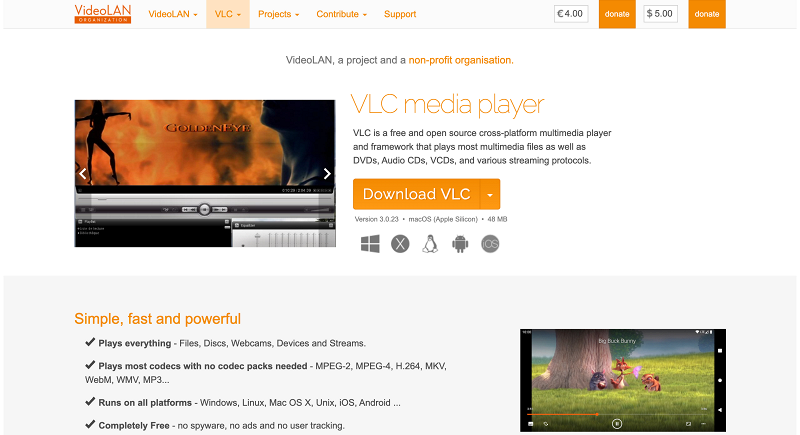
If the video is still not playing, try the following:
- Update operating system and media player: Newer versions may offer improved support for HEVC playback.
- Install the required HEVC codec or extension: Some devices, especially Windows PCs, may need an additional codec to play HEVC files.
- Check your hardware support: Older computers and phones may struggle with HEVC decoding, even if the right software is installed.
- Use another compatible player: If your default app fails, try to open it with VLC or KMPlayer.
- Convert the file: Try converting the video to another format with a more widely supported codec, for example H.264.
If you are using a supported player on a modern device, you will most likely open HEVC videos without much trouble. In case of playback problems, updating the system, installing the required extension, or converting the video will usually solve the problem.
How to create HEVC files
The key to creating an HEVC file is to use HEVC encoding, which is a form of video encoding that compresses and converts raw video data into a standard digital format. Compared to an AVC encoder (H.264), an HEVC encoder (H.265) offers significantly better compression efficiency, allowing for higher quality video at lower bitrates. Many modern video editors and video converters support this feature, as do most of the video devices on the market today.
Here are the most common ways to create an HEVC file:
- Export from a video editor: Programs like Adobe Premiere Pro, Final Cut Pro, and DaVinci Resolve often let you choose HEVC/H.265 in the export settings.
- Convert your video with desktop software: Tools like HandBrake and FFmpeg can re-encode a file to HEVC.
- Use online video converters: If you don't want to install software, browser-based video converters like Convertio and Clideo are also capable of exporting videos as HEVC/H.265.
- Record in HEVC: Many iPhones, smartphones, action cameras, and screen recording apps can record video in HEVC by default or as an option in settings.
- Content Capture Systems: Professional cameras, live streaming setups, and other content capture systems can often incorporate HEVC encoding to facilitate next-generation displays and streaming solutions with high resolution and low latency.
Before making an HEVC file, keep these points in mind:
- HEVC can reduce file size while keeping good video quality: For example, a 20-second 1080p video that might be around 40 MB in H.264 could be 20-25 MB in HEVC with the same visual quality, though results may vary depending on bitrate, motion, and detail.
- Encoding may take longer than H.264 on some devices: HEVC is more demanding to process, so exporting even a short video may take longer on an older laptop, phone, or lower-powered editing setup.
- Some older devices or apps may not play back: The HEVC video recorded on a newer smartphone may fail to open on an older computer, TV, or video editing app.
In general, HEVC is a good choice when you want smaller files, better compression, or high-resolution video such as 4K. That is why HEVC is widely used in live streaming applications, providing high-quality video with reduced latency, making it ideal for events such as sports broadcasts and online conferences.
HEVC common uses
If you want to create smaller video files without sacrificing much quality, then you should use HEVC. Thus, you can save storage space on your phone or computer, stream or upload high-resolution videos with less data usage, etc.
HEVC is widely used for efficient video streaming and encoding, especially for high-resolution and high dynamic range (HDR) content. It can deliver improved video quality or the same picture quality at lower bitrates, maintaining clarity and detail thanks to improved coding efficiency and significant average bitrate reduction compared to older standards like H.264.

In practice, it is widely used in the following cases:
- 4K and 8K streaming to platforms requiring efficient compression, as well as for next-generation HDTV displays and content capture systems.
- Mobile video playback where lower data use matters.
- Video calls, live streaming, and streaming services where bandwidth efficiency is critical.
- Video conferencing, where HEVC enhances video clarity and reduces bandwidth requirements, making it ideal for users with limited Internet connectivity.
- Video storage and archiving to reduce file size.
- Smart TVs with HEVC playback support, streaming devices, and high-tech smartphones that are optimized for high-definition video streaming.
- HDR, 360-degree, and VR video that benefit from better compression at high resolutions, with support for high dynamic range and HDR transfer functions such as hybrid log–gamma (HLG).
- OTT services like Netflix and Amazon Prime Video, which utilize HEVC to deliver high-quality video content efficiently and expand programming options without excessive data usage.
HEVC vs other codecs
When you're evaluating HEVC alongside other popular video codecs, several key factors come into play: compression efficiency, video quality, and device support (the holy trinity of video codec performance, if you will).
However, HEVC's advanced compression techniques require more computational power and memory than H.264, which can be a real challenge for older or less powerful devices (your grandpa's tablet might struggle a bit).
There are also other codecs that can do better compression than H.264, such as VP9 and AV1, but the former is not as widely supported as the latter. Although VP9 and AV1 are gaining popularity for royalty-free applications (where licensing fees are not an issue), HEVC is still supported by many of today's devices, smart TVs, and streaming services, making it a popular choice for high-quality video content delivery, while maintaining efficiency. When deciding on codecs, remember that compatibility plays a vital part as well as performance.
HEVC licensing
HEVC is not a free, open codec like AV1 or VP9. However, HEVC licensing does not mean you need to pay separately to watch or play HEVC videos. The companies that produce software, hardware, or services for streaming, as a rule, take care of any licensing fees.
What you may notice is that HEVC support is not necessarily available by default everywhere. Some apps, devices, or platforms might choose to not support it due to the complexity of HEVC licensing compared to some other video formats.
Future of HEVC
The future of HEVC looks pretty bright, and here's why: ongoing advancements in video compression technology are happening alongside the emergence of even more efficient standards (which is great news for anyone dealing with video content).
Meanwhile, all those exciting innovations in artificial intelligence and machine learning are ready to further boost the efficiency and quality of HEVC video compression.
As demand for high-quality video and high-resolution content keeps growing (and it's not slowing down anytime soon), HEVC is likely to remain a key player in streaming, broadcasting, and storage. However, the increasing complexity of the codec and the need for more powerful hardware might drive further improvements in device and browser support. With ongoing research and development, HEVC and its successors will continue to shape the future of video coding, delivering better quality video at lower bitrates for years to come - and that's something worth getting excited about.
No, HEVC is not a file type, it's a video codec. The formats like MP4, MOV, MKV can contain any kind of video codec, including HEVC.
To check the codec, inspect the file's properties or open it in a media player that shows codec information.
You can either use a player that already supports HEVC, such as VLC. Or you might need to update your computer and install a codec, or just convert the file to a more standard video format.
You can create an HEVC file by recording, exporting, or converting a video using the HEVC (H.265) codec. This setting may generally be available in the camera, screen recording, or export settings.
Not all older devices and apps can handle HEVC playback out of the box, and some older devices may lack the processing power to decode HEVC smoothly.


