How to Remove Background from Video Without a Green Screen
Ever wished you could make everything around you disappear and leave just yourself (or your favorite coffee cup)? Unfortunately, real life doesn't come with a Remove background button. Video editing does, though. And these days, you don't even need a green screen to make it happen.


Whether you're editing a video of your pet, making a family clip, or putting together a social post, you don't need to be a professional video editor or hunt down a green bedsheet to remove a distracting background. In this guide, I'll show you how to do it in Clideo, explore the two AI background removal modes, and share what happened when I put them to the test with people, objects, and a few rather unexpected results.
What happens when you remove a video background?
Say you've captured a great moment with your cat, but the room behind it isn't quite camera-ready. Background removal lets you isolate the cat from its surroundings, then use that subject in a new composition. You might put it over a different image or video or turn it into a viral GIF.

A traditional method is to film against an evenly lit green screen and remove that color using chroma key. Another approach, rotoscoping, involves tracing or refining a subject's outline over successive frames — a time-consuming process when the subject moves. An AI video background remover uses machine learning to automatically detect and isolate the foreground subject across the frames of a video, without requiring you to trace its outline manually or film against a green screen.
That flexibility comes with a trade-off: lighting, movement, fine details, and how clearly you describe the subject can all affect the result. Both the original footage and the instructions you give the tool matter. So, before you say "Poof!" and make that background disappear, let's make sure your subject doesn't vanish with it.
How to remove background from video with Clideo
For this example, I'll start with a clip whose subject I want to keep, even if I don't yet know what background will go behind it. Clideo's browser-based Video Editor includes an AI background remover that detects and isolates subjects in videos and animated GIFs, without requiring additional software.
-
Upload your video
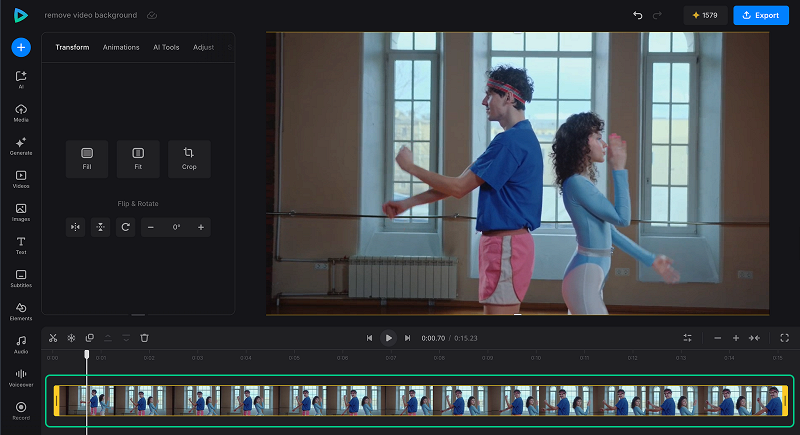
Open Clideo Video Editor and add the clip to your project. Select the clip you want to work with in the timeline. Make sure you've selected the video itself, not another element on the canvas or timeline; the selected element will have yellow borders.
-
Open the background removal tool
With the clip selected, open AI Tools and choose Remove background.
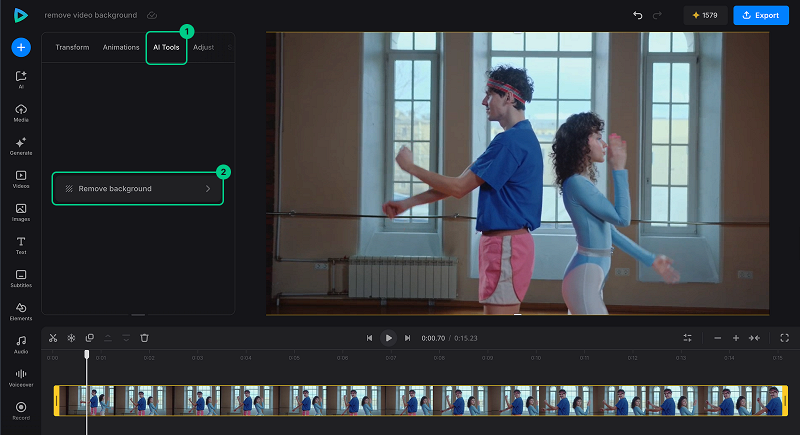
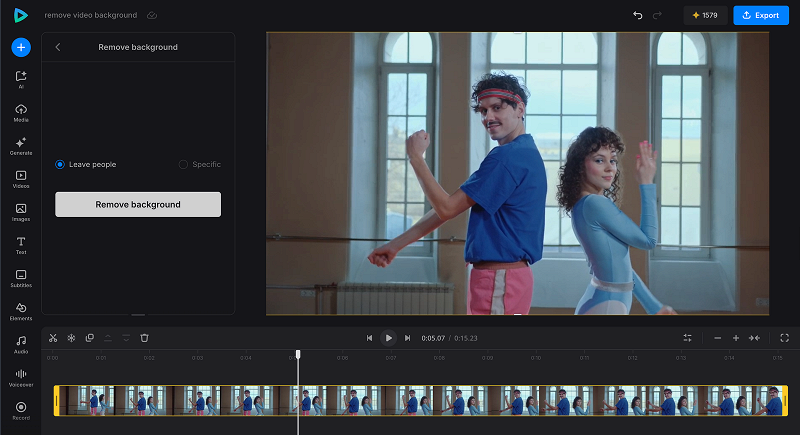
You'll see two modes, depending on what you want to keep:
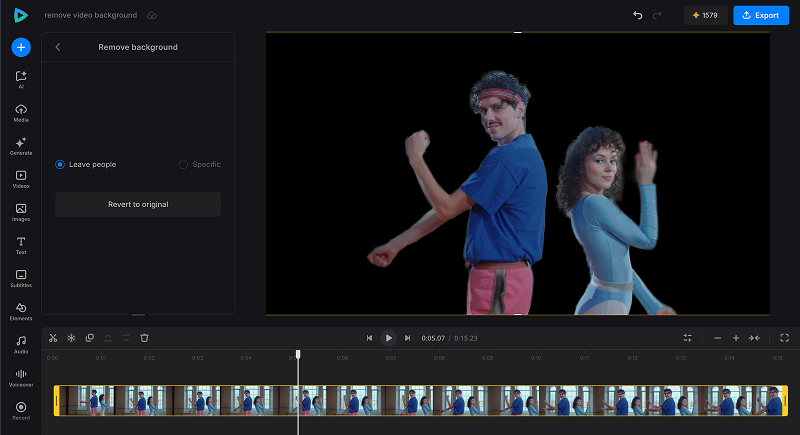
- Leave people automatically separates the foreground from the background without a description. It is especially suited to people, but can also work with other clearly distinguishable foreground objects. Results with non-human subjects are less predictable, particularly against a complex background.
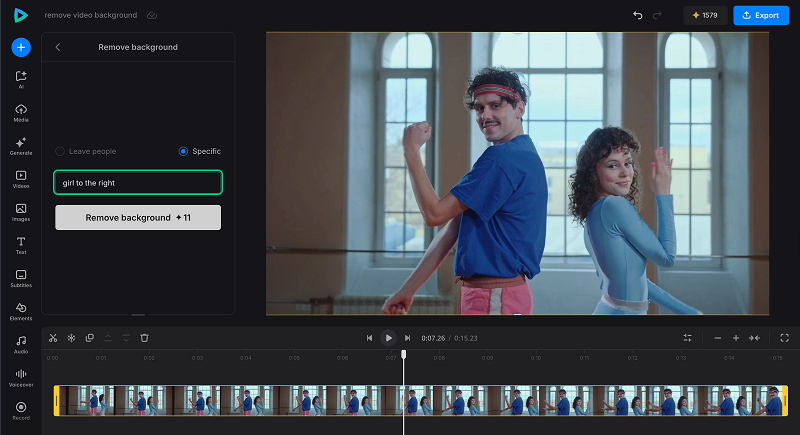
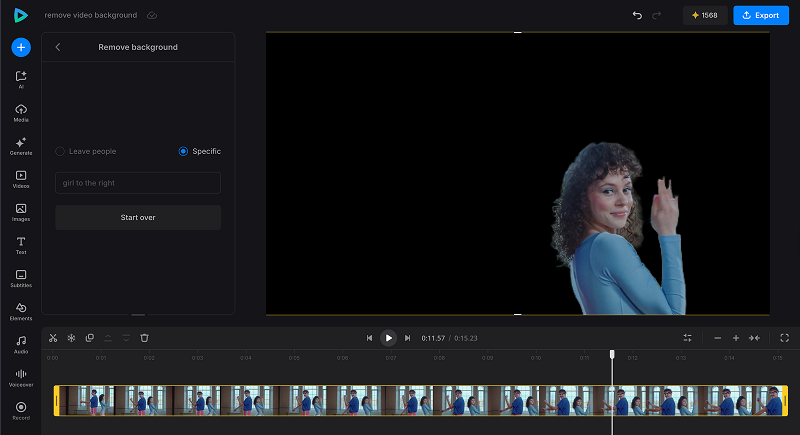
- Specific uses a short description to identify what to keep. You can name one object type and add details such as color or a general position in the frame, for example: "man", "flower", "shirt", "yellow car", "cat on the left", etc.
-
Describe what to keep
When using Specific, enter a short description of the main subject. Start with a recognizable noun, then add a distinguishing detail when needed, such as its color or position.
Even a detailed description cannot guarantee a perfect cutout: the AI still needs to recognize the subject in the original footage. I'll show what happened with different prompts in my hands-on tests below.
-
Apply the removal and check the result
Run background removal and preview the processed clip. Look beyond the main subject: check hands, hair, thin stems, objects being held, and other small details. Watch the clip in motion rather than judging only one still frame. An edge that looks fine when the subject is still may change as it moves.
If the result leaves out something important, review the subject description and try again. You can also revert to the original clip if you don't want to keep the removal.
-
Use your subject in a new scene
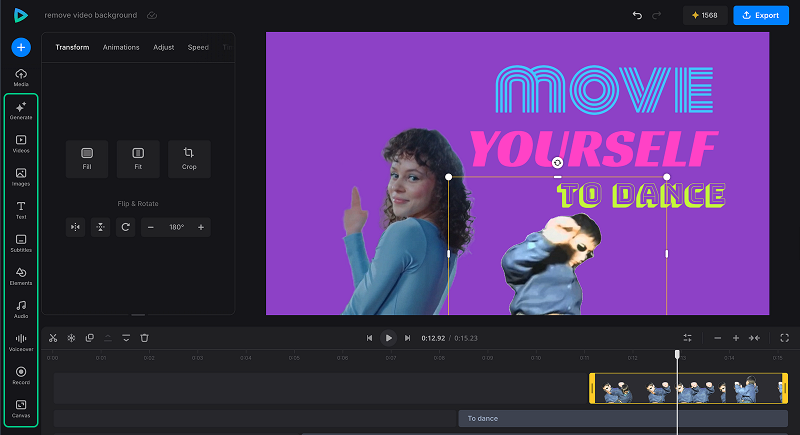
Once the surroundings are removed, you can add a new background using an image, a color, or another video. Put it on a track below the processed clip; the track order determines which elements appear in front. Resize and position the subject, then compare the lighting and perspective of both layers. You can also overlay the subject on another video, add text, music, stickers, or GIFs, and choose a suitable canvas ratio for your platform. Preview the finished arrangement before clicking Export and saving the result.
I put Specific mode to the test
AI background removal isn't a magic wand that works perfectly on every clip. Sometimes a short description gets exactly the right result; sometimes a more precise one helps; and sometimes the tool asks you to rephrase it. I tried different subjects and prompts in Clideo to see what happened — not to discover a foolproof formula, but to give you a better idea of what to expect.
Before you start experimenting, here are a few things worth keeping in mind:
- Start with footage where the subject is easy to recognize. Clear outlines and good contrast with the background can help. If the background is plain and the subject moves smoothly, Leave people might even be enough for you.
- Describe one type of subject. Say what you want to keep, such as "girl", "cat", "cup", or "shirt". If several subjects match your description, the model may keep all of them.
- Add simple identifying details. Use color, clothing, or a general position in the frame to narrow down the matches. Try "person in a red jacket" or "cat on the right". Don't complicate things with phrases like "next to", "the biggest of the three", or "the second from the top", as they may give unexpected results.
- Use English if you're unsure. You can write in your own language, but words with several meanings can get lost in translation. For example, the Polish word "zamek" can mean "castle", "lock", or "zipper". If you mean a door lock, try "door lock".
Below are some of my observations from these tests. Results may change with the footage, the description, or later runs.
Selecting people from a group
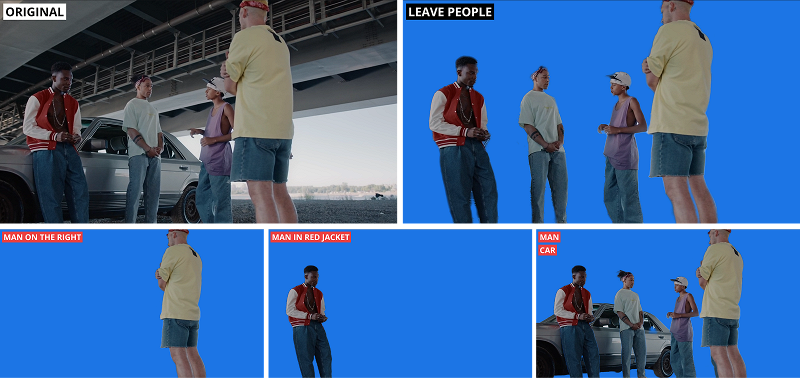
I started with a clip of four men standing by a car. Leave people kept all four and removed the car along with the background. In Specific mode, "man on the right" kept the man in the yellow T-shirt, while "man in red jacket" picked out the man on the left. The broader prompt "man" kept all four in this clip.
I also wanted to keep the car in the shot. I ran "man" and "car" on separate copies of the same clip, then lined them up as layers. The last panel shows the two cutouts combined.
Keeping people and their gear
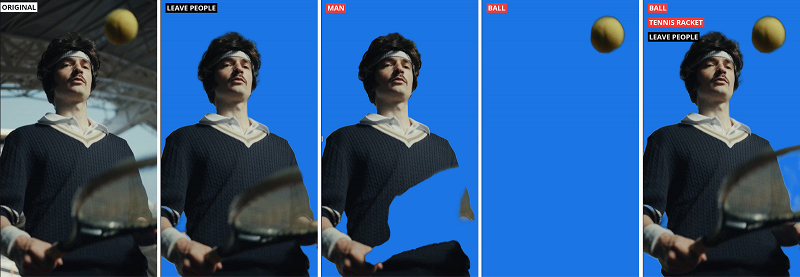
In the tennis clip, Leave people kept the player and much of his racket, but the ball was missing from the frame shown here. In Specific mode, "man" left a gap where the racket crossed in front of the player's sweater, while "ball" isolated the ball on its own. For the final version, I used the Leave people result as the base and added separate cutouts for "ball" and "tennis racket".
Where does one object end and another begin?
In my flower test, "flower" kept just the red bloom. When I tried "branch with leaves and a flower bud" on the same clip, Specific kept the branch, leaves, and bloom together.

Naming everything you want to keep can help, but the result depends on what the model treats as a single subject. Apparently, while trying to keep the leaves when removing a video background can land you in the middle of a real philosophical debate: what is a whole?
These experiments won't predict every result in your own footage. But hopefully they'll help you decide what to try first: choose a recognizable subject, describe it clearly, and check the entire processed clip. With AI, a little trial and error is always part of the editing process — even when the button looks like pure magic.
Ways to use a video with removed background
Sometimes you just want to hide a distracting backdrop. Other times, removing it opens up entirely new ways to tell a story. I put together the following examples in Clideo Video Editor, combining background removal with footage, generated media, and text.
Gaming videos and screen tutorials
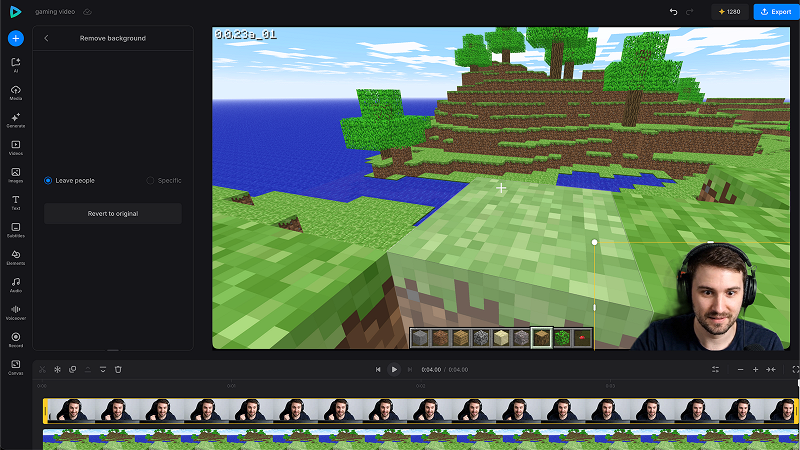
A webcam rectangle can cover the exact part of a game or tutorial you want viewers to see. Instead, isolate the person speaking and place them directly over the recording. For presentations, background removal can also help you create a virtual studio, placing the speaker directly over slides or other visuals. You can record your screen and camera together in Clideo, then adjust their size and placement in your project.
Product demos
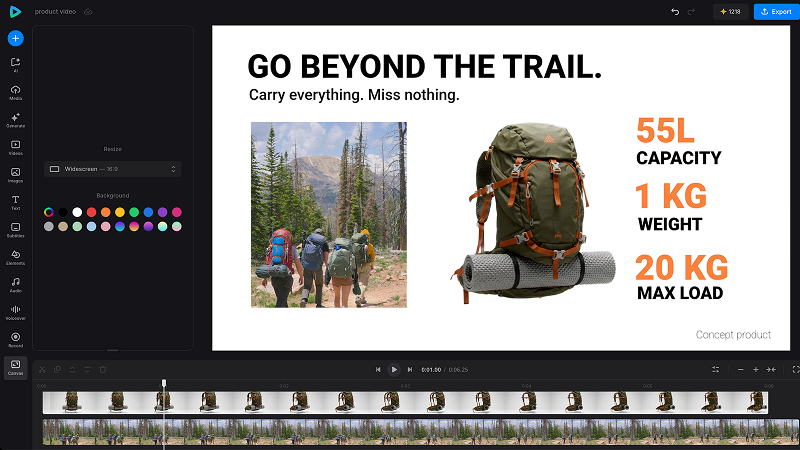
You don't need a studio shoot to put a product in context. I combined footage of hikers with an AI-generated video made from an image of a trekking backpack, removed the background from the backpack video, and added a headline and product-style specifications. You can also start with a product photo and use an AI video generator to bring it to life before editing. For a cleaner cutout, try a simple background that contrasts with your product.
Social media videos
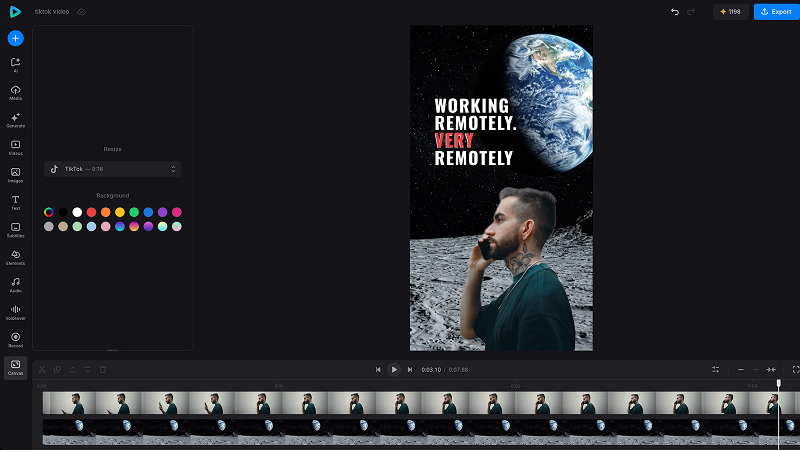
Tired of filming in front of the same old couch? Move yourself to a beach, a forest, or even the Moon. I overlaid a clip of a man talking onto an AI-generated lunar landscape video for a social media post.
Memes and creative mashups
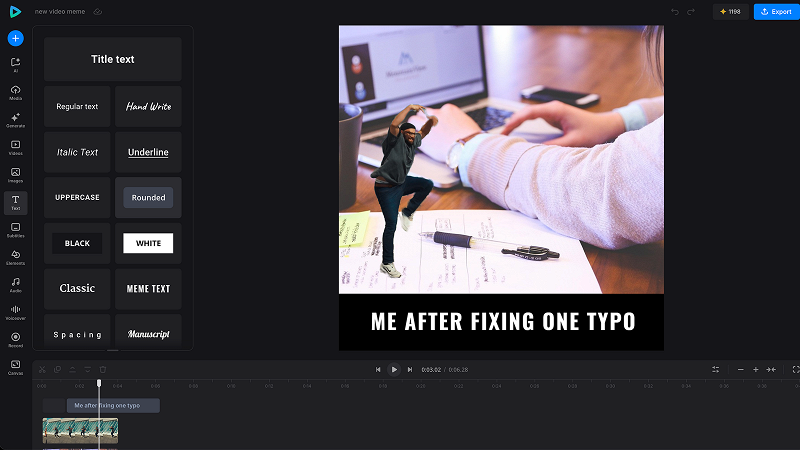
Break the perspective: remove the background around a dancer, shrink the clip, and put them on an ordinary office desk. My miniature dancer is celebrating a truly heroic achievement: fixing one typo. You could also remix a familiar meme or make a video mashup from unrelated clips, as long as you have the right to use the source footage.
Clone yourself
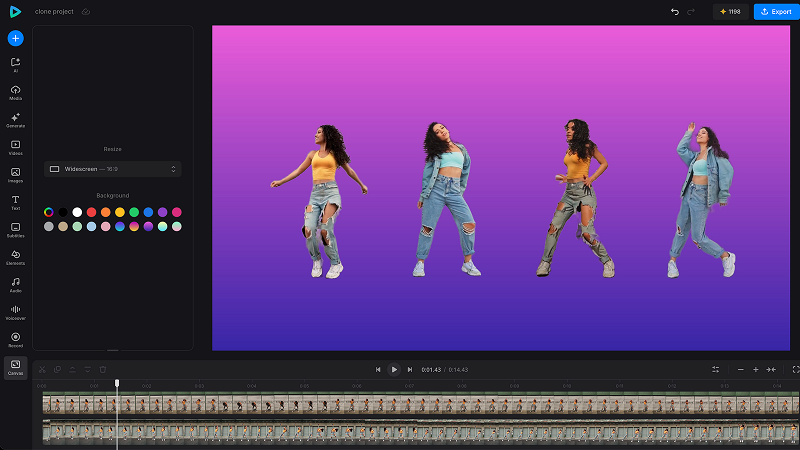
Who says you need a whole cast? With multiple clips of the same person, you can remove each background and arrange the results together as separate layers. Duplicate a source clip or use different moments of the same shoot, and align their timing in the timeline. I turned footage of one dancer into a four-person dance crew, complete with a bright gradient stage. The trick is to keep the timing and placement of each copy under control.
A little inspiration from the pre-AI era
Long before AI background removal, Polish filmmaker Zbigniew Rybczyński created Tango (1980), an Oscar-winning short in which dozens of characters perform different actions in the same room. Every movement had to be meticulously planned and combined using traditional film techniques: actual film, thousands of hand-painted masks, and an optical printer. Not a single AI button in sight.
Viewer discretion advised: A few moments are not entirely family-friendly.
It's a striking reminder of how much imagination and painstaking manual work compositing once required. Today, separating subjects and arranging them in one scene is far more accessible. Dare to recreate something like this with Clideo?