How to Create a Song with AI Step by Step
A music idea can begin with a melody, a rhythm, a line of lyrics, or a sentence typed into an AI music generator. You describe the genre, mood, instruments, tempo, vocals, or purpose of the track, and the selected model turns that direction into AI music for your project.


Maybe you're making a travel video, preparing a podcast intro, or looking for background music that leaves room for your narration. Whether you're a content creator, marketer, educator, or simply curious about making music, you can try a musical idea without playing an instrument or recording every part yourself. In this step-by-step guide, we'll explore how to create a song with AI in Clideo, from choosing a model and describing the sound to adding lyrics where supported, reviewing the track, and downloading it or editing it with your video. We'll use a weekend-trip song as our example, with instrumental music as an alternative way to support the same story.
What is AI music generation
AI music generation means creating new audio from a written description. You describe the sound you have in mind, such as the mood, instruments, rhythm, or vocals, and the model uses patterns learned during training to create its interpretation. Depending on the model, the result can be an instrumental track, a song with AI lyrics or your own lyrics, or a sound effect. You can describe your idea in everyday language without writing musical notation.
Depending on the selected model, capabilities vary. One AI song generator may focus on complete songs, while another AI music generator is better for instrumental music or sound design. Always check the controls displayed for the model you choose.
And where can you generate music? Familiar AI chats such as Gemini include music generation, while advanced AI music generator services such as Suno focus on creating studio-quality music. Online editors like Clideo bring different audio models and timeline editing into one workspace, so you can try a musical idea, download the generated track, or use it in your video without switching between tools.
When is an AI-generated song useful
AI music can support many kinds of creative projects. You might need a calm background track for a tutorial, an energetic beat for a social video, a short musical idea for a presentation, or an AI-generated song with a particular mood and vocal direction.
AI music tools are especially useful when you want to:
- create music that follows the pace or mood of a video;
- explore genres outside your usual experience;
- make an instrumental bed for narration;
- turn lyrics or a theme into a song draft;
- avoid spending hours searching for a close-enough royalty-free track.
The AI-generated music can then be used alongside video, images, subtitles, recorded audio, and other media in the Clideo editor. This keeps music creation connected to the video that needs the track.
Decide what kind of music you need
Before you generate AI music, decide what role it will play in your creative project. A custom song for an opening sequence needs a different brief from a quiet instrumental under speech. These decisions give the music creation process a clearer direction.
Instrumental or vocals
Choose instrumental music when the track should support dialogue, narration, or visuals without competing for attention. Describe the main instruments, rhythm, mood, and production style.
Choose a vocal song when lyrics and voice are central to the idea. Select an AI song generator that supports vocals, then describe the theme, language, vocal character, genre, and arrangement. If the model accepts custom lyrics, provide text with a structure that is easy to interpret.
Genre and mood
Genre provides a broad musical framework; mood explains the emotional effect. "Electronic" and "calm" communicate different information, so combining them is more helpful: "calm downtempo electronic music with soft synth pads and a gentle pulse".
You can explore multiple genres, including pop, rock, jazz, classical, hip hop, ambient, orchestral, lo-fi, or cinematic music. Pair the genre with a mood such as warm, mysterious, playful, energetic, tense, or reflective. For a vocal song, describe the vocal style as well: soft and intimate or bright and expressive.
Tempo and instrumentation
Describe whether the music should feel slow, mid-tempo, or fast. You can include a BPM value as a musical direction, but check the generated rhythm rather than treating the number as a guaranteed measurement. Name the instruments that define the sound: piano, acoustic guitar, strings, drums, bass, brass, or synthesizers.
You can also explain their role. "Soft piano carrying the melody over quiet strings" is more useful than simply listing piano and strings and hoping they settle the arrangement on their own.
Duration and intended use
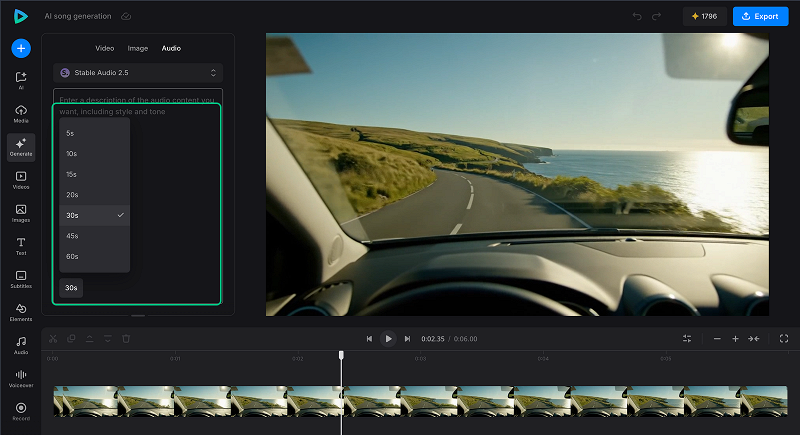
Some models provide a duration setting, while others determine length differently. Use a visible duration control when one is available; writing "exactly 30 seconds" in the prompt does not guarantee a track of that length. State what the track is for: background music under a voiceover, a short intro, a product video, a dramatic reveal, or a complete song. Intended use helps define intensity and structure.
Choose the right AI music generator
Not every model can generate any type of music. Always check the current version and input options in the model selector and look for information about the specific model you plan to use.
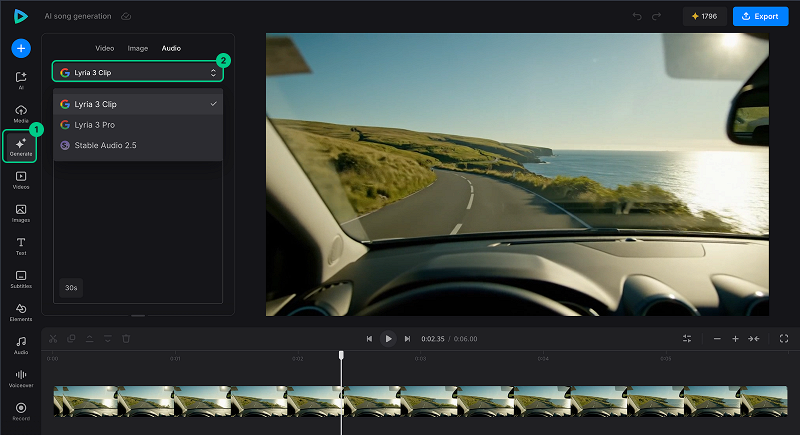
In Clideo, you can choose from several AI audio model families. For example, Google Lyria Clip creates instrumental clips only at a set duration; Google Lyria Pro can generate both instrumental compositions and AI songs, with either supplied lyrics or AI-written lyrics. Stable Audio AI music maker can create instrumental music and simple environmental sound effects. These examples are a helpful starting point, but not a guarantee for every prompt, since models evolve.
Different AI music tools handle different parts of song creation. An AI lyrics generator helps write the words; an AI song generator turns a musical brief into audio and may generate complete songs with vocals. An AI vocal remover or AI stem splitter works on an existing recording, separating parts rather than composing your own music. Check which task you need before choosing a tool.
Our overview of AI music generators for videos explores other options. If the words are your starting point, see how AI lyrics generators can help. The AI music generation process in this guide creates a new track from your prompt.
How to create a song with AI in Clideo
Clideo lets you try different audio models and continue editing your project in the same workspace. Generate a song or instrumental track, download the source audio, or combine it with video, images, and narration. For video creators, that keeps AI song generation connected to the finished project. The workflow below uses a weekend-trip song, with an instrumental alternative for projects where speech needs the spotlight.
-
Start a project
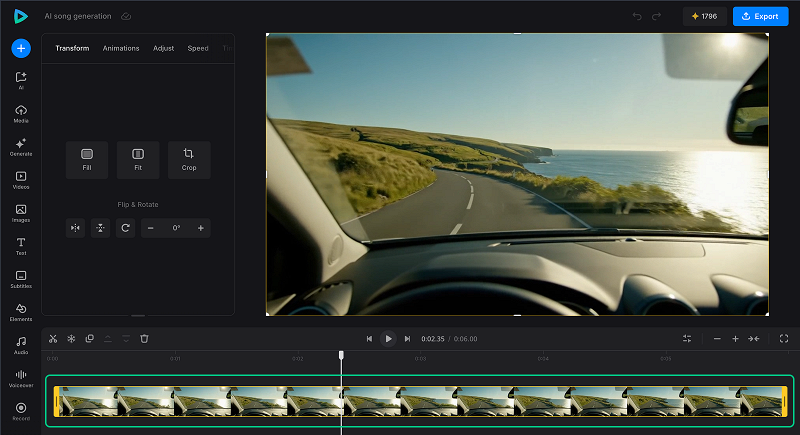
Open Clideo Video Editor in your browser and start a video project. Think about the visuals, dialogue, or narration the AI-generated music needs to support. If you already have video clips, note their length and pacing before generating the soundtrack.
For our example, we'll make a short song for a weekend-trip video: an upbeat opening, a simple chorus, and a light arrangement. You can create the music first, but a rough idea of timing helps you choose a suitable duration and energy level.
-
Open the AI music generator
In the sidebar, click Generate and select the Audio tab. The Model option is set to Auto by default, so Clideo chooses a suitable model based on your prompt and the task you describe. If you want to try a specific model, open the drop-down list and select it manually. Consider the type of output you need, such as instrumental music, vocals, custom lyrics, or sound effects. Different AI music models can generate tracks with noticeably different structure and sound.
Each model can offer different settings and consume a different number of credits. Check the available controls and estimated use before generation.
-
Review the available settings
Set the options shown for your selected model. These may include duration or other generation controls. Not every model supports the same settings. You can request musical details in the prompt, but a prompt cannot add a capability the selected model does not support.
For a model that supports lyrics, decide whether AI should write the words or you will supply them. Include that direction in the Prompt box in the next step. Use only lyrics and other source material you have the right to use.
-
Write the music prompt
A useful music prompt can follow this structure:
Genre + mood + tempo + instrumentation + vocals + intended use.
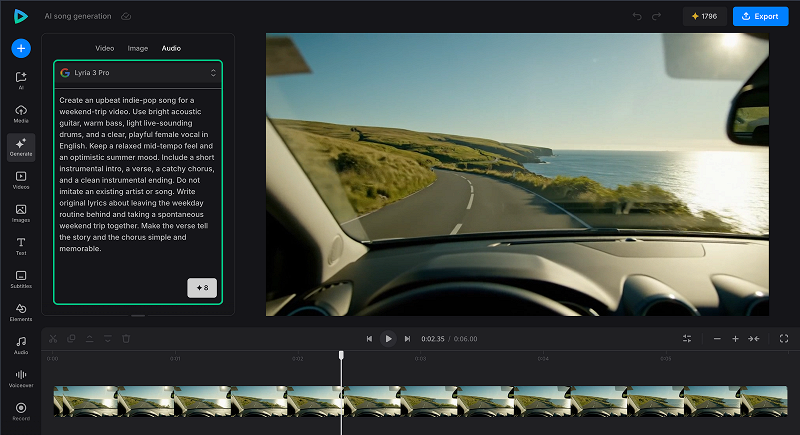
In Clideo, the musical description and any lyrics, if required, go together in the same Prompt box. For our weekend-trip song, choose a model that supports vocals and lyrics, such as Google Lyria Pro, then try one of the following approaches.
AI-written lyrics: Describe the sound and tell the model what the song should be about. Here, we ask it to write the words as well as generate the music.
Example prompt:
Create an upbeat indie-pop song for a weekend-trip video. Use bright acoustic guitar, warm bass, light live-sounding drums, and a clear, playful female vocal in English. Keep a relaxed mid-tempo feel and an optimistic summer mood. Include a short instrumental intro, a verse, a catchy chorus, and a clean instrumental ending. Do not imitate an existing artist or song. Write original lyrics about leaving the weekday routine behind and taking a spontaneous weekend trip together. Make the verse tell the story and the chorus simple and memorable.
Your own lyrics: Keep the same musical description, but replace the request to write lyrics with your own words. For Lyria Pro, write Lyrics: before the lines you want sung. Keep each lyric line on its own line and separate stanzas with a blank line.
Example prompt:
Create an upbeat indie-pop song for a weekend-trip video. Use bright acoustic guitar, warm bass, light live-sounding drums, and a clear, playful female vocal in English. Keep a relaxed mid-tempo feel and an optimistic summer mood. Include a short instrumental intro, a verse, a catchy chorus, and a clean instrumental ending. Do not imitate an existing artist or song.
Use only the supplied lyrics for the vocal. Do not add or change the words, and do not sing these instructions.
Lyrics:
We left our plans beside the door
And took a road we'd missed before
The morning opened blue and wide
With nowhere else we had to hideTwo days away, just you and me
A little road, a little sea
Leave Monday waiting at the door
We've got a whole sky to explore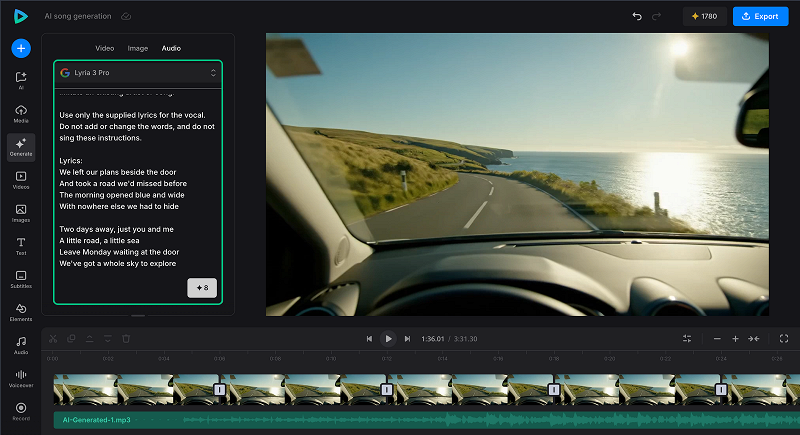
These prompts use the same musical direction, but each generation creates a new track; they will not necessarily share a melody or arrangement. Listen for missing, added, repeated, or mispronounced words even when you request the exact lyrics.
Instrumental music: For an instrumental alternative, describe the sound in the same box and ask for no vocals.
Example prompt:
Warm mid-tempo lo-fi instrumental with soft piano, brushed drums, and subtle vinyl texture, relaxed but focused, background music under travel narration. No vocals.
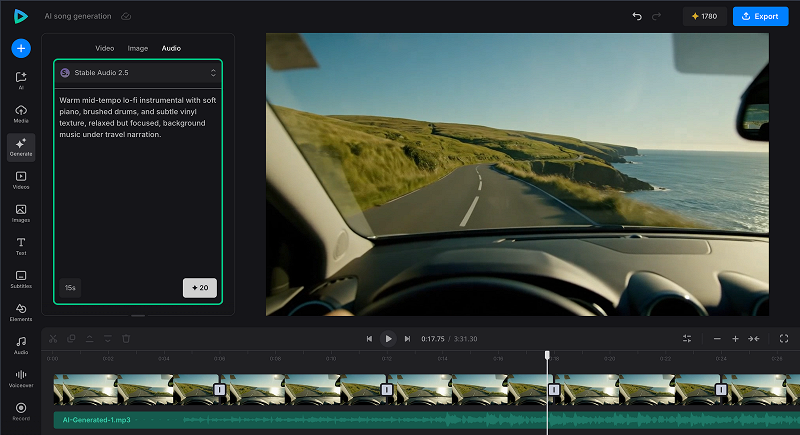
Check the credit cost shown on the Generate button, then click it to create the track. Listen to the result from beginning to end, checking the mood, instruments, vocals, and whether it suits your video.
-
Add the music to your Clideo project
Use the AI-generated music in the video project with your footage, AI-generated clips, images, text, and narration. Adjust its placement and volume so it supports rather than overwhelms the main content.
You can also upload your own audio, choose music from the royalty-free library, record your own voice, or add an AI voiceover. You can combine these sources in the same editing workflow.
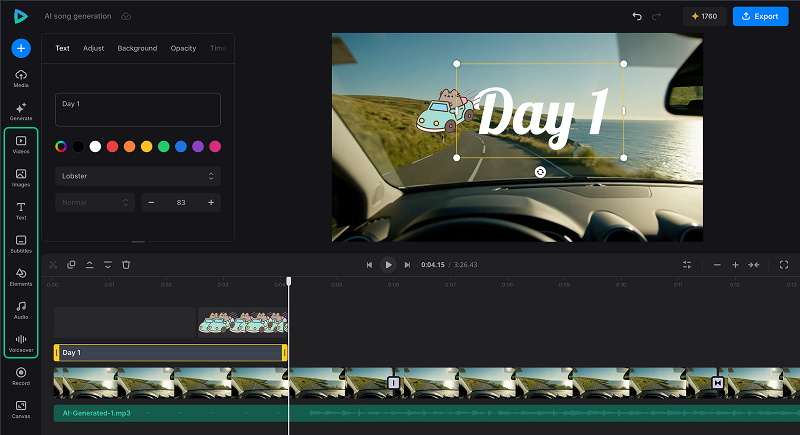
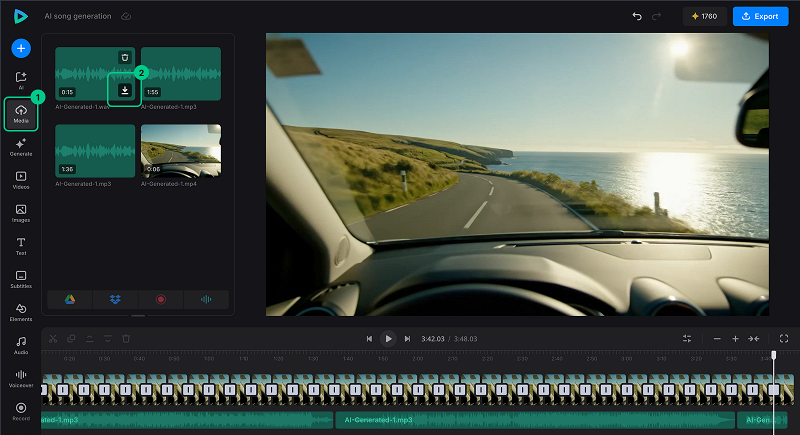
The generated audio is available in Media. If needed, click or drag its thumbnail onto the timeline. Select the audio element to trim it, adjust its volume, or add fade-in and fade-out effects. To save the source track separately, open Media, hover over its thumbnail, and click the Download icon at the bottom right.
-
Preview and export
Listen to the finished project with headphones and speakers if possible. Check transitions, the balance between music and speech, and the ending. Trim or fade the track if it stops too abruptly.
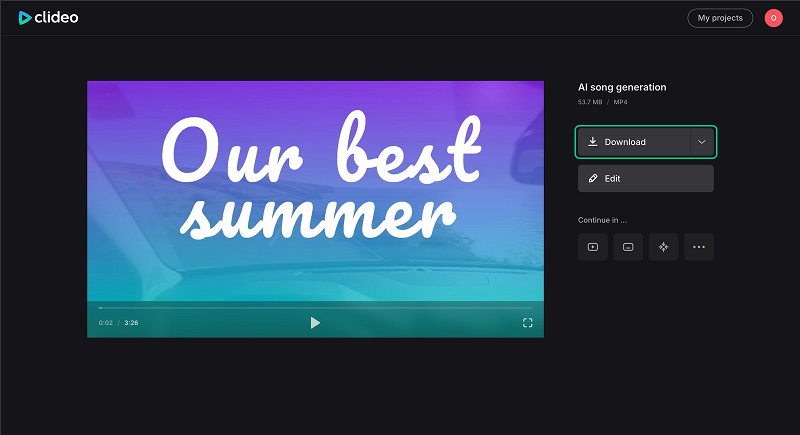
Make the final timeline adjustments and click Export at the top right. Choose an available video export setting and click Continue. On the result page, click Download to save the completed video.
For the wider creative workflow, explore our AI content creation guide.
Tips for better AI-generated music
You do not need a recording studio or a vocabulary full of musical terms to get started. A clear idea of what the track should do, a manageable prompt, and a careful listen can save more attempts than asking for "cool music". These habits help you guide the generation and catch the problems that matter in the finished video.
Give the track a clear job
Say whether the music should lead the scene or sit underneath speech. "Background music under calm narration" suggests a different arrangement from "energetic opening theme". For a tutorial or explainer, begin with an instrumental and check it against the actual voice track.
Describe the sound, not just the genre
Genre gives a starting point; instruments, mood, tempo, and production details narrow it down. "Slow cinematic music with low strings, distant percussion, and a gradual build" says more than "cinematic".
Keep lyrics and musical direction distinct
Keep the musical description and the lyrics clearly separated within the same prompt. Put Lyrics: before the words to be sung, use line breaks, and separate stanzas with blank lines. Listen to the entire vocal, checking pronunciation, missing lines, extra words, and repetitions. A catchy chorus is less useful if it has quietly rewritten your message.
Guide the structure without assuming exact timing
You can ask for a short intro, verse, chorus, gradual build, or resolved ending, but the model may interpret these loosely. Use actual duration controls when available. Check the beginning and ending, and trim the track in the editor if it takes too long to get started or continues beyond your scene.
Revise the full prompt
Change one or two relevant details while keeping the rest of the brief clear. Each attempt creates a new track, so repeating the same prompt can produce a different melody or arrangement. Save successful prompts as starting points, rather than expecting them to reproduce an identical recording.
Listen in the finished project
Listen to finished tracks in context, not just in the music generator preview. Check whether the AI-generated music hides important words, changes mood at the wrong moment, distorts, or ends abruptly. Preview on headphones and a speaker if possible. Adjust volume, placement, trimming, and fades on the timeline; those changes often solve a problem without another generation.
Check what you can publish
Use lyrics and other inputs you have the right to use, avoid misleading imitation of a person's voice, and review the relevant terms before commercial use. Generated music is not automatically exclusive, copyright-free, or cleared for every purpose.
You do not need a full set of video clips to share your song: you can combine your song with a still image or create an AI image to match its mood. Our AI video editing guide shows how generated media and your own footage can work together.