AI Video Editing With Clideo: A Step-by-Step Guide
AI video editing means using artificial intelligence to generate media or automate parts of the editing process, from creating clips, images, voiceovers, and music to adding subtitles, cleaning audio, translating speech, and making timeline edits. Sometimes it's a single automatic feature, like generating subtitles or changing a background. In other cases, AI creates the assets that become part of a bigger project.

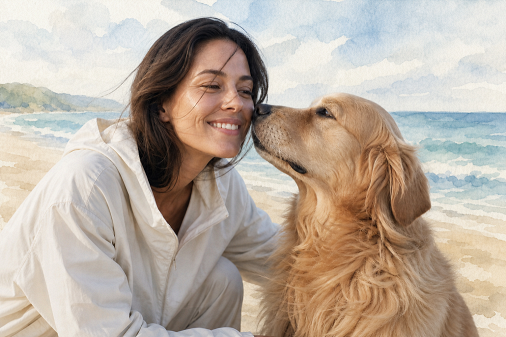
These days, artificial intelligence can help at several points in a video editing process. AI-powered tools can work as standalone AI generators or as features within a regular video editor, creating new material, animating images, reducing noise, and handling repetitive parts of the process faster while still leaving you in control of the final edit. For casual content creators, social media managers, small business owners, educators, and marketers who want easy browser-based tools, that makes video production quicker and more accessible without giving up manual control.
Clideo brings these two sides of the workflow together. You can generate media, create or edit images, add music and sound, make voiceovers, translate and subtitle videos, ask the AI Agent to make changes in plain language, and then use the familiar canvas and multi-track timeline to arrange clips, adjust timing, add text, balance audio, and finish the video yourself.
Let's see how this works in practice. We'll create a short video podcast and use Clideo's AI tools to generate media, handle repeated editing tasks, and assemble the final video in one project.
TL;DR
- Clideo combines generative AI tools with a standard online video editor, so generated assets and existing footage can be part of the same project.
- Depending on the AI model you select, you can generate videos, images, music, and sound effects from text prompts.
- Models that support reference image input can also edit a photo or turn a still image into a short video clip.
- The AI Agent can perform a number of common editing actions from plain language commands, including changes to elements on the timeline or generating new assets.
What is AI video editing?
Traditional video editing starts with raw footage. You upload video clips, arrange them on a timeline, remove unwanted parts, add text and audio, and export a finished video.
AI video editing adds generation and automation to this process. An AI video editor may help create missing visuals, turn speech into subtitles, generate a voiceover, clean recorded audio, generate rough cuts by analyzing audio waveforms and speech patterns, generate captions, remove filler words automatically, or perform ai edits from a described timeline change. AI editors vary in what they can do. Some focus only on text-to-video generation. Others work with existing footage or automate selected editing tasks. Content creators can use these tools to create videos from scratch, add visual variety to talking-head videos, or produce supporting scenes for video podcasts, educational clips, and training videos as part of broader creative work.
In Clideo, AI features sit alongside standard video editing tools. You can create source material and handle repetitive tasks while keeping manual control over the sequence, pacing, aspect ratio, transitions, animations, text, and sound
AI video editing tools in Clideo
Clideo includes the following AI tools for generating media, editing existing assets, and working with a project on the timeline:
AI Agent
The AI Agent is a chat-based assistant available in the desktop web version of Clideo Video Editor, that performs editing actions from chat prompts. You can describe the result you want in the chat, and the agent will use the relevant controls to perform the required action.
The agent can help edit videos with actions such as trimming a clip, changing its speed to create slow motion, rearranging elements, adding text, changing visual settings, or generating media. It is possible to quickly make AI edits to timeline elements using plain-language requests. It may perform the action immediately or ask for more details.
AI video generation
AI video generation creates a new short clip from a text prompt. This is one way to generate AI videos when a project needs a scene you could not film. Depending on the model, you can also specify the aspect ratio, duration, resolution, or quality. Because model capabilities vary, check the controls shown for the selected model. Each model may support different inputs and output settings.
AI image generation and photo editing
The image generator can create podcast covers, title backgrounds, illustrations, and other supporting visuals from text prompts.
Some image models also accept a reference image. This allows you to upload an existing photo and describe a change, such as replacing the background, changing the lighting, or restyling the scene. This type of photo editing generates a new version based on the reference. It differs from selecting individual pixels, masking a single object, or applying a traditional filter. Important details can change, so every result should be compared with the source image.
Image animation
Image-to-video models can use a still image as the starting point or visual reference for a generated video clip. You can describe how the subject, background, or camera should move.
When animating images, use clear and simple prompts that specify natural, subtle movements and the desired style or mood to get the result you need. For example, a good prompt might be: "The dog gently wags its tail, leaves move slightly in the breeze, slow handheld camera movement, realistic motion".
AI music generation
The audio generator can create music and sound effects from a text prompt. Some models produce instrumental clips; others may support vocals or lyrics.
For a video podcast, a short intro song or musical sting is usually easier to use than a full-length track. It can set the tone and then fade before the narration starts. Check the options for the selected audio model before requesting vocals, lyrics, or a specific duration.
Other AI features
Clideo's Video Editor also has additional AI-powered tools that work with uploaded existing footage:
- Voiceover: You can convert written text into an AI voiceover with text-to-speech.
- Subtitles and translation: You can generate subtitles from speech, correct the transcript, and add translated language versions in the project.
- Noise reduction: You can reduce background noise to make recorded speech clearer and produce clean audio.
These tools cover the main stages of production. Let's use them in one complete project.
How to create an AI video podcast with Clideo
Our example project is a short video podcast about dog ownership, movement, social interaction, and healthy aging.
The finished episode can combine narration, AI-generated clips, an original cover, existing photos and videos, a short song, text, and standard timeline editing.
Before we start, here is some quick guidance for using AI while video editing. We communicate with generative AI tools through text prompts, so include clear and specific details. AI results may vary even with the same prompt and model. If the first result isn't right, refine the prompt or try another model, and include a human touch before, during, and after the AI editing process.
-
Plan the episode and write the script
Plan the story first. A clear structure makes it easier to decide which visuals you actually need and write more focused generation prompts.
Here is the plan for our short episode.
Opening hook.
We spend hours sitting at desks, in cars, and on sofas. Fitness apps send reminders, smartwatches buzz, yet the most effective personal trainer might just be a dog waiting by the door with a leash.
Dogs make movement difficult to avoid.
A dog doesn't care if it's raining or if you've already changed into pajamas. Walks become part of the day rather than another activity that requires fresh motivation. That doesn't mean every dog owner is automatically active. Walks vary in length and intensity, and some people can't walk their dogs regularly. Still, having a dog can provide a recurring reason to leave the house and move.
A walk can also be a social activity.
Dogs create small interactions. People ask the dog's name, neighbors recognize one another, and the same faces start to appear along a familiar route. These conversations may be brief, but repeated social contact can matter, especially for older adults or people who spend most of the day alone.
What the research found.
A Japanese study followed 11,194 older adults for approximately four years. Current dog owners had an odds ratio of 0.60 for developing disabling dementia compared with people who had never owned a dog or had owned one in the past. The association was stronger among current dog owners who exercised regularly and those who were not socially isolated.
Practical conclusion.
Having a dog brings real responsibilities, including care, time, money, and attention. For someone who already wants and can responsibly care for a pet, regular walks and social contact may be welcome side effects.
Closing line.
Perhaps the best fitness tracker is not worn on your wrist. It waits by the door, carries its own leash, and looks personally offended when you suggest skipping a walk.
This script gives us several visual themes: sedentary life, daily walks, social interaction, research stats, and a humorous ending. This planning step helps match the video to its target audience and strengthens visual storytelling before you start generating assets.
-
Start the video project
Open Clideo Video Editor and create a project.
If you've already recorded the narration, upload it first and add it to the timeline. For this project, I used the built-in recorder to record each part of the video podcast narration directly in Clideo.
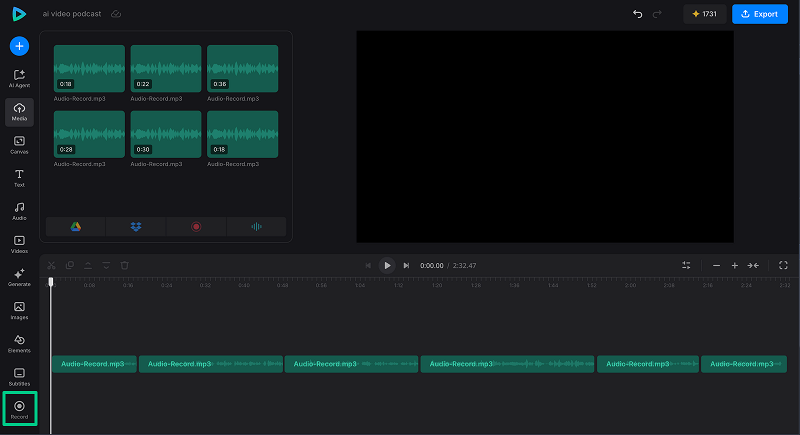
Recording each section as a separate audio clip gives you a clear visual guide to where the topic changes. Once the narration is on the timeline, it is easier to start editing around the story and place the corresponding visuals.
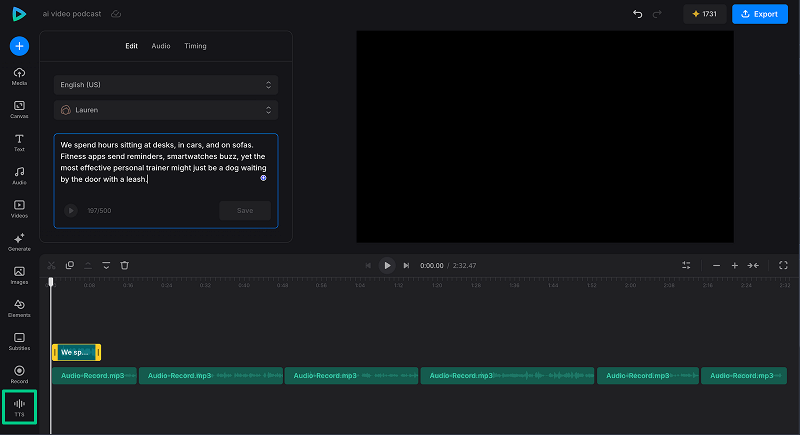
You can also use text-to-speech to create AI narration in any language you need.
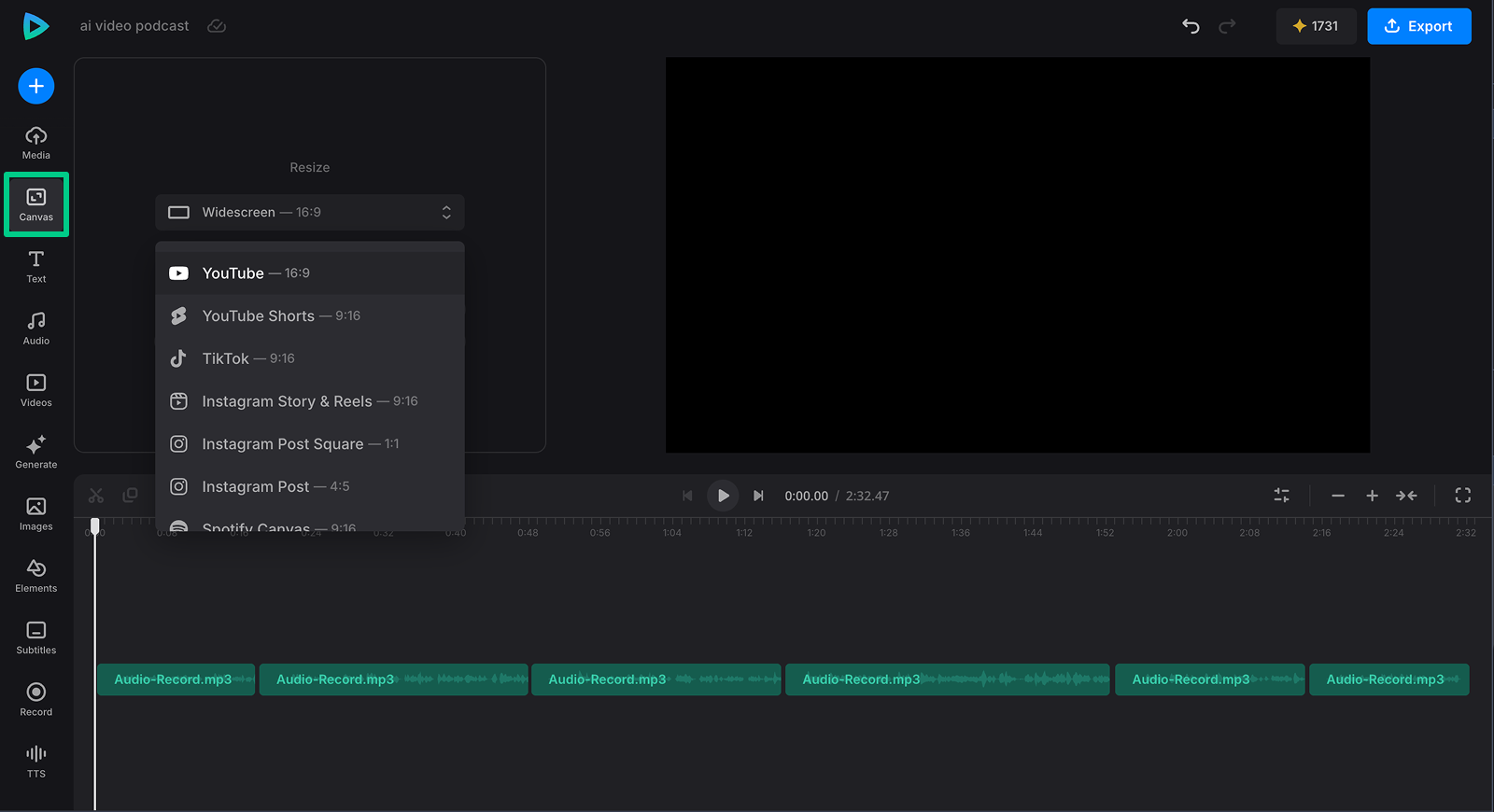
It's also helpful to set the final aspect ratio before adding visuals or generating media, so you can see how the new images and video clips fit the intended frame. In the Canvas tab, select 16:9 for YouTube or 9:16 for TikTok, Instagram Reels, or Stories.
-
Generate the opening video clip
Open Generate, choose Video, and select one of the available AI models. Review the input and output settings supported by that model.
For the first opening shot, use this prompt, for example:
A tired office worker sits motionless at a desk in a small home office, staring at a laptop after a long day, slouched posture, quiet morning light, subtle gentle comedy, realistic cinematic style, slow camera push in.
For the second shot, use another prompt, for example:
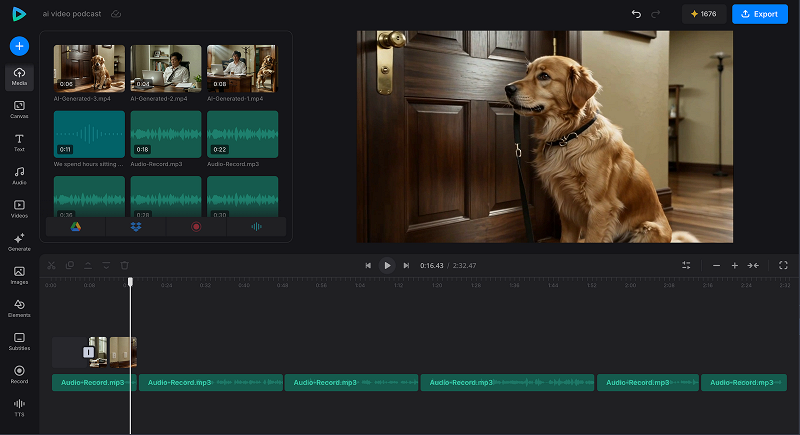
An energetic golden retriever sits beside a closed front door with a leash held gently in its mouth, looking expectantly at the door and waiting to go outside, soft morning light, subtle gentle comedy, realistic cinematic style, slow camera push in.
Match the generated clips' aspect ratio to the project. Then select a duration that fits the narration and choose the available quality. Check the estimated credit usage shown on the button and generate the videos one by one.
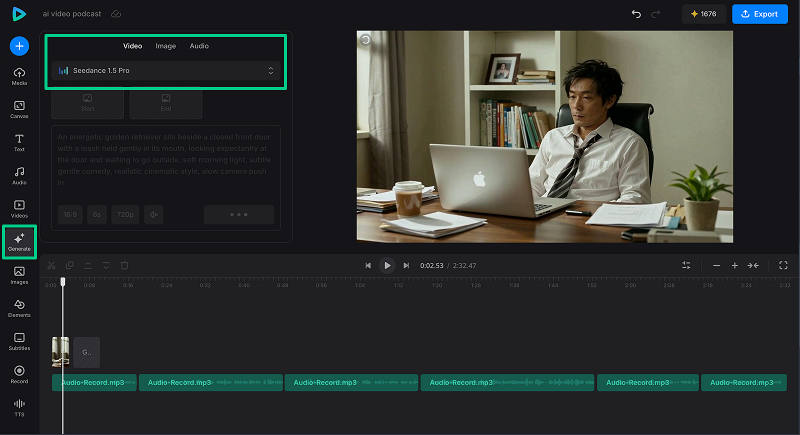
Once the clips are in the project, arrange them on the timeline so the dog and leash appear just before the opening question in the narration.
-
Generate the podcast cover
In the Generate tab, open the Image section to create a title card that can also serve as a thumbnail or background.
For image generation try this prompt, for example:
A humorous editorial illustration for a science video podcast: a clever-looking dog wearing round glasses beside a human fitness tracker, clean composition, warm yellow and blue color palette, empty space for a title.
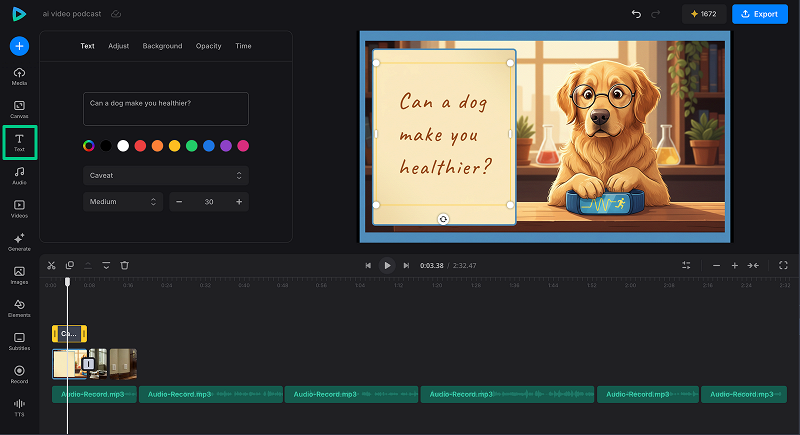
Leave the episode title out of the image prompt. AI-generated lettering can be inconsistent, and adding the text in the video editor keeps it editable.
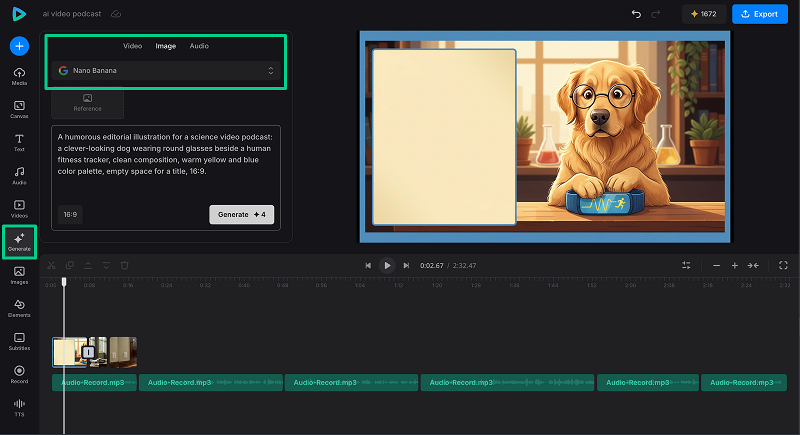
Use the Text tab to insert the title above the generated image at the beginning of the project. You can also include text blocks with any research statistics or additional comments that might be helpful.
-
Edit an existing photo with AI
Suppose you have a photo of a dog sitting indoors, but you want an outdoor visual for the section about walking.
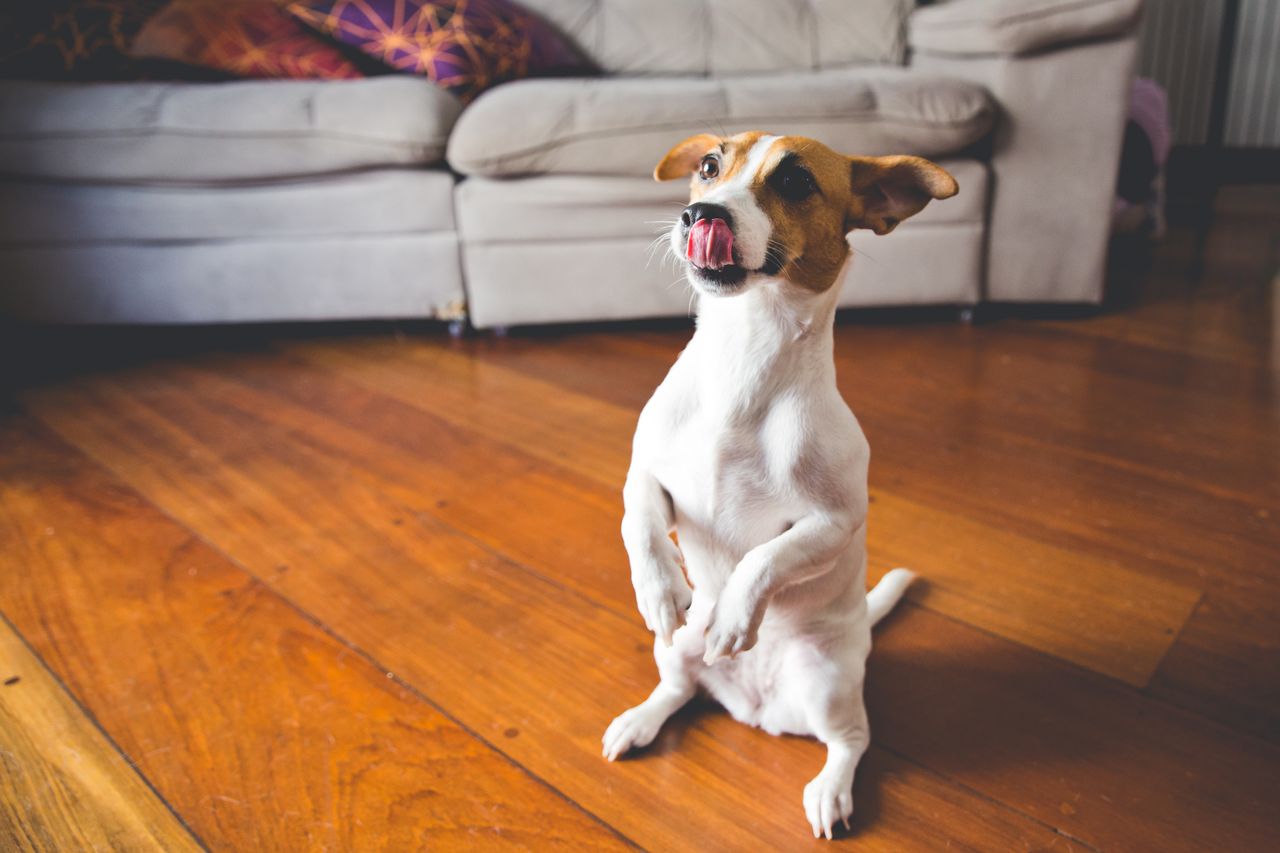
Choose an image model that accepts a reference image, upload the photo, and enter the prompt, for example:
Keep the same dog, pose, and camera angle. Replace the indoor background with a quiet green city park on a clear morning. Use soft natural light and realistic photography. Do not add people, text, a collar, or other animals.
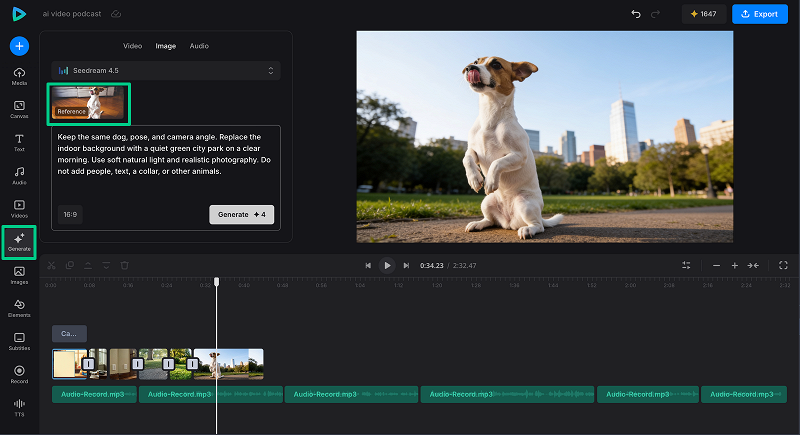
Reference-based image editing may reinterpret details you did not ask to change. Compare the output with the original and inspect the dog's face, markings, paws, and proportions before adding it to the timeline. You can try another model to see a different interpretation or test another background that fits the story.
Read an article about AI image editing for more details on how to change images with AI.
-
Animate an existing photo
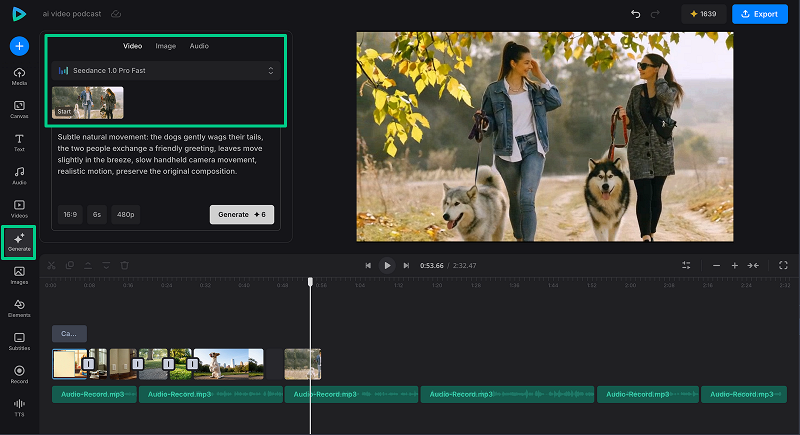
For the part about social interaction, you can use a photograph of two dogs and their owners meeting during a walk, that can be animated.
Select a video model that accepts an image input. Add the photograph as a start image or reference, depending on the fields offered by the model, and describe the intended movement, for example:
Subtle natural movement: the dogs gently wag their tails, the two people exchange a friendly greeting, leaves move slightly in the breeze, slow handheld camera movement, realistic motion, preserve the original composition.
Keep the requested movement simple. Too many simultaneous actions can make the generated clip less stable or cause it to drift away from the reference image.
Place the new video clip next to the section of the narration about everyday social contact.
-
Generate a short intro song
Open Audio and select a music model. If the selected model supports vocals or lyrics, such as Google Lyria 3 Pro, you can generate a short song. Otherwise, create an instrumental intro.
For a version with vocals, try this prompt, for example:
A playful 12-second podcast intro song about a dog taking its human for a walk, light indie pop, acoustic guitar, hand claps, cheerful rhythm, one short humorous vocal line, clean ending.
For an instrumental version, use this prompt, for example:
A playful 12-second science-comedy podcast intro, light indie pop, acoustic guitar, hand claps, curious and cheerful mood, no vocals, clean ending.
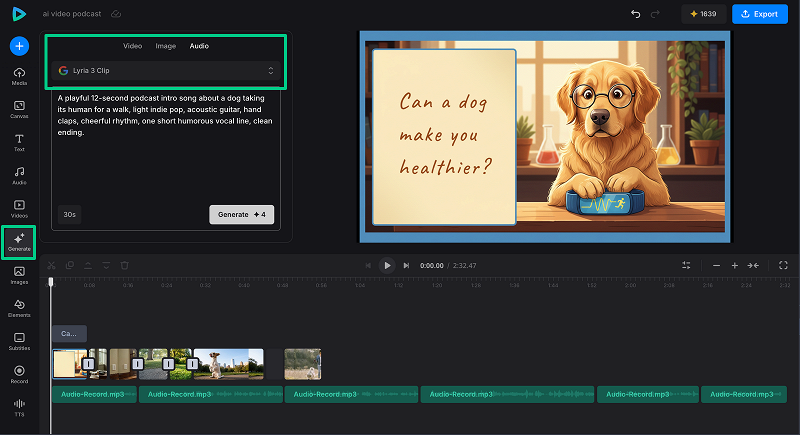
Generate the track, place it at the beginning of the timeline, adjust its volume, and fade it out before the main narration begins.
-
Edit with AI assistance
Each section of our podcast has a separate audio clip. We want a matching title to appear for the first five seconds of every section, centered on the canvas in a large white font.
This would normally mean creating several similar text elements, positioning them on the timeline, and adjusting their duration one by one. We will use the AI Agent to handle this repeated work.
The AI Agent works better with specific details, so we describe the required layout as precisely as we can, for example:
Add the titles for each audio clip, starting with the second one. Place all the titles on the same text track as the first title, not on individual tracks. Position each title above its corresponding audio clip with the correct 5-second duration. Center the text on the canvas and style every title with the same large white font.
Use these titles in timeline order:
-
Why We Need to Move
-
Dogs Keep Us Moving
-
Walks Bring Us Together
-
What the Research Says
-
A Dog Is a Commitment
-
The Best Fitness Tracker?
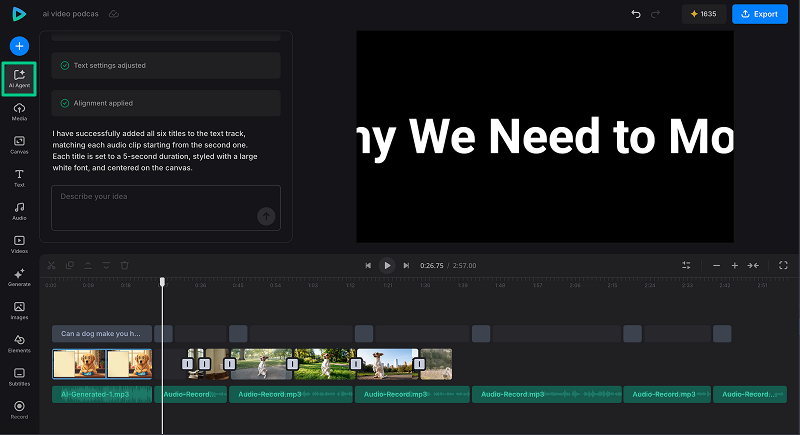
The AI Agent added the required titles to one track and aligned them with the corresponding audio clips. However, some of the longer titles extended beyond the canvas. We can continue the same conversation with a shorter follow-up request:
Resize all six titles so that each title fits completely inside the canvas with safe margins. Use the largest white font size that fits. If needed, split a title into no more than two centered lines. Keep the existing text, track, position, start time, and 5-second duration of every title unchanged.
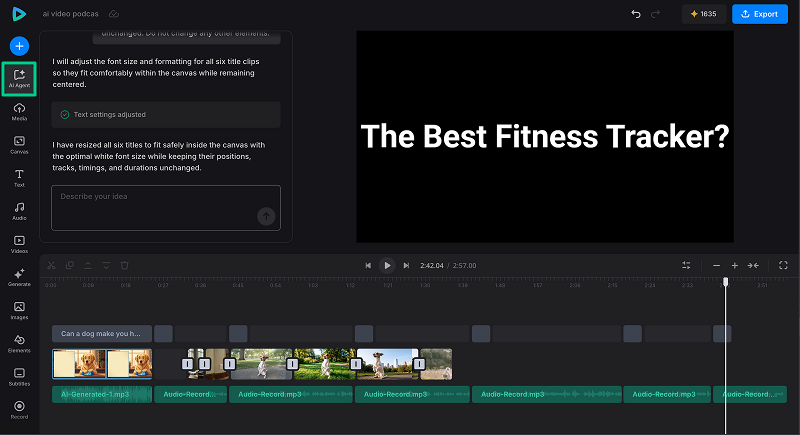
After the second adjustment, the titles kept the same timing and style but fit inside the frame. The process is iterative: make one clear request, preview the result, and tell the AI Agent exactly what still needs to change. The timeline will change accordingly while you refine the full edit through conversation.
-
-
Combine with other assets
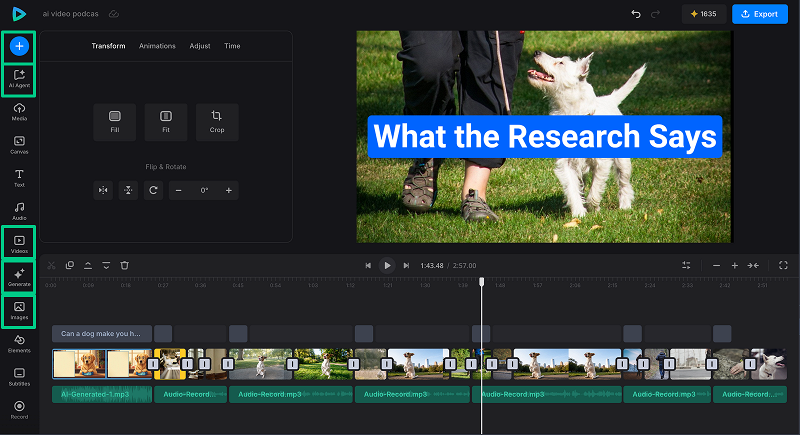
For the rest of the video assets, you can:
- upload your own media;
- browse Images or Videos to find suitable stock assets;
- use Generate to create missing media;
- ask the AI Agent to find or generate a specific image or video.
Stock clips and generated inserts can act as AI B-roll to support the narration and improve watch time when the main footage is static.
-
Add captions and translate
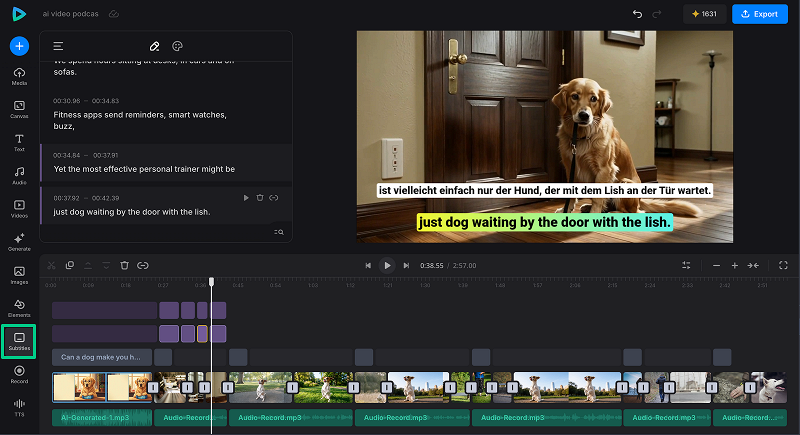
Click Subtitles to add captions for the narration, then correct the transcript and style the text for the project. Captions are especially useful for talking-head videos and video podcasts, where much of the information comes from speech. You can also translate the subtitles and create tracks in several languages.
-
Polish the video
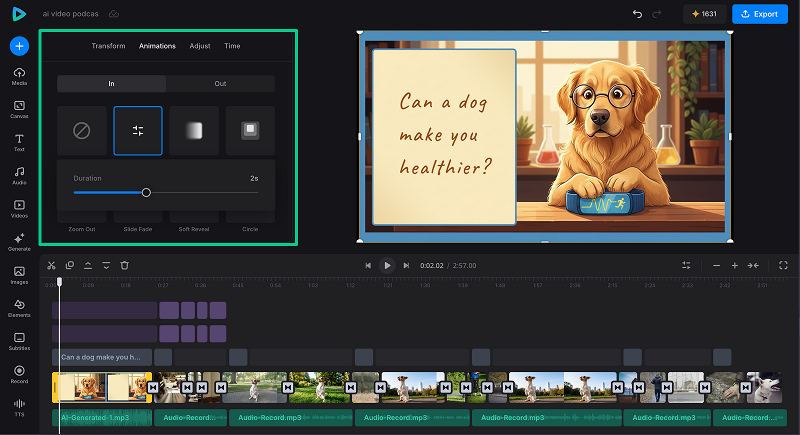
To fine-tune the video, select any element on the timeline and use the available manual editing tools. Adjust timing, crop or resize, balance audio, check colors, and add smooth transitions where they help connect sections.
-
Export the finished video
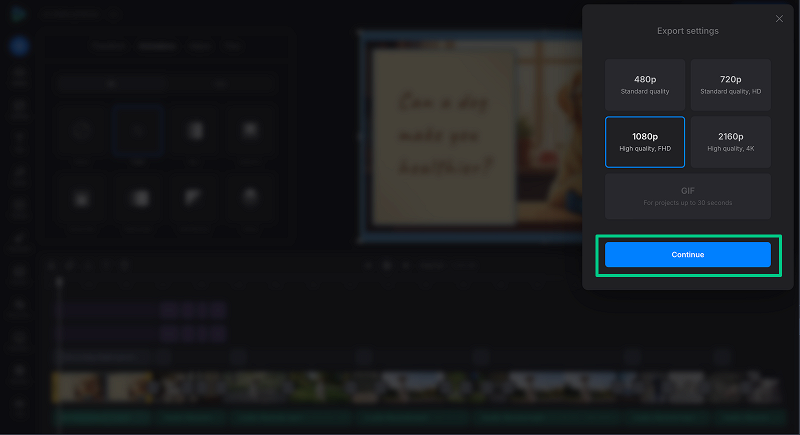
When the video is ready, click Export, choose an available output quality, and process the project.
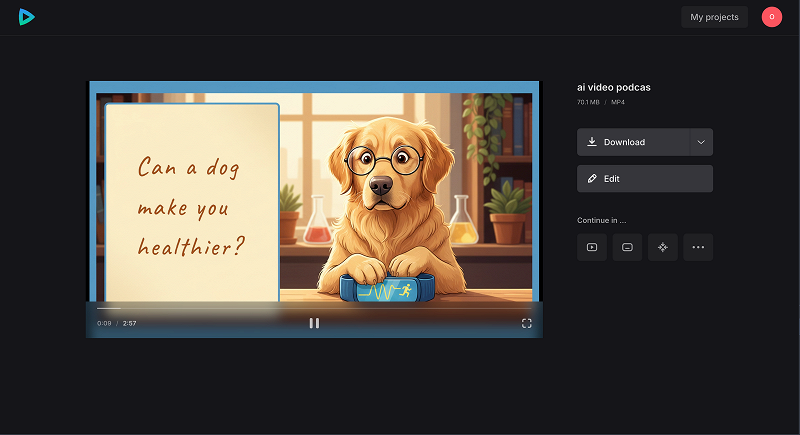
Review the final cut before downloading and publishing it. Check the subtitle timing, transitions, voice and music levels, and small visual details that may have been easy to miss during editing. Download the video if everything looks fine, or click Edit to return and make the changes you need.
How Clideo compares to other AI video editing software
AI video editing software can have very different priorities. Some tools specialize in automatic short clips from long recordings. Others focus on avatars, templates, generative effects, or professional post-production.
Clideo combines AI-powered features with a browser-based online video editor in a clear user interface. A content creator can generate an asset, add it to raw footage, and continue editing in the same project. The timeline provides manual control over the sequence, text, timing, aspect ratio, and audio.
When comparing Clideo with other major tools, such as Adobe Premiere Pro and Adobe Firefly, Canva, or CapCut, consider how easily you can complete the whole project and how much control you keep:
- Can I generate the video, image, or audio I need without leaving the editor?
- Can I combine my own videos, images, and audio with AI-generated media?
- How quickly can I find the tools I need and understand the user interface?
- Can I select each element on the timeline and adjust its timing, position, size, and other settings myself?
- Can I move from AI generation to detailed manual editing in the same project?
Clideo supports the whole workflow. You can generate videos, images, and audio inside the editor, combine them with your own files, and adjust every element on the timeline yourself. When you select an element, its settings appear in one options panel, which keeps the interface easy to navigate as the project grows. A free plan and paid options with higher limits make the same workflow available for different levels of use.